The “Random” 504 After a PHP Upgrade (and the 5-Worker Trap Behind It)
We upgraded PHP on one of our cPanel servers. Everything looked fine. The site loaded, people logged in, and invoices went through.
Then the messages started.
“Getting Gateway Timeout again.”
“It was working a minute ago.”
“Refreshing fixes it… sometimes.”
If you’ve run a production app for any length of time, you know that “sometimes” is the worst word in a bug report. Here’s how we tracked this one down, and why the fix had nothing to do with our code.
The symptom
Users of an internal invoicing app (a CodeIgniter project, nothing fancy) were randomly getting a bare 504 Gateway Timeout page from Apache. No pattern by page, no pattern by user. Some requests went through in under a second, while the next one just hung and died.

The server itself was relaxed. It had 8 cores, 32 GB of RAM and a load average close to zero, so it wasn’t overloaded.
That’s the first clue, by the way. A 504 on an idle server usually isn’t about capacity. It’s about a queue.
A small detour: SSH said no
Before I could even look, my SSH client on Windows refused to start:
Bad owner or permissions on C:\Users\<me>/.ssh/configWindows OpenSSH is strict. If any other local account can read your .ssh/config or your private keys, it refuses to use them. In my case a second user profile on the laptop had inherited access to the .ssh folder.
The fix is to strip inherited permissions and grant access only to yourself (plus SYSTEM and Administrators):
icacls "$env:USERPROFILE\.ssh\config" /inheritance:r /grant:r "${env:USERNAME}:F" "SYSTEM:F" "Administrators:F"Do the same for your private key files, or you’ll hit “UNPROTECTED PRIVATE KEY FILE” next. While you’re at it, switch to key-based login if you’re still typing passwords.
Okay, back to the real problem.
Reading the logs (the boring part that solves everything)
Two logs told the whole story.
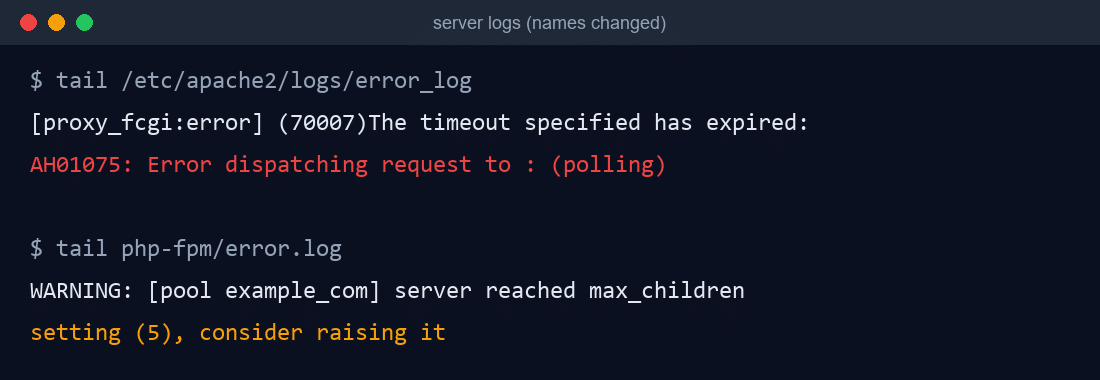
Apache’s error log was full of lines like this:
[proxy_fcgi:error] (70007)The timeout specified has expired:
AH01075: Error dispatching request to : (polling)
That means Apache handed the request to PHP-FPM and never heard back.
The PHP-FPM log for the new PHP version had this, dozens of times over two days:
WARNING: [pool example_com] server reached max_children setting (5), consider raising itFive. The entire application was being served by at most five PHP processes.
Why the upgrade caused it
This is the part worth remembering.
On cPanel each PHP version has its own PHP-FPM pool configuration. When we switched the domain to the new PHP version, it got a fresh pool with cPanel’s conservative defaults:
pm = ondemand, which starts from zero workers and spawns them as neededpm.max_children = 5pm.max_requests = 20
Those defaults are sensible for a shared host with hundreds of small sites. For a dedicated server running one busy business app, they’re a bottleneck.
It got worse because the app’s own PHP settings allowed very long execution times. So one slow report page could hold a worker for minutes. With four or five people opening heavy pages at once, every worker is busy, every new request waits in line, and Apache eventually gives up and shows a 504.
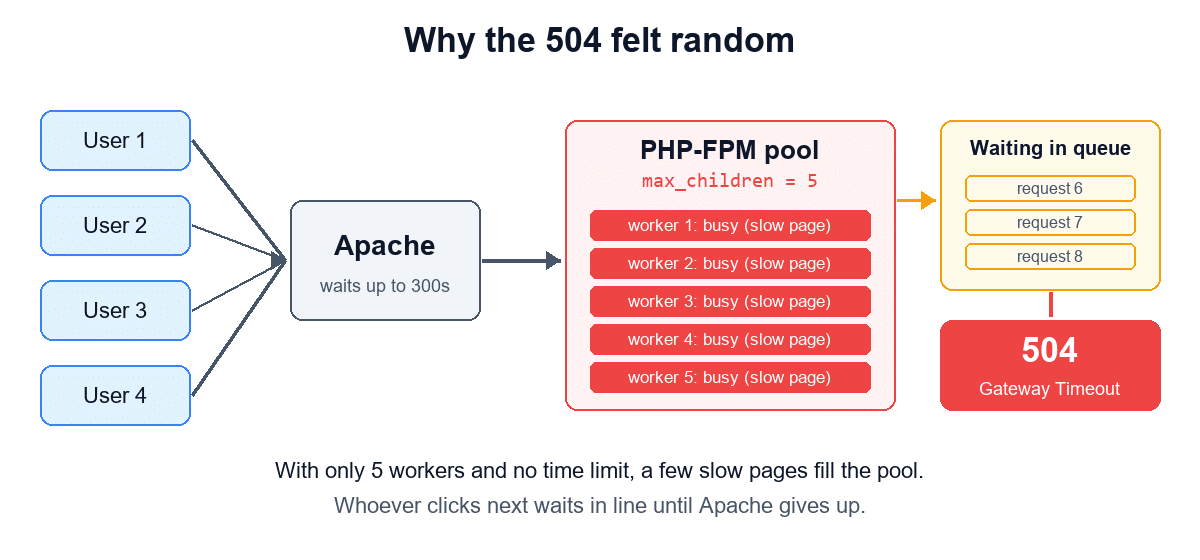
That’s why it felt random. It depended entirely on who else happened to be clicking at the same moment.
The fix
1. Give PHP-FPM room to breathe
In WHM, go to MultiPHP Manager → PHP-FPM Settings for the domain (or edit the domain’s PHP-FPM YAML and rebuild). We moved to:
| Setting | Before | After |
|---|---|---|
pm | ondemand | dynamic |
pm.max_children | 5 | 60 |
pm.start_servers / min_spare | 0 / 1 | 10 / 10 |
pm.max_spare_servers | 5 | 25 |
pm.max_requests | 20 | 1000 |
request_terminate_timeout | none | 300s |
request_slowlog_timeout | off | 10s |
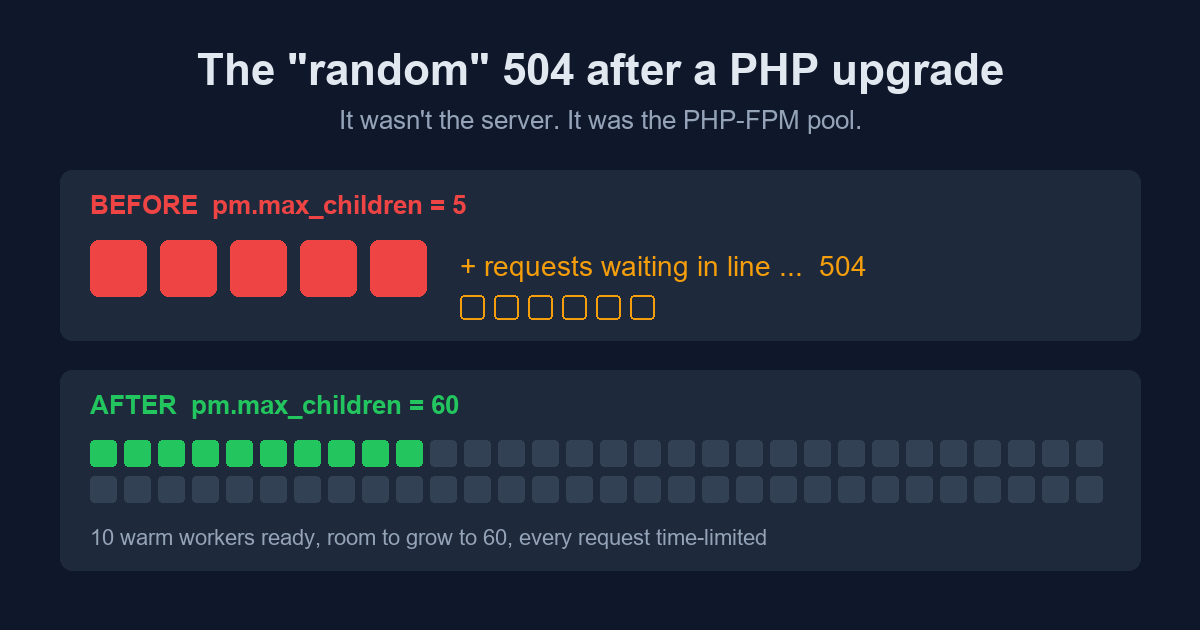
How we picked 60: each worker was using roughly 25–30 MB in practice. Even with generous headroom, 60 workers fit comfortably in RAM on a machine dedicated to this app. On a smaller box, measure first (ps -C php-fpm -o rss=) and divide your spare memory by the per-worker size.
request_terminate_timeout matters more than people think. Without it, one stuck request keeps a worker forever. Set it a little below Apache’s Timeout, so PHP-FPM cleans up before Apache gives up on the request.
The slowlog is the bonus. Any request taking longer than 10 seconds now dumps a stack trace, which tells you exactly which page and which function is slow.
2. Don’t forget the database
While we were in there, we noticed MariaDB’s InnoDB buffer pool was still at the 128 MB default, on a 32 GB server. The slow-query counter was already in the hundreds.
Our whole dataset is under 1 GB, so we bumped the buffer pool to 2 GB. Recent MariaDB versions can do this live, no restart:
SET GLOBAL innodb_buffer_pool_size = 2147483648;
SET GLOBAL slow_query_log = ON;
SET GLOBAL long_query_time = 2;
…and saved the same values in my.cnf so they survive a reboot.
3. Restart and verify
After rebuilding the PHP-FPM config and restarting the service, we saw 10 warm workers waiting, pages responding in about 50 ms, and no new max_children warnings.
And yes, we backed up every config file before touching it. Future you will thank present you.
What I’d tell my past self
- After any PHP version switch on cPanel, check the PHP-FPM pool settings. They don’t carry over. The new version starts on defaults.
- A 504 on a quiet server means a queue, not overload. Look for
max_childrenin the PHP-FPM log first. - Always set a request timeout. “Unlimited” execution time sounds friendly, but it lets one bad request block everyone else.
- Turn on slow logs (PHP and MySQL) before you need them. They turn “it’s random” into “it’s this exact query”.
- PHP 8 warnings in your app log are noise, not the cause, but they’re a to-do list for later. Undefined variables and
nullpassed to string functions will become real errors in future versions.
Once we actually read the logs, the whole fix took about twenty minutes.
Read the logs first. It’s almost always in the logs.
A note on the images in this post
Each image is here for a reason, and each one was cleaned up before it went online. Here’s what we used and why.
- The 504 error page. This is a real screenshot of what our users saw. We used it so you can recognise the exact page. If yours looks like this, especially the line about the ErrorDocument also timing out, you’re probably looking at the same problem. We cropped out the browser’s address bar and bookmarks bar because they showed the real site address and links to internal admin panels.
- The log lines. We rebuilt this image from the log text instead of taking a raw terminal screenshot. Real logs carry client IP addresses, account names and server hostnames, none of which you need. The pool name is changed to
example_com, but the error codes and messages are exactly what we saw, so you can search your own logs for them. - The request-flow diagram. “Random” errors are hard to picture. The diagram shows why the same page can work for one person and fail for the next: it all depends on whether a free worker is available when you click.
- The 5 vs 60 workers graphic. This is the whole fix in one picture, and it’s also the post’s featured image. The grey boxes are capacity the pool can grow into when traffic picks up, not workers sitting around using memory all the time.
One general tip if you write up your own incidents: before you post any screenshot, check the address bar, bookmarks, tab titles, terminal prompts and log lines. They leak hostnames, IPs and usernames far more often than the main content does.