How to Safely Upgrade an Ubuntu VPS Running Docker (apt Checklist)
My Ubuntu VPS runs WordPress, a database, Redis and a self-hosting panel as Docker containers, and it had been up for more than five weeks with 62 package updates waiting. Some of them were Docker itself and the SSH server, which is exactly the kind of upgrade people put off. This post is the order I followed, what happened while it ran, and the one thing I deliberately left for later.
What was waiting
A simulated upgrade shows what would change without changing anything:
apt-get -s upgrade | grep -c '^Inst'
apt-get -s upgrade | grep '^Inst' | awk '{print $2}'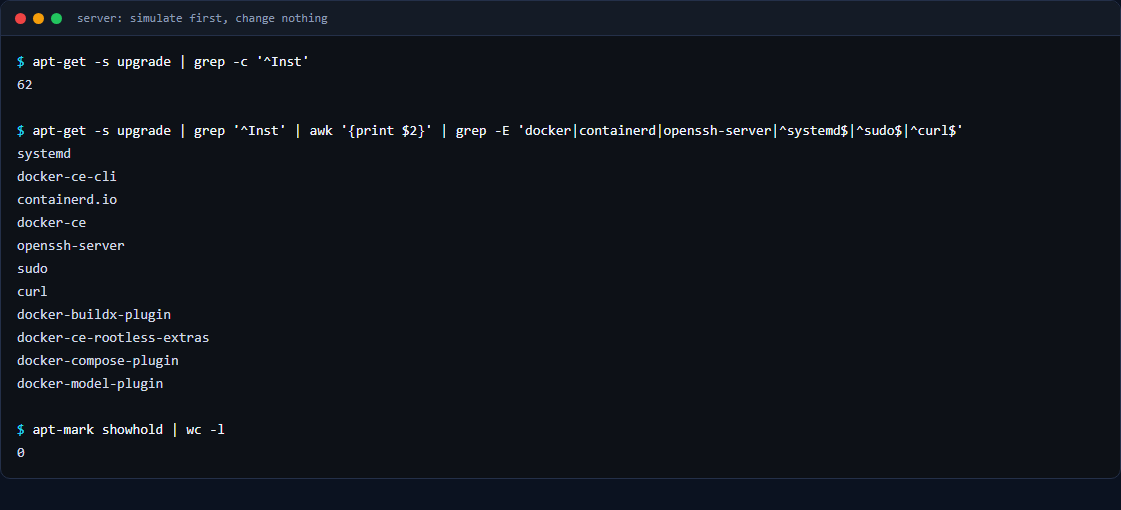
The count was 62. The list included docker-ce, docker-ce-cli, containerd.io, openssh-server, systemd, libxml2, curl, sudo, ca-certificates and libnss3. Reading the list first tells you what may restart: upgrading the Docker engine normally restarts the Docker service, and unless you have enabled Docker’s live-restore option, the containers stop and come back according to their restart policy.
Before you start
- A recent backup that you know is complete. Mine ran the night before and had finished with no failures, and a copy was on Google Drive.
- Check for held packages and free disk space.
apt-mark showholdprinted nothing on my server (a held Docker package would block the upgrade), anddf -h /var/lib/dockershowed 170 GB free. - Copy
/etc/docker/daemon.jsonsomewhere safe if you have one; a Docker upgrade restarts the daemon, and that file is read when it starts. I did not change mine. - Check the restart policy of what must come back:
docker inspect -f '{{.Name}} {{.HostConfig.RestartPolicy.Name}}' $(docker ps -q).alwaysandunless-stoppedstart again after the engine restarts;nodoes not. - Know whether a kernel is in the list. Mine did not include a kernel image. Check
/var/run/reboot-requiredbefore and after, because other packages can also ask for a reboot. - Do not depend on your SSH session. Run the upgrade detached and write a log, so a dropped connection does not interrupt it halfway. Make sure the log folder exists first, and have a second way into the server (your provider’s console) before you start.
Run it detached, without prompts
nohup env DEBIAN_FRONTEND=noninteractive NEEDRESTART_MODE=a \
  apt-get -y -o Dpkg::Options::=--force-confold -o Dpkg::Options::=--force-confdef upgrade \
  > /root/backups/apt-upgrade.log 2>&1 < /dev/null &
The two --force-conf* options only concern configuration files that dpkg manages: when a package ships a new default for a file you changed, dpkg keeps your version (confold) instead of stopping to ask, and takes the package’s default for files you did not touch (confdef). Read the log afterwards for configuration files that were kept. NEEDRESTART_MODE=a lets the restart helper restart services automatically instead of asking. Then poll for the end. This only tells you the process has finished, not that it succeeded, so read the end of the log and run the simulated upgrade again (it should list nothing):
pgrep -x apt-get >/dev/null && echo RUNNING || echo DONEWhat happened while it ran
Partway through, my SSH connection was refused: Connection refused on port 22. The next attempt about 20 seconds later connected. I did not capture the service logs, so I take it to be the openssh-server package restarting, which is what I would expect when that package is upgraded. If SSH refuses you in the middle of an upgrade, wait a minute before you panic.
Verify, from inside and from outside
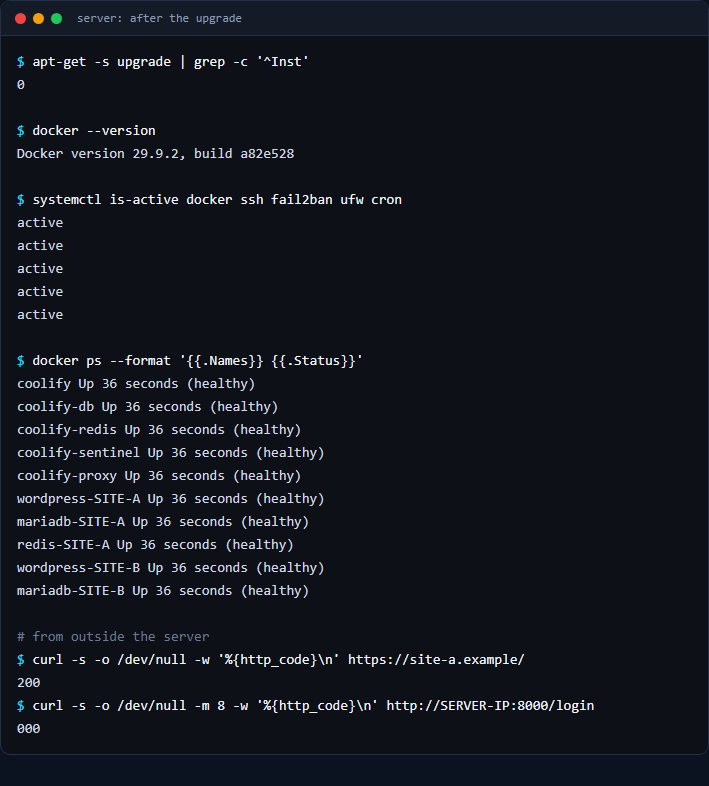
- Nothing left to upgrade:
apt-get -s upgrade | grep -c '^Inst'returned 0. - Docker version:
docker --versionshowed 29.9.2. - Services:
systemctl is-active docker ssh fail2ban ufw cronreturnedactivefive times. - Containers:
docker psshowed all ten containers ashealthy, about 36 seconds after the engine restart. - The sites, from outside the server: both returned HTTP 200.
- Things you changed earlier still hold: the dashboard port that I had bound to localhost still returned no connection from outside, and the scheduled job still ran at its next 5-minute tick. (See Docker ignores UFW and replacing WP-Cron with a real cron job.)
The reboot I held back at first
Even after a clean upgrade, /var/run/reboot-required existed. Its list, /var/run/reboot-required.pkgs, named the kernel image linux-image-6.8.0-146-generic, libc6, apparmor and linux-base. The flag already existed before I started, and neither the kernel image nor libc6 was in this run’s list, so they came from earlier updates (apparmor was part of this run). The machine keeps running the old kernel until it restarts. A reboot interrupts every running container, so the sites are down for the duration (I did not measure it), so I left it to the owner to pick the time, after confirming that the backup is fresh. A new kernel only runs after a reboot, and processes that still use the old libc6 keep using it until they are restarted, so “no longer on the update list” is not the same as “fully in effect”.
Update: the reboot
I did the reboot later the same day, after checking three things first: every container has a restart policy of always or unless-stopped, docker and the SSH socket are enabled at boot (on Ubuntu 24.04 ssh.service can show “disabled” because the SSH socket starts it), and the newer kernel and its initrd were present in /boot. SSH answered again about 55 seconds after the command and uname -r showed 6.8.0-146-generic. About 20 seconds later all ten containers were up, and both sites returned HTTP 200 shortly after (a 521 from Cloudflare appeared briefly while the containers started). /var/run/reboot-required no longer existed, and the closed dashboard port was still closed.
One side effect: my 5-minute WordPress cron job logged a FAILED line for the tick that fired while Docker was down, and the next tick logged ok. That is expected during a reboot.
Checklist
- Simulate first:
apt-get -s upgrade, and read the list. - Have a complete backup and a second way into the server.
- Check the restart policies of your containers.
- Run detached with
--force-confoldand a log file. - Expect that SSH may refuse connections for a short time if
openssh-serveris in the list. - Verify from outside: sites, ports you closed, scheduled jobs.
- Check
/var/run/reboot-required, plan the reboot, and check restart policies and boot-enabled services before you do it.