How to Change the PHP Version in cPanel (MultiPHP Manager and PHP Selector)
On cPanel hosting there are two common places to change PHP: MultiPHP Manager, which cPanel provides, and PHP Selector (shown as “Select PHP Version”), which is added on servers that run CloudLinux. Which one controls your site depends on how your host set up the server, and changing the one that does not control it is a possible reason the version “does not change”. This guide shows both, how to tell which you have, and how to confirm that the change really took effect.
If you are updating PHP for a WordPress site, read how to update PHP for WordPress safely first, so you have a backup and know your plugins will cope.
Which tool does your account have?
Log in to cPanel and open the Software section. You may see one or both of these icons:
- MultiPHP Manager, which lists your domains and lets you choose a PHP version for each.
- Select PHP Version (the PHP Selector), which sets the version for the account and lets you switch PHP extensions and options on or off.
Your host controls which of these you see. cPanel’s documentation notes that the hosting provider can enable or disable the MultiPHP Manager interface in WHM’s Feature Manager. If you see neither icon, you need to ask your host to change the PHP version.
Option 1: change PHP in MultiPHP Manager
According to cPanel’s MultiPHP Manager documentation:
- Open MultiPHP Manager.
- Select the checkbox for the domain you want to change.
- Choose a version from the PHP Version menu. Versions marked “Recommended” are suggested by the server’s administrator.
- Click Apply. If PHP-FPM is enabled for the domain, cPanel updates the FPM version to match.
Three details from the same page:
- If the version you want is missing from the menu, it is not installed or is not available to your account. Only the host can add it.
- The inherit option makes the domain use the system default PHP version, which only the server administrator can set. Domains using it show an “Inherited” label.
- You cannot turn on PHP-FPM while a domain is set to inherit. Pick a specific version first.
Option 2: change PHP in PHP Selector (CloudLinux)
This is what the screen looks like on a host that uses it:
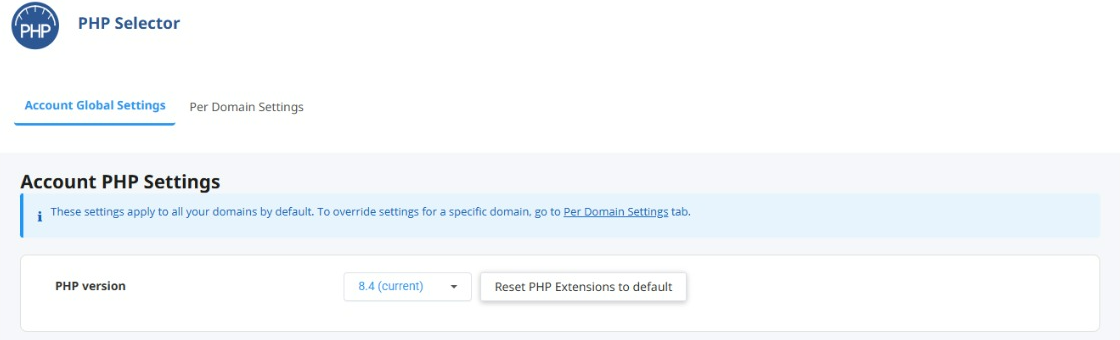
On the Account Global Settings tab, a PHP version menu shows the selected account default, here “8.4 (current)”. That is a setting, not proof of what the website runs, so verify it as described below. A note on the screen says: “These settings apply to all your domains by default. To override settings for a specific domain, go to Per Domain Settings tab.” Below the version there are Extensions and Options tabs for turning PHP extensions on and off and changing options.
To change the version, open that menu, choose the version you want, and use any save or apply control your interface shows. The screen also has a Per Domain Settings tab. I have not verified what it lets you change, so check your host’s documentation or ask your host before relying on it. Then confirm the change took effect, as described below.
A word of caution about what the tool can do. cPanel’s own article on the command line, written about CloudLinux, says PHP Selector “only offers the ability to set a single PHP version for the entire account”, and that it is not possible to specify different PHP versions per website or per directory in it. The screenshot above shows a Per Domain Settings tab, so the tool on your host may be newer or configured differently. Check what your own screen offers before you rely on either statement.
Using both tools together
When a host uses MultiPHP Manager and PHP Selector together, a cPanel article about ALT-PHP on CloudLinux (written about a 503 error with PHP-FPM) says to set the domain’s PHP version in MultiPHP Manager to inherit and then choose the ALT-PHP version in PHP Selector, and that PHP Selector must be used to make use of the ALT-PHP options. That applies when the domain is meant to run ALT-PHP through PHP Selector, so confirm that with your host before changing anything. Seeing a different version in each tool is not a problem in itself, because PHP Selector can supply ALT-PHP versions. What decides is the comparison between the domain’s MultiPHP Manager version and the server default: if the domain is set to a non-default version in MultiPHP Manager, PHP Selector is bypassed, which can be one reason the site does not change.
cPanel’s article “Using the MultiPHP Manager with CloudLinux’s PHP Selector” gives the reason: the web server compares the server’s default version with the version the domain uses in MultiPHP Manager, and only when they match does it use the version chosen in PHP Selector. It strongly encourages setting MultiPHP Manager to inherit if you want to use PHP Selector. A second cPanel article, about installing CloudLinux’s PHP Selector, says users of PHP Selector should have PHP-FPM disabled and be set to inherit the system PHP version in MultiPHP Manager.
Confirm the change worked
Do not trust the control panel alone. Check what the web server actually runs:
- WordPress: Tools, Site Health, Info, Server, “PHP version”.
- Any PHP site: place a one-line file in the site’s folder, open it in a browser, then delete it straight away. Use a hard-to-guess name.
<?php echo PHP_VERSION;If it prints the old version although the panel shows the new one, the change may not have been applied to that domain, or something closer to the site may be overriding the panel. One possible cause is a PHP handler line in an .htaccess file. See which PHP version setting wins on cPanel, and what to do when the version keeps going back.
If you cannot find the setting or the version is missing
Ask your hosting provider, and put the questions in one message: which tool controls the PHP version on my account (MultiPHP Manager, PHP Selector, or both), is my domain set to “inherit”, which PHP versions are installed, and is PHP-FPM enabled for my domain.
Checklist
- Find out which tool(s) your account has: MultiPHP Manager, PHP Selector, or both.
- With MultiPHP Manager: tick the domain, choose the version, click Apply.
- With PHP Selector: choose the version on the Account Global Settings tab. Use Per Domain Settings only if your host confirms that it controls the PHP version.
- If you have both, ask your host which one controls your domain. If the domain is meant to run ALT-PHP through PHP Selector, the documented setup is MultiPHP Manager on inherit and the version chosen in PHP Selector.
- Confirm in the application (Site Health) or with a one-line test file, then delete the file.
- Version unchanged? Look for handler lines in
.htaccessfiles.



![[Fix] Gigabyte GA-H170M-D3H Boot Loop and Power Issues – No Display - featured illustration](https://sysadmin.co.in/wp-content/uploads/2026/09/fix-gigabyte-ga-h170m-d3h-boot-loop-and--768x432.png)