Replace WP-Cron with a Real Cron Job (WordPress in Docker)
WordPress has a scheduler, WP-Cron, but no daemon that runs it. It is a file, wp-cron.php, that WordPress starts on a page view when something is due. On a quiet site that means scheduled posts, backups and update checks run late, and on a busy site the check runs again and again. I moved my own WordPress, which runs in a Docker container on a VPS, to a real cron job that runs every 5 minutes. This post shows the exact job, the one error that hit me on the way, and how I confirmed it works before turning the visitor-triggered version off.
What was wrong with the default
- It depends on visitors. If nobody opens the site, nothing triggers the check, so a scheduled post can go live late.
- It adds work to page views. WordPress may spawn an extra request to
wp-cron.phpduring a visit. - It shows up as repeated hits in the logs, which is what made me look at it:
wp-cron.phpappearing back to back in the access log.
The fix recommended in the WordPress developer handbook is to turn the visitor trigger off and call wp-cron.php from the system’s task scheduler instead.
The job
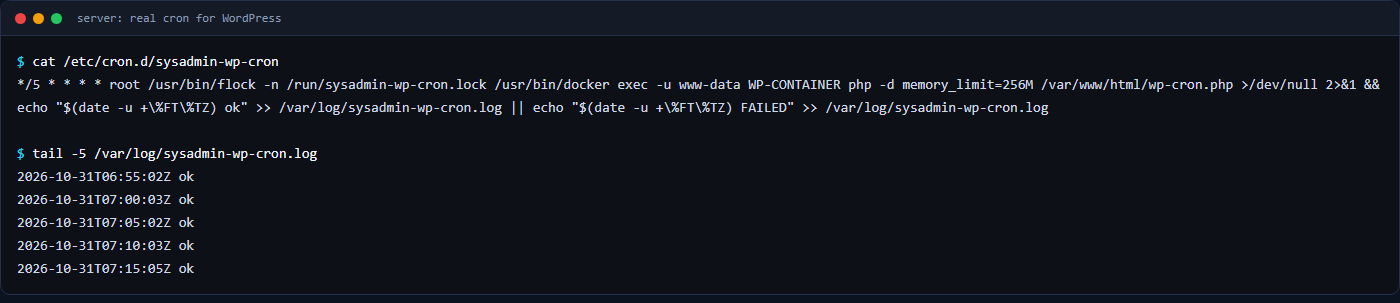
My WordPress runs inside a container, so the cron job lives on the host and runs the script inside the container. I used a file in /etc/cron.d/. Replace WP-CONTAINER with your container name (docker ps shows it):
# /etc/cron.d/sysadmin-wp-cron
*/5 * * * * root /usr/bin/flock -n /run/sysadmin-wp-cron.lock /usr/bin/docker exec -u www-data WP-CONTAINER php -d memory_limit=256M /var/www/html/wp-cron.php >/dev/null 2>&1 && echo "$(date -u +\%FT\%TZ) ok" >> /var/log/sysadmin-wp-cron.log || echo "$(date -u +\%FT\%TZ) FAILED" >> /var/log/sysadmin-wp-cron.log
Each part has a reason:
flock -nskips a run if the previous one is still going, so slow runs never pile up. In this exact line a skipped run also exits non-zero and writesFAILED, so one loneFAILEDcan mean “skipped”, not “broken”. It also appears for a tick that fires while Docker is down: mine logged one during a server reboot, followed byokon the next tick.-u www-dataruns it as the web server user, so any files it creates have the right owner.-d memory_limit=256Mis the fix for the error below.- The
\%is not a typo. In a crontab, an unescaped%means “end of the command, the rest is input”, so the date format would break the line. - The log lines record whether the command exited successfully, without keeping its output. They do not prove that every scheduled task succeeded, which is why there is a separate check for overdue events below.
The error I hit: PHP’s CLI memory limit
My first manual test of the plain command died with a fatal memory error. The command line version of PHP uses its own memory limit, which on this image was 128M, and a plugin’s autoloader needed more. Setting the limit on the command line with -d memory_limit=256M fixed it. A php_value line in .htaccess would not have helped, because .htaccess only affects PHP when it runs under Apache, not from the command line.
With the flag, one run took roughly 1.1 to 1.7 seconds, used about 32 MB of resident memory (RSS) in my measurement and exited with code 0. Those are numbers from my server; yours will differ, so time one run yourself before you schedule it:
time docker exec -u www-data WP-CONTAINER php -d memory_limit=256M /var/www/html/wp-cron.php; echo "exit=$?"Check it runs before you switch anything off
I let the job run for three ticks and read the log:
tail -5 /var/log/sysadmin-wp-cron.logThree ok lines, five minutes apart, were my signal to continue. A FAILED line that repeats means run the command by hand and read the error (a single one can just be a skipped run, as above). Do not do the next step until the log is clean.
Then disable the visitor-triggered cron
Back up wp-config.php to a folder that is not served by the web server, then add this line above the “That’s all, stop editing” comment:
define( 'DISABLE_WP_CRON', true );The constant only stops WordPress from starting the cron on page views. It does not block direct requests to wp-cron.php, which is why the system job keeps working. I checked the syntax of the edited file with php -l before saving it into place. In a container, make sure wp-config.php is on a persistent volume; if it lives in the container’s own filesystem, a rebuild brings back the old file.
Afterwards I checked three things: the site still returned HTTP 200, the next 5-minute tick wrote ok to the log, and no scheduled event was more than 10 minutes overdue. For the last one, the scheduled events are readable from WordPress itself (_get_cron_array(), or wp cron event list if you use WP-CLI); I counted events more than 10 minutes in the past and got 0.
Undo
- Restore the
wp-config.phpbackup or delete theDISABLE_WP_CRONline. - Delete the file in
/etc/cron.d/.
Do not leave both off. With DISABLE_WP_CRON set and no real cron job, nothing runs scheduled tasks at all.
Checklist
- Pick the right container with
docker ps. - Time one manual run with
-d memory_limit=256M. - Install the
cron.dline withflock,\%escaping and a log. - Wait for three clean
okruns. - Back up
wp-config.phpoutside the web root, addDISABLE_WP_CRON, check the syntax. - Confirm HTTP 200, the next tick in the log, and no events more than 10 minutes overdue.
Related: the same server also had a backup file in the web root that was publicly readable. How I found and fixed it is in a wp-config backup that anyone could download.