ZCode on Kali Linux: Fixing the libfuse.so.2 AppImage Error
I downloaded the ZCode desktop app for Linux as an AppImage on Kali Linux. It did not start, and getting it working meant dealing with three problems in turn: a missing library that Kali no longer packages, a workaround flag, and a menu entry that would not launch the app. This post follows that path in order, with the terminal messages I saw, so you can skip to the part that matches your screen. For the general version of this problem, covering other distributions and other errors, see AppImage won’t run on Linux: every common error and its fix.
What I was installing
ZCode’s download page, zcode.z.ai, lists version 3.16.3 for macOS, Windows and Linux. The Linux builds are marked Beta, and they come as .deb, .rpm and .AppImage for both x64 and ARM64. I used the x64 AppImage, ZCode-3.16.3-linux-x64.AppImage. The page gives no installation instructions, only the downloads.
Step 1: the app will not start
I made the file executable and ran it from the Downloads folder:
cd ~/Downloads
chmod +x ZCode-3.16.3-linux-x64.AppImage
./ZCode-3.16.3-linux-x64.AppImage
It stopped with this:
dlopen(): error loading libfuse.so.2

AppImages require FUSE to run.
You might still be able to extract the contents of this AppImage
if you run it with the --appimage-extract option.
See https://github.com/AppImage/AppImageKit/wiki/FUSE
for more information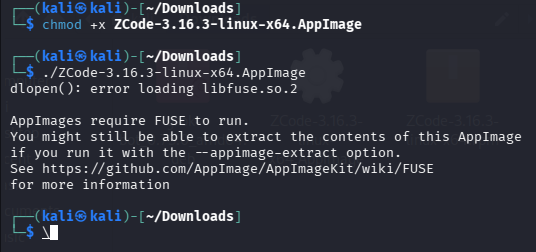
The AppImage was looking for the FUSE 2 library, which is how an AppImage mounts itself.
Step 2: the usual fix does not work on Kali
On Ubuntu and Debian the answer is to install the FUSE 2 package. I tried the current package name first, after refreshing the package lists:
sudo apt update
sudo apt install libfuse2t64
Error: Unable to locate package libfuse2t64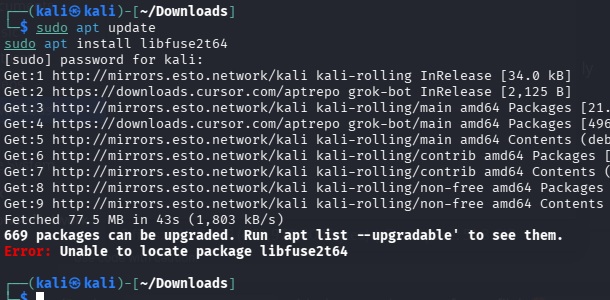
Then the older name:
sudo apt install libfuse2Package libfuse2 is not available, but is referred to by another package.
This may mean that the package is missing, has been obsoleted, or
is only available from another source
Error: Package 'libfuse2' has no installation candidate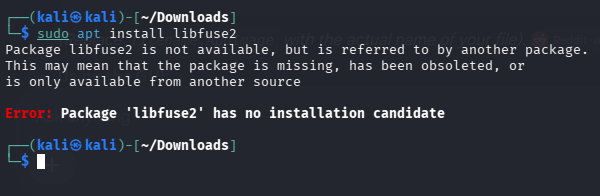
Neither name worked on my machine, and it was not a typo. A Parallels support article on the same error says libfuse2 was removed from the kali-rolling repository on 20 April 2026, because Debian dropped it from Debian testing. Its suggested workaround is to download libfuse2t64 by hand from the Debian archive, which fits what I saw: neither package was available from Kali’s repositories for me.
Step 3: run it without FUSE
The AppImage can unpack itself and run from the unpacked copy, which avoids FUSE entirely:
cd ~/Downloads
./ZCode-3.16.3-linux-x64.AppImage --appimage-extract-and-run
That worked: the app opened. The trade-off is that the AppImage unpacks itself every time it starts, which adds some startup overhead.
Step 4: it was in the menu but would not open
An entry for ZCode had appeared in the application menu, but clicking it did nothing. No window and no message. I looked at the command the entry runs, and it was:
"/home/kali/Downloads/ZCode-3.16.3-linux-x64.AppImage" %UThat is the AppImage launched directly, without the extract-and-run option, so I would expect it to hit the same FUSE error as in Step 1. No error was visible, and launching from a menu without a terminal likely hid that same FUSE error, so the app simply looked broken.
The entry is a .desktop file. Here it was in ~/.local/share/applications/ZCode.desktop. To find yours:
grep -rl "ZCode" ~/.local/share/applications/ /usr/share/applications/ 2>/dev/nullStep 5: the edited file was rejected
I edited the file with nano, then ran the desktop database tool, which parses the .desktop files in that folder:
update-desktop-database ~/.local/share/applicationsCould not parse file "/home/kali/.local/share/applications/ZCode.desktop": Key file does not start with a group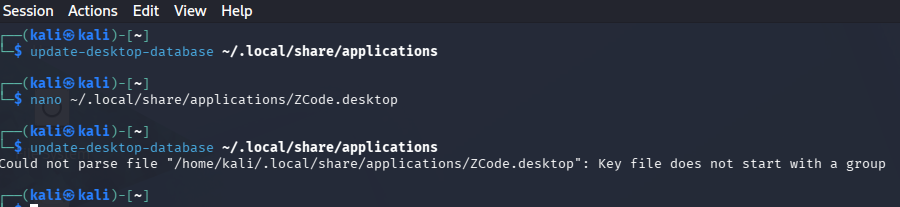
“Does not start with a group” means the parser met content it could not accept before it found a valid group header. A .desktop file has to open with the [Desktop Entry] group (only blank lines and comments may come before it). I did not keep the rejected file, so I cannot tell you exactly what was wrong with it, but the fix below starts the file correctly.
The file that worked
I replaced the content of ~/.local/share/applications/ZCode.desktop with a complete entry, with [Desktop Entry] as the very first line and the extract-and-run option set through an environment variable:
[Desktop Entry]
Type=Application
Name=ZCode
Comment=ZCode desktop app
Exec=env APPIMAGE_EXTRACT_AND_RUN=1 "/home/kali/Downloads/ZCode-3.16.3-linux-x64.AppImage" %U
Terminal=false
Categories=Development;
StartupWMClass=ZCode
StartupWMClass=ZCode is optional and only helps the desktop group the app’s window with its launcher. It is the same value the official .deb‘s own launcher uses, which I checked by reading the package. With that file in place, ZCode opened from the application menu. A useful check after any edit like this is to run the validator, which reports problems in the file’s format, and then the database tool again, which should no longer print the parse error:
desktop-file-validate ~/.local/share/applications/ZCode.desktop
update-desktop-database ~/.local/share/applications
The validator only checks the format. It does not check that the path in Exec= exists or that the app starts, so the real test is clicking the entry in the menu.
The entry points at the Downloads folder. If you move or delete the AppImage, the menu entry stops working, so keep the file somewhere permanent, such as ~/Applications, and update the path in Exec=.
If the AppImage keeps giving trouble: try a package instead
Run normally, an AppImage needs FUSE 2. In my case it needed the extraction workaround plus an edited menu entry. ZCode’s download page also offers a .deb and an .rpm. These install through the system’s package manager, so they do not depend on FUSE and they bring their own menu entry. Which one to try depends on your system. Neither package has been installed or launched on my Kali machine, so treat the advice below as formats to try, not as guaranteed to work on every release.
1. Find your CPU and your distribution family
uname -m
grep -E '^(ID|ID_LIKE)=' /etc/os-release
dpkg --print-architecture      # Debian-based systems only
x86_64 normally means the x64 files and aarch64 the ARM64 files. uname -m reports the kernel’s architecture, so on Debian-based systems dpkg --print-architecture (amd64 or arm64) tells you what the installed packages use. The second command shows your distribution and the family it belongs to (for example ID_LIKE=debian).
2. Choose a download to try
| Your system | Format to try | Why |
|---|---|---|
| Debian, Ubuntu, Linux Mint, Kali, Pop!_OS and other Debian-based systems | .deb |
Installed with apt. No FUSE needed. |
| Fedora, RHEL-family (Rocky Linux, AlmaLinux) and other RPM-based systems | .rpm |
Installed with dnf. No FUSE needed. |
| openSUSE | .rpm |
Installed with zypper. Package names for dependencies can differ from Fedora’s. |
Arch, Manjaro and anything else without .deb or .rpm support |
AppImage | It does not depend on your package manager. On Arch the FUSE 2 package is fuse2. |
| You prefer not to install system-wide | AppImage | It does not need a system-wide package installation, although the app can still write its own settings and cache in your account. |
ZCode publishes no system requirements, and the Linux builds are marked Beta, so whether a given package runs on a given release is something to confirm on that system. Download sizes as served on 26 October 2026 for version 3.16.3, rounded and in MiB: x64 .deb 165, .rpm 127, AppImage 209; ARM64 .deb 159, .rpm 121, AppImage 209. Download only from the official download page.
Install the .deb (Debian, Ubuntu, Kali, Mint)
cd ~/Downloads
sudo apt install ./ZCode-3.16.3-linux-x64.deb
The ./ matters: it tells apt to install the local file instead of searching the repositories for a package with that name. Before you install, you can look inside the package:
dpkg-deb -I ZCode-3.16.3-linux-x64.deb      # name, version, architecture, dependencies
dpkg-deb -c ZCode-3.16.3-linux-x64.deb | head -30   # first files it will install
A read-only inspection of the x64 .deb (downloaded on 26 October 2026, 173,383,784 bytes, nothing installed or run) shows:
- The package is named
zcode, version3.16.3-8992, architectureamd64, with an installed size of about 0.7 GB. - It declares these dependencies:
libgtk-3-0,libnotify4,libnss3,libxss1,libxtst6,xdg-utils,libatspi2.0-0,libuuid1andlibsecret-1-0, and it recommendslibappindicator3-1.apttries to install the missing ones from your configured repositories. If it reports that one is unavailable, stop and find out why before going further. - The files go to
/opt/ZCode. A menu entry is included at/usr/share/applications/zcode.desktop(it runs/opt/ZCode/zcode %U, has an icon and registers thezcode://link type), so you do not need to write a.desktopfile yourself. - The post-install script creates a
zcodecommand in/usr/binthroughupdate-alternatives, so you should be able to start the app by typingzcode. - The same script sets the Chromium sandbox helper to set-uid only if its own check finds that user namespaces are not usable (otherwise it uses a normal executable permission). It also copies a bundled AppArmor profile to
/etc/apparmor.d/zcodeand loads it, but only if AppArmor is enabled and the profile passes a parser check. That describes what the script is written to do; I have not tested it, and I do not know whether the profile avoids the Ubuntu 24.04 sandbox problem described in the general AppImage guide.
To remove it later: sudo apt remove zcode.
The inspected file had the SHA-256 128132b195977fd0a8c8a6c295cf42fe159222d7a5c5efefd8b5f00ef88ab8b6, calculated during that inspection. It is not a checksum authenticated by the publisher. If yours differs, stop before installing and find out why: the file may have been replaced upstream, but a damaged or altered download would give a different hash too.
One more caution. The list of changes apt shows before you confirm covers which packages will be installed, not what the package’s maintainer scripts will do. Those scripts run with administrator rights, which is why the paragraph above spells out what this one does.
If you already built a menu entry for the AppImage, the package may add its own, and you could see two ZCode entries. Confirm that the packaged one works first, then delete only your hand-made ~/.local/share/applications/ZCode.desktop.
Install the .rpm (Fedora, RHEL-family, openSUSE)
# Fedora, Rocky Linux, AlmaLinux
sudo dnf install ./ZCode-3.16.3-linux-x64.rpm

# openSUSE
sudo zypper install ./ZCode-3.16.3-linux-x64.rpm
To look inside first: rpm -qip ZCode-3.16.3-linux-x64.rpm shows the package information and rpm -qpl ZCode-3.16.3-linux-x64.rpm | head -30 lists the files.
A read-only inspection of the x64 .rpm (downloaded on 26 October 2026, 133,335,473 bytes, SHA-256 4c19cfa0ee4c18954b94fcc72c0f710509b68b4ed6aa0a29f53b01a01b39e1c3 calculated during that inspection, nothing installed or run) shows:
- The package is named
zcode, version3.16.3, release8992, architecturex86_64, with an installed size of about 0.76 GB. - It requires
gtk3,nss,alsa-lib,at-spi2-core,libXScrnSaver,libnotify,mesa-libgbm,xdg-utils, pluslibXtst(orlibXtst6) andlibuuid(orlibuuid1). Your package manager tries to resolve these from its configured repositories. Names and versions differ between Fedora, RHEL-family systems and openSUSE, so if it reports an unavailable dependency, stop and investigate instead of forcing the install. - Like the
.deb, it installs into/opt/ZCode, includes a menu entry at/usr/share/applications/zcode.desktopand azcodecommand in/usr/bin, and runs the same post-install script. - It is not signed. The package has no GPG signature, only checksums. Depending on your system,
dnforzyppermay warn about or ask you to confirm an unsigned package. Do not switch the check off just to make the message go away: continue only if you downloaded the file from the official page and you are comfortable with that.
To remove it later: sudo dnf remove zcode or sudo zypper remove zcode.
I have not installed either package on a machine, so I cannot tell you from experience how the installs behave. The details above come from inspecting the package metadata, bundled files and maintainer scripts, without installing the packages or running the application. The install commands are the standard way to install a downloaded package on those systems.
Other things to try if it still fails
- Run the Exec line in a terminal to see the real error:
env APPIMAGE_EXTRACT_AND_RUN=1 "/home/kali/Downloads/ZCode-3.16.3-linux-x64.AppImage". - A sandbox error in the terminal. ZCode’s download links point to Electron releases, and Electron AppImages can fail on systems that restrict unprivileged user namespaces. If the terminal output mentions the sandbox, see the sandbox section of the general AppImage guide. Use
--no-sandboxonly as a temporary test, not as a permanent fix. - Wrong build. Check
uname -m.x86_64needs the x64 build;aarch64needs the ARM64 one. - Use the .deb or .rpm instead, as described in the section above, if you would rather not depend on FUSE at all.
Checklist
- AppImage fails with
libfuse.so.2: that is the FUSE 2 library. libfuse2t64andlibfuse2both unavailable on Kali:libfuse2was removed fromkali-rollingin April 2026 according to Parallels, and neither was installable for me.- Run with
--appimage-extract-and-run. - Menu entry does nothing: check its
Exec=line. If it launches the plain AppImage, addenv APPIMAGE_EXTRACT_AND_RUN=1in front. Key file does not start with a group: the.desktopfile must open with the[Desktop Entry]group.- Check the file with
desktop-file-validate, runupdate-desktop-databaseagain, then test from the menu. - Still stuck, or you want no FUSE dependency: try the
.deb(Debian-based) or.rpm(Fedora, RHEL-family, openSUSE) that matches your CPU, and confirm that your package manager can resolve its dependencies.