Fix: “The File Is Too Large for the Destination File System” When Copying to a USB Drive
You copy a big file to a USB flash drive, the drive has far more free space than the file needs, and Windows stops with this message:
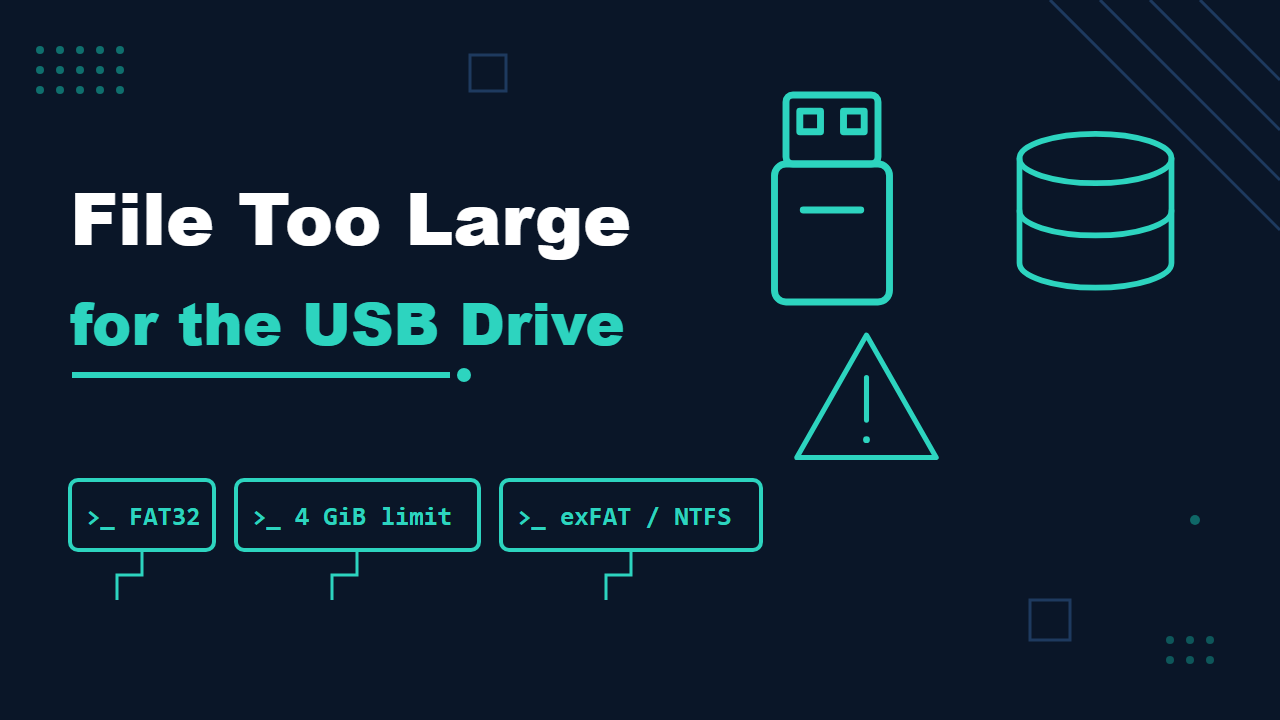
The file is too large for the destination file system.It looks like a lie, because the drive is not full. It is not a lie, and it is not a fault in the drive or in Windows. It is a limit of the file system the drive was formatted with. This guide explains the limit, how to confirm it, and the common ways around it, including one that converts the drive without reformatting it.
The cause: FAT32 cannot hold a file of 4 GiB or more
Free space and file size are two different limits. A drive can have 28 GB free and still refuse a single 8 GB file, because the file system sets a maximum size for each individual file. Microsoft’s file system comparison lists the maximum file size for the three formats you are most likely to meet on a USB stick:
| File system | Maximum size of one file |
|---|---|
| FAT32 | 4 GiB (one byte less, to be exact) |
| exFAT | 264 minus 1 bytes |
| NTFS | 264 minus 1 bytes |
Microsoft’s table rounds the limit to 4 GiB; the Microsoft Old New Thing blog describes it as 4 GB minus one byte. So a single file of 4 GiB or more fails on a FAT32 drive, however empty the drive is. Several smaller files are fine, as long as together they fit in the free space. This is also why the error shows up with disc images, virtual machine disks, large video files and Windows installation images: they are the files most likely to cross 4 GiB.
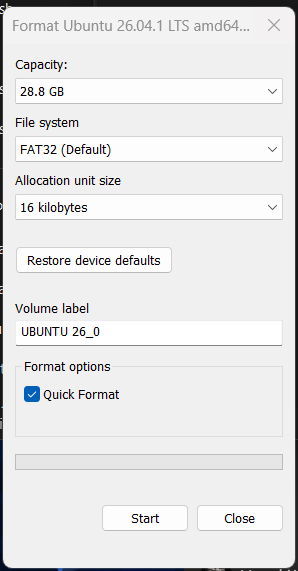
One way a drive ends up as FAT32 is that Windows can offer it as the default. When I opened the Format dialog for a USB stick showing 28.8 GB of capacity, the file system box was already set to FAT32 (Default). If you click Start without changing it, you get FAT32.
Step 1: confirm the file system of your drive
Do not guess. Check what the drive is actually formatted as. Replace E with your drive letter.
In File Explorer: open This PC, right-click the drive, choose Properties, and read the “File system” line on the General tab.
In PowerShell:
Get-Volume -DriveLetter E | Select-Object DriveLetter, FileSystemType, Size, SizeRemainingIf it says FAT32 and your file is 4 GiB or larger, you have found the cause. The Windows version and the age of the computer do not matter here: the limit belongs to the drive’s file system.
Step 2: pick a fix
| Fix | Keeps the files on the drive? | Best when |
|---|---|---|
| Reformat as exFAT | No, it erases the drive | You want no 4 GiB limit and the devices you use support exFAT |
| Reformat as NTFS | No, it erases the drive | The drive is used mostly with Windows |
| Convert FAT32 to NTFS in place | Yes | You cannot empty the drive first |
| Split the file into smaller parts | Yes | The drive has to stay FAT32 |
| Send the file another way | Yes | It is a one-off transfer |
Fix 1: reformat the drive as exFAT or NTFS
Reformatting erases everything on the drive. Copy anything you want to keep to your computer first. If the stick holds a bootable installer, such as an operating system setup drive, formatting it destroys that installer, and you would have to create it again.
- Open This PC, right-click the drive and choose Format.
- In the “File system” list choose exFAT or NTFS instead of FAT32.
- Leave the allocation unit size on its default, keep Quick Format ticked, and give the drive a name.
- Click Start, confirm the warning, and copy the big file again.
The command-line equivalent, from an administrator Command Prompt, formats whatever drive you name, so check the letter twice. Run only one of these two commands, the one for the file system you chose.
For exFAT:
format E: /FS:exFAT /Q /V:USBDRIVEFor NTFS:
format E: /FS:NTFS /Q /V:USBDRIVEexFAT or NTFS? Microsoft’s comparison shows both have the same huge maximum file size. They differ in what else they offer:
- NTFS has file permissions, journaling and built-in compression, according to Microsoft’s table. It suits a drive you use mostly with Windows. Support on other systems and devices varies, so check before you rely on it there.
- exFAT has no file permissions and, according to Microsoft’s table, no journaling, but it has the same huge maximum file size as NTFS. Linux has had a built-in exFAT driver since kernel 5.7. Whatever the file system, finish the copy and use the operating system’s safe-removal option before you unplug a drive.
- Before you reformat a drive that has to work in another device (a TV, a game console, a car stereo), check that device’s manual or specifications for the file systems it supports.
For a deeper comparison of the common formats, see exFAT, HFS+, ext and NTFS compared.
Fix 2: convert FAT32 to NTFS without erasing
If you cannot empty the drive, Windows can convert FAT or FAT32 to NTFS in place. Microsoft documents the command as convert [volume] /fs:ntfs, with an example of convert e: /fs:ntfs /v:
convert E: /fs:ntfs /vKnow what you are agreeing to before you run it:
- Microsoft’s documentation describes the conversion as one-way. A volume converted to NTFS cannot be converted back to FAT32.
- The files are kept, but a backup first is still the sensible rule for any change to a file system.
- The
convertcommand only produces NTFS. To end up with exFAT you would back up the files and reformat the drive, as in Fix 1. - Microsoft’s older documentation also notes that a converted volume may not perform exactly like one formatted as NTFS from the start.
Fix 3: split the file into pieces under 4 GiB
If the drive must stay FAT32, cut the file into parts that each fit. Archiving tools such as 7-Zip can split a file into several volumes of a size you choose. Pick a size below 4 GiB, and read the tool’s own documentation for the exact option and for how to join the parts again. I have not walked through those steps here. Whoever receives the files needs the same kind of tool and all of the parts together in one folder.
A special case: a Windows installation image. A Windows setup stick often has to be FAT32 so that newer PCs can boot from it, and its install.wim file can be larger than 4 GiB. Microsoft’s own answer is to split the image into .swm files:
Dism /Split-Image /ImageFile:C:\sources\install.wim /SWMFile:C:\sources\install.swm /FileSize:3800The /FileSize value is the maximum size of each piece in megabytes (Microsoft’s example uses 4700 for DVDs; for FAT32 choose a value under 4096, such as 3800). One caveat from Microsoft’s DISM reference: if a single file inside the image is larger than the value you set, one of the resulting .swm files will be larger than that value. Check the size of every .swm file before you copy them to a FAT32 drive. Copy all the .swm files into the sources folder of the installation media. Microsoft’s guide describes the whole procedure and its limits: a set of split files cannot be modified, and all parts must sit in the same folder.
Fix 4: send the file another way
For a one-off transfer, you may not need the drive at all. Share the file over your network, upload it to cloud storage, or use an external drive that is already formatted as NTFS or exFAT. Compressing the file first can also bring it under 4 GiB, though media files and disc images usually do not shrink much.
If it is a different error
This guide is for the message above. If the copy stops with an input/output error, the drive reports it is write-protected, or files copy and then turn out corrupted, those point to a different problem, such as a damaged drive, a loose connection or a drive that reports more capacity than it really has. For capacity fraud, a tool such as F3 (Fight Flash Fraud) exists for testing a drive. Back up the drive first and read its documentation, because some test modes can overwrite data. That is a separate problem from the 4 GiB limit: a drive can be genuine and still be FAT32.
Checklist
- The message says the file is too large for the destination file system, and the drive has free space: suspect FAT32.
- Confirm it: Properties, or
Get-Volume -DriveLetter E. - Is the file 4 GiB or larger? Then FAT32 cannot hold it.
- Can you empty the drive? Reformat as exFAT or NTFS, after checking what your devices support.
- Cannot empty it?
convert E: /fs:ntfs, knowing it is one-way. - Must stay FAT32? Split the file (7-Zip), or for a Windows image use
Dism /Split-Image. - One-off transfer? Use the network, cloud storage or another drive.