How to Shut Down Windows With One Click: Shortcut and Shutdown Command
Shutting Windows down normally takes a few clicks: Start, power, Shut down. You can cut that to one double-click by creating a shortcut to shutdown.exe, the command-line tool built into Windows. The same tool can restart, hibernate, sign out or shut down after a delay, so a few shortcuts cover the common power actions: shut down, restart, hibernate and sign out. (There is no sleep option in shutdown.exe.) The commands below were run on Windows 11 Pro, and the options are the ones listed on Microsoft’s own documentation page for shutdown.
Create a one-click shutdown shortcut
- Right-click an empty spot on the desktop and choose New, then Shortcut.
- In the location box, type:
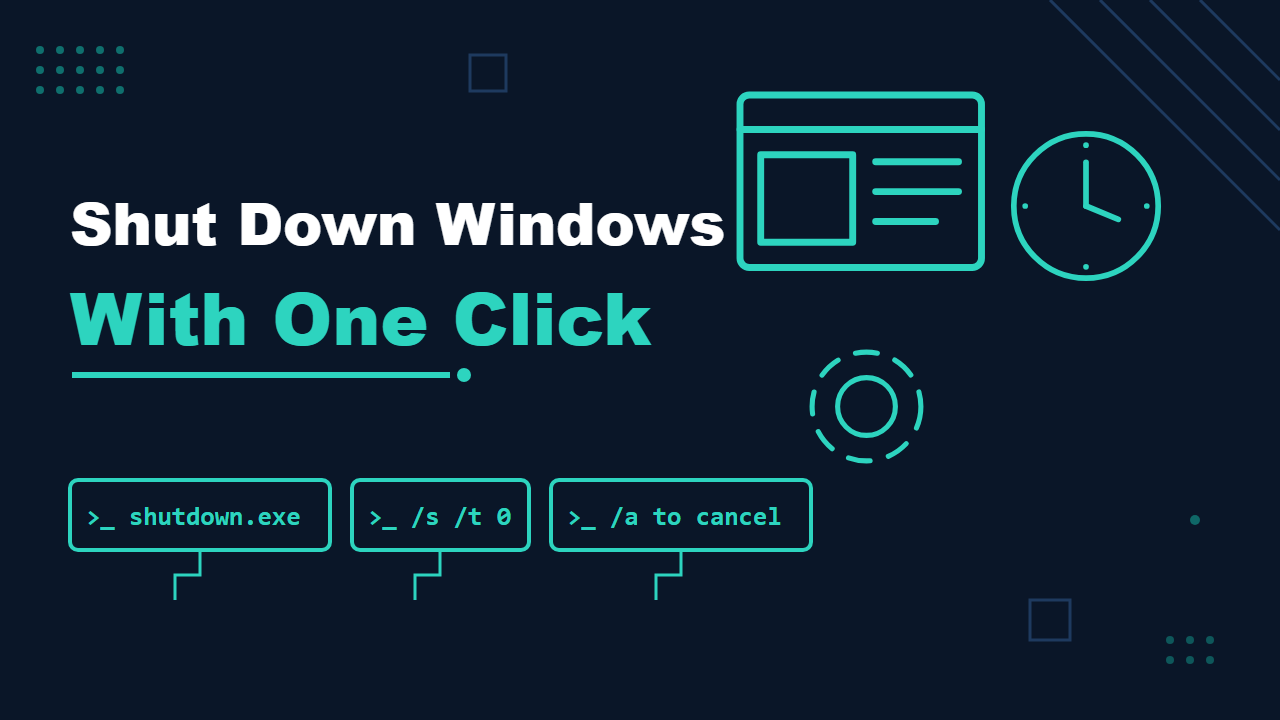
shutdown.exe /s /t 0 - Click Next, name it something clear such as Shut down, and click Finish.
Double-click the icon and Windows starts shutting down at once, with no countdown. /s means shut down, and /t 0 sets the time-out to zero seconds. Without /t, Windows waits 30 seconds, which is the default in the documentation.
To give it a power-button look, right-click the shortcut, choose Properties, then Change Icon, and pick one from the list.
Other shortcuts worth making
Use the same steps with a different command in the location box:
| Shortcut | Command | What it does |
|---|---|---|
| Restart | shutdown.exe /r /t 0 |
Shuts down and restarts the computer |
| Shut down for fast startup | shutdown.exe /s /hybrid /t 0 |
Shuts down and prepares the device for fast startup; /hybrid must be used with /s |
| Hibernate | shutdown.exe /h |
Hibernates the PC, if hibernation is enabled |
| Sign out | shutdown.exe /l |
Signs out the current user immediately |
| Restart into advanced options | shutdown.exe /r /o /t 0 |
Restarts to the Advanced boot options menu; /o must be used with /r |
Shut down later, and cancel it
The time-out is in seconds, so a delayed shutdown is just a bigger number. To shut down in one hour:
shutdown /s /t 3600To cancel a pending shutdown, open a new Command Prompt window during the countdown and run:
shutdown /aThe valid range for /t is 0 to 315360000 seconds (ten years). One detail matters here: according to the documentation, a time-out greater than zero implies /f, which forces running applications to close without warning. If you schedule a shutdown and walk away, unsaved work in open programs can be lost. A time-out of 0 does not imply that.
Run it without a shortcut
You do not need a shortcut for a one-off. Press Win + R, type shutdown /s /t 0, and press Enter. In a Command Prompt or PowerShell window, type the same command. Typing shutdown /? prints the full list of options on your own version of Windows.
Common questions
Will it ask me to save my documents?
With /t 0 and no /f, Windows does not force programs to close, so an app with unsaved work can hold the shutdown up. Save your work before you double-click.
Can I use it on a remote computer?
Yes, with /m \\computername, but the account you use must be allowed to do it. Microsoft documents a security policy setting, Force shutdown from a remote system, that controls which users can shut a computer down from the network. The linked Microsoft page explains the details.
What is the difference between /s and /p?
/p turns off the local computer with no time-out or warning and can be used with /d and /f. Because it gives no warning, it is a poor fit for a shortcut you might click by mistake.