Get-WmiObject Is Not Recognized in PowerShell 7: Use Get-CimInstance
A script that has run for years suddenly stops with this:
Get-WmiObject: The term 'Get-WmiObject' is not recognized as a name of a cmdlet, function, script file, or executable program.
Check the spelling of the name, or if a path was included, verify that the path is correct and try again.
The exact formatting differs between PowerShell versions, but the message always says the term ‘Get-WmiObject’ is not recognized. In PowerShell 7 that is expected, because the cmdlet is not there. Get-WmiObject is one of five WMI v1 cmdlets that were removed when PowerShell moved to .NET (starting with PowerShell 6), so they are missing from every PowerShell 7 release. They still exist in Windows PowerShell 5.1, which is why the very same script can work in one window and fail in the next. This post shows how to tell which PowerShell you are in, how to convert the old commands, and the behaviour changes that catch people out.
Why it works in one window and fails in another
Windows has two separate PowerShells that look almost identical:
- Windows PowerShell 5.1 is the one built into Windows. You start it with
powershell.exe, and it still contains the old WMI cmdlets. - PowerShell 7 is a separate, cross-platform install that you start with
pwsh.exe. According to Microsoft’s differences from Windows PowerShell page, the WMI v1 cmdlets are not included.
To see which one you are in, ask for the version and the edition:
$PSVersionTable.PSVersion
$PSVersionTable.PSEdition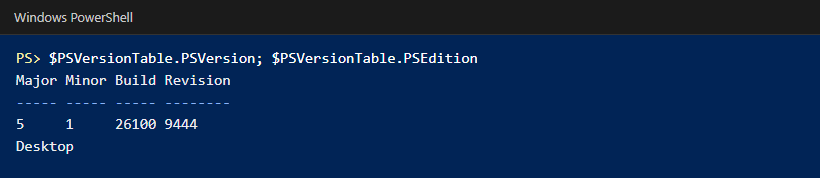
If you see Desktop, the old cmdlets are available. If you see Core (version 6 or 7), they are not. The usual reasons you end up in PowerShell 7 without meaning to: Windows Terminal or the VS Code terminal is set to use it, a scheduled task or CI job calls pwsh.exe instead of powershell.exe, or a new machine was set up with PowerShell 7 as the default.
The quick fix: use Get-CimInstance
Microsoft’s own guidance is that the CIM cmdlets (the CimCmdlets module, sometimes called WMI v2) do the same job with a redesigned syntax. For most queries the change is a rename:
# Old
Get-WmiObject Win32_OperatingSystem

# New
Get-CimInstance Win32_OperatingSystem
For simple queries the change is often just the cmdlet name. The class is given with -ClassName (the shorter -Class also works), and -Filter still takes a WQL condition without the WHERE keyword. Other parameters need more work: for example, credentials move to New-CimSession -Credential, and listing classes becomes Get-CimClass. Here are the OS and disk queries run with the new cmdlet:
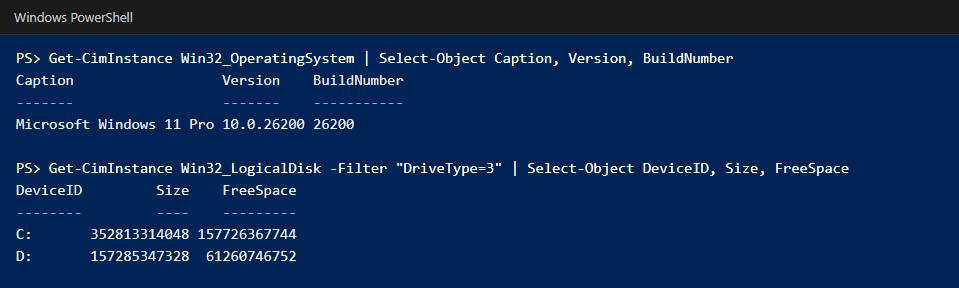
Get-CimInstance also exists in Windows PowerShell 5.1, so a converted script can run in both PowerShells. Test it in each.
Every removed cmdlet and its replacement
The five WMI v1 cmdlets that were removed, with the CIM cmdlet that replaces each:
| Not available in PowerShell 7 | Use instead |
|---|---|
Get-WmiObject |
Get-CimInstance |
Invoke-WmiMethod |
Invoke-CimMethod |
Set-WmiInstance |
Set-CimInstance to update, New-CimInstance to create |
Remove-WmiObject |
Remove-CimInstance |
Register-WmiEvent |
Register-CimIndicationEvent |
Start by searching your scripts for these five names and for aliases such as gwmi, then check any code that works with the objects they return.
What changes besides the name
Dates arrive as real dates
Old WMI code often calls ConvertToDateTime to turn a value like 20261003083000.000000+330 into a date. The CIM cmdlets return real .NET dates for these properties, so the conversion step is no longer needed:
# Old
$os = Get-WmiObject Win32_OperatingSystem
$os.ConvertToDateTime($os.LastBootUpTime)

# New
(Get-CimInstance Win32_OperatingSystem).LastBootUpTime
Methods are called with Invoke-CimMethod
Objects from Get-CimInstance are CIM instances, not the older WMI objects, so you no longer call methods directly on them. Use Invoke-CimMethod with the arguments in a hashtable. Microsoft’s documentation uses the Win32_Process Create method as the example:
# Old
Invoke-WmiMethod -Class Win32_Process -Name Create -ArgumentList 'notepad.exe'

# New
Invoke-CimMethod -ClassName Win32_Process -MethodName Create -Arguments @{ CommandLine = 'notepad.exe' }
For an instance method, pipe the instance in: Get-CimInstance Win32_Process | Invoke-CimMethod -MethodName GetOwner is the pattern shown in the cmdlet’s documentation.
Remote computers: WinRM instead of DCOM
Get-WmiObject -ComputerName talked to the remote machine over DCOM. Get-CimInstance -ComputerName creates a temporary session using the WS-Management protocol, which means the remote computer must have WinRM enabled and reachable. Ordinary local queries do not need WinRM. If a conversion works locally but fails against a server, this is the first thing to check.
If a machine only accepts DCOM, you can still reach it by building a CIM session that uses that protocol, and reuse the session for several queries, which Microsoft notes is faster than connecting each time:
$opt = New-CimSessionOption -Protocol Dcom
$session = New-CimSession -ComputerName PC01 -SessionOption $opt
Get-CimInstance -CimSession $session -ClassName Win32_BIOS
Remove-CimSession $session
If you just need an old script to run today
Run it with Windows PowerShell 5.1, which still has the old cmdlets:
powershell.exe -NoProfile -File .\inventory.ps1If a scheduled task or pipeline started failing after a change, check that it calls powershell.exe and not pwsh.exe. Treat this as a stopgap, not a fix. Converting the script to the CIM cmdlets is the lasting fix: simple queries convert quickly, and the result works in both versions once you have tested it.
How this relates to the wmic error
Two different things were removed, and people often mix them up. Microsoft has removed the wmic command-line tool from currently supported Windows 11 versions, which is covered in the wmic is not recognized guide. Separately, the Get-WmiObject family is missing from PowerShell 7. Microsoft states that WMI itself, the management infrastructure underneath both, remains supported. The common fix for both errors is the same: query WMI through Get-CimInstance.
FAQ
Is WMI itself being removed?
No. In its notice about removing WMIC, Microsoft says only the WMIC utility was removed and that WMI remains a supported part of Windows. What changed is the tools used to talk to it.
Does Get-CimInstance work on Linux or macOS?
No. Microsoft’s documentation says the cmdlet is only available on Windows.
Keep reading
- Fix “wmic is not recognized” on Windows 11 — The command-line tool that was removed from Windows 11, with a conversion table.
- Can’t Connect via RDP on Windows: Admin Checklist — Includes PowerShell snippets worth keeping.