When a Full Disk Took Down Our Server — and How Rescue Mode Saved It
It started with an alert that I didn’t see in time.
The server’s disk was filling up. Email notifications went out to the managers, but nobody caught them. Meanwhile the development team kept moving and uploading files, slowly eating whatever storage was left.
Eventually, the server just stopped working.
The restart that made it worse
My first instinct was to restart it. That turned out to be the wrong move. With virtually no free disk space, the operating system had no room for the temporary files, logs and locks it needs to start services. The restart failed, and the server didn’t come back online at all.
To make things harder, I didn’t have the SSH credentials to hand. Even after we recovered access, the server still wouldn’t boot normally, so I went looking for another way in through the GoDaddy control panel.
Finding Rescue Mode
That’s when I found Rescue Mode, tucked away under Server Actions on the VPS dashboard.
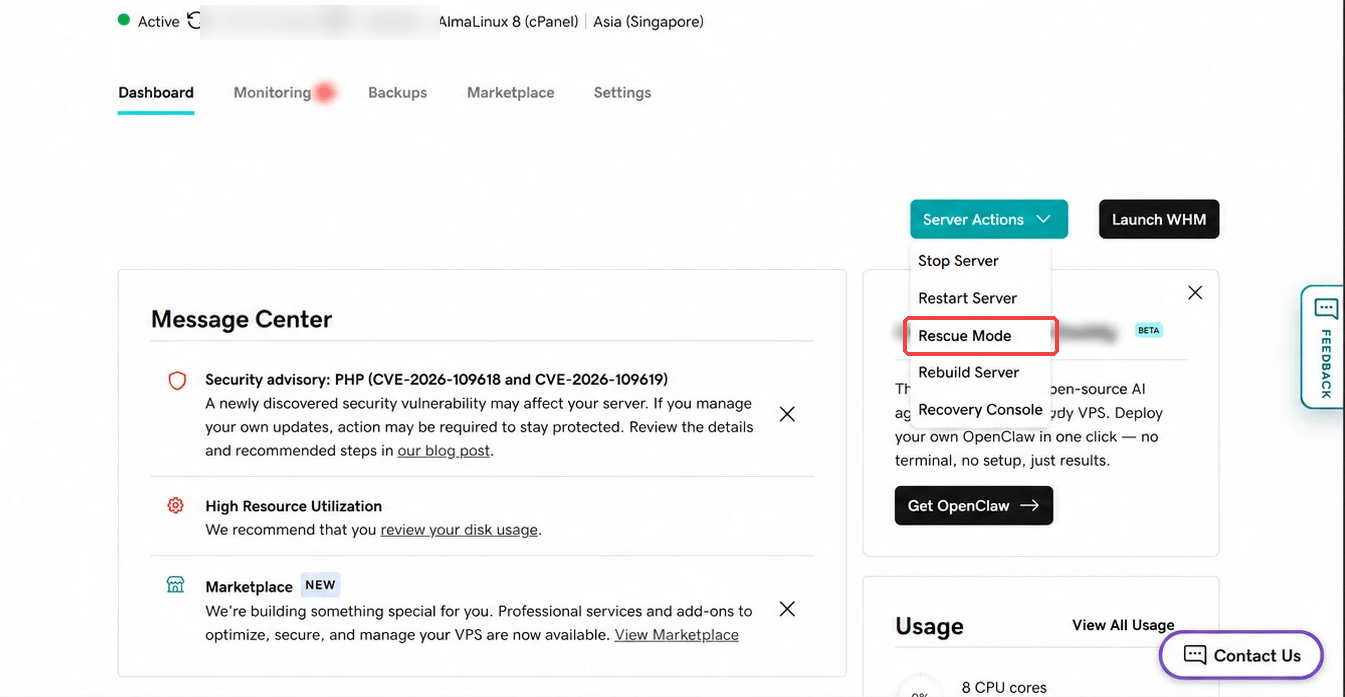
Rescue Mode boots the server from a temporary recovery environment instead of its normal disk. The broken operating system never starts, so you can safely inspect the original disk from the outside without depending on it.
What we found on the disk
We connected to the rescue environment, identified the original server drive and mounted it. The picture was clear almost straight away:
- The original 399 GB disk was essentially full.
- The main cPanel account was using most of that space.
- A single
.trashdirectory was taking up about 162 GB on its own. - Inside it: repeated copies of the application, logs, uploads and old archive files.
That .trash folder is where cPanel’s File Manager puts things you “delete”. The files aren’t really gone. They just move there and keep using disk space until someone empties the trash.
If you ever need to do the same, the steps in a rescue environment look roughly like this. The device name and account name below are placeholders, so check yours with lsblk first:
# find the original disk and its partitions
lsblk -f

# mount it somewhere temporary
mkdir -p /mnt/server
mount /dev/sdXN /mnt/server

# confirm it's full and find the biggest folders
df -h /mnt/server
du -xh --max-depth=2 /mnt/server/home | sort -h | tail -20

# check the cPanel File Manager trash
du -sh /mnt/server/home/<account>/.trash
Cleaning up, carefully
We cleaned only the trash directory. The live website files and the backup archive were left untouched. When a server is down and everyone wants it back, it’s tempting to start deleting anything that looks big. Don’t. Remove what you’re sure about, and leave the rest for when the server is stable.
After the cleanup:
- Disk usage dropped from 396 GB to 238 GB.
- Free space went from about 3 GB to 162 GB.
- Disk utilisation fell from 100% to 60%.
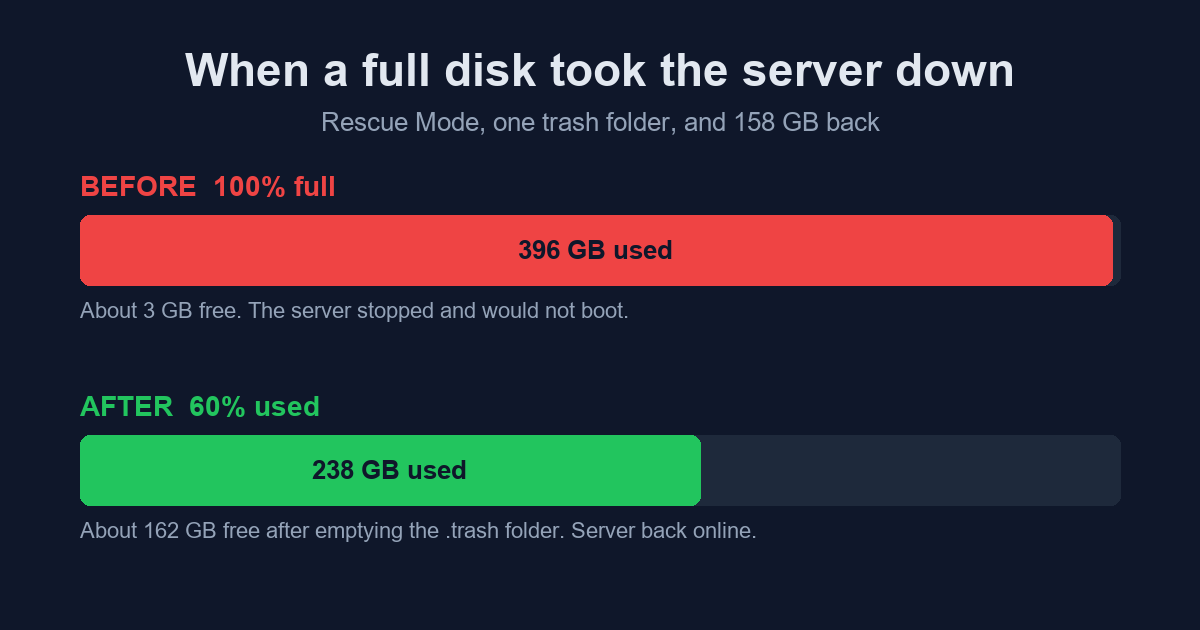
We switched Rescue Mode off and rebooted. With room to breathe again, the server booted normally and everything came back online.
Lessons learned
- Disk-space alerts must reach people who can act on them immediately. An email to a busy inbox isn’t an alert.
- Alerts should be acknowledged and escalated, not just sent.
- Keep SSH and rescue access details securely documented, in a password manager, not someone’s memory.
- Regularly clean old uploads, logs, archives and trash folders, including cPanel’s
.trash. - Don’t restart a server with a completely full disk until you’ve freed some space.
- Know where your hosting provider’s rescue or recovery mode is before you need it.
A full disk can look like a small infrastructure issue, but it can quickly turn into a complete outage. In our case, Rescue Mode gave us the access we needed to find the real problem, remove what was safe to remove and bring the server back without losing anything that mattered.
A note on the images in this post
Each image is here for a reason, and each one was cleaned up before it went online.
- The hosting dashboard screenshot. This is the real control panel, so you know exactly where to look: Server Actions → Rescue Mode. We cropped out the browser tabs, address bar, bookmarks and taskbar, and blurred the server’s IP address and hostname. Those details identify a real machine on the internet and don’t help anyone reading this.
- The before/after disk chart. These are the real numbers from the incident, shown as a picture so you can see how much one forgotten trash folder can matter. It’s also the post’s featured image.
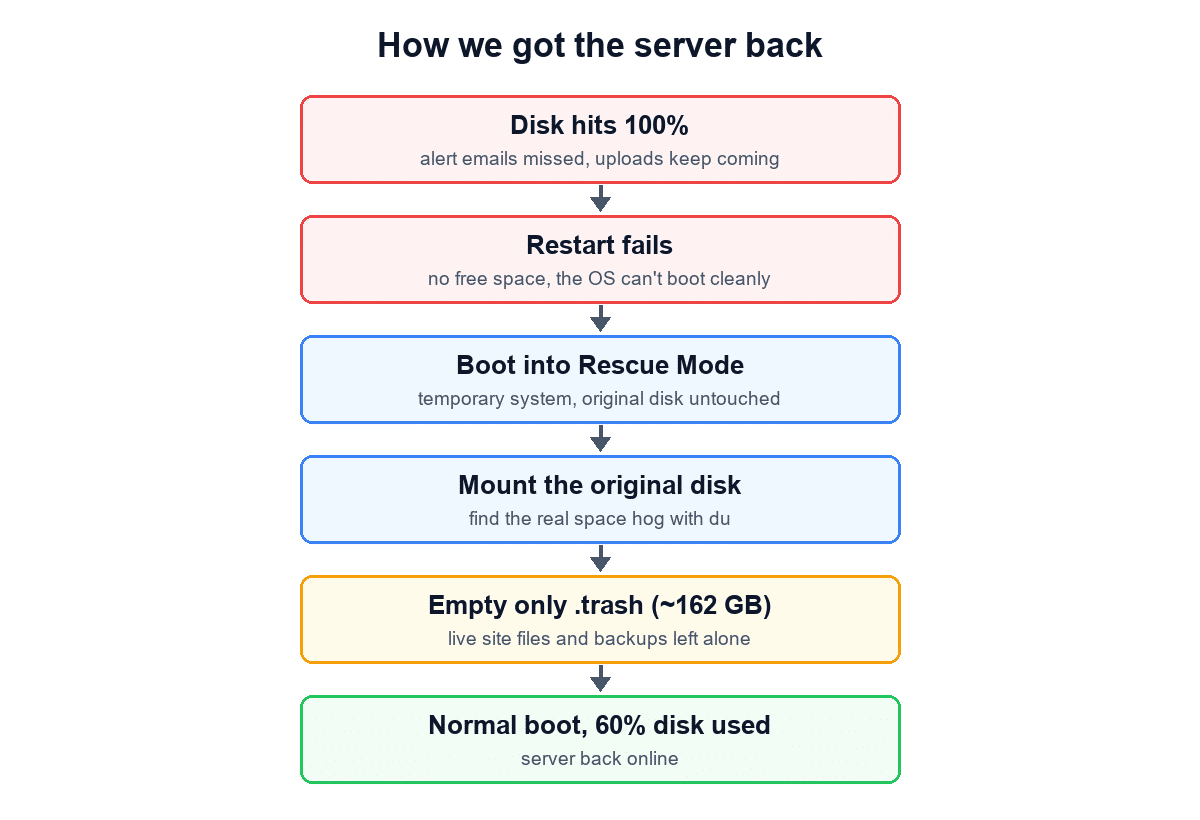
- The recovery flowchart. In an outage it’s easy to lose track of the order of steps. The flowchart is a quick reference you can follow if this ever happens to you.
We left the account name, server address and company details out of the post on purpose. If you write up your own incidents, check every screenshot for address bars, tab titles, IPs and usernames before you publish.