Composer Detected Issues in Your Platform: PHP >= 8.3.0 Required While cPanel Shows PHP 8.4
A PHP application in a sub-folder of a cPanel hosting account (I will call it example.com/app/) stopped with this message instead of loading:

Composer detected issues in your platform: Your Composer dependencies require a PHP version ">= 8.3.0".The confusing part was that I had already set the account to PHP 8.4 in cPanel. This post explains what the message means, why the setting you pick in the control panel can be ignored, what worked for me, and what to ask your hosting provider for when you do not have server-level access.
What the message means
That text does not come from cPanel. It comes from the application itself. When Composer installs an app’s dependencies, it can generate a small file, vendor/composer/platform_check.php, that runs at the start of every request and compares the PHP version actually running the page with the versions the installed packages need. In the Composer configuration documentation, this is the platform-check setting: by default it checks only the PHP version, and setting it to false stops Composer from creating that file.
So the message tells you one thing: the PHP that served this page is older than 8.3.0. It does not tell you what you configured. Which PHP version the web server really uses for a given folder is a separate question, and that was the whole problem.
What I saw
The PHP Selector in cPanel showed 8.4 (current) under Account Global Settings:
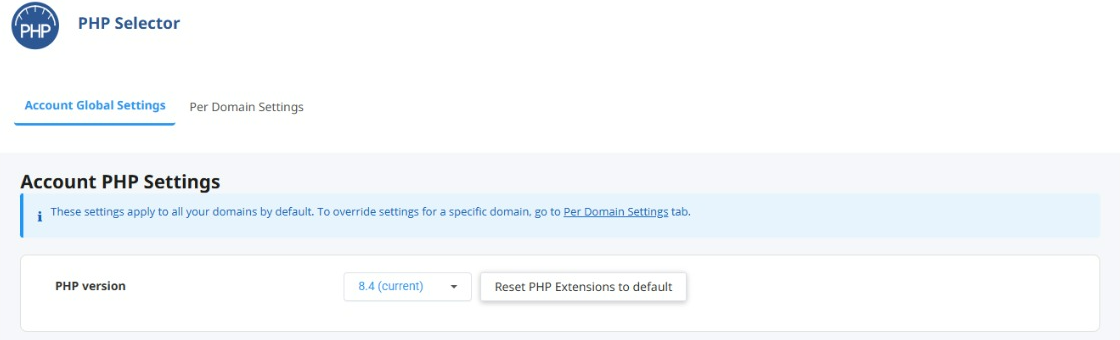
The same screen carries a note: “These settings apply to all your domains by default. To override settings for a specific domain, go to Per Domain Settings tab.” So the account-wide version is only a default, and something more specific can override it. Even so, the app kept running on an older PHP.
What I checked, and what I found
I am reconstructing the order of these steps from my notes, so treat the sequence as approximate.
- I looked at the PHP configuration files I could reach:
php.ini,.user.iniand.htaccess. - An
.htaccessI inspected still referred to PHP 8.2. A handler line like this in.htaccesstells the web server which PHP to run for that folder, and it can override what the control panel selector shows. - When I changed that setting to PHP 8.4, the site returned 403 Forbidden.
- When I deleted the
.htaccess, the site worked. About a day later the same problem came back. - In the app’s sub-folder I then tested an
.htaccesswith theapplication/x-httpd-ea-php84handler, which gave the 403 again, and then one with theapplication/x-httpd-alt-php84handler, which worked:
<IfModule mime_module>
  AddHandler application/x-httpd-alt-php84 .php .php8 .phtml
</IfModule>
Handler names are specific to the server. The ea-php names belong to cPanel’s EasyApache PHP packages, and the alt-php names belong to CloudLinux’s alternative PHP packages. A hosting company may offer one, the other, or both, so copy the name your host documents rather than a name from a forum answer. On my account alt-php84 worked and ea-php84 gave the 403.
Why a handler in a sub-folder matters
cPanel has a knowledge-base article for a related situation, a site that does not load after a move, with this line in the Apache error log:
script not found or unable to stat: /usr/local/cpanel/cgi-sys/ea-phpXXIts stated cause is that the PHP version or handler set in WHM does not match the one in the local .htaccess files’ AddHandler lines. The article adds one detail that explains a lot: cPanel’s MultiPHP Manager does not modify the .htaccess files of directories that are not a domain’s document root. If an app lives in a sub-folder with its own .htaccess, changing the PHP version in MultiPHP Manager will not touch that file, and, depending on the server’s configuration, the old handler line may keep deciding which PHP runs. (How a handler line interacts with CloudLinux’s PHP Selector depends on settings such as CageFS and the Selector’s mode, which only the host can see.)
I cannot prove that this is exactly what happened to me. The article describes a different trigger (an account transfer) and a different error. But it fits the first symptom: a stale handler in an .htaccess that the control panel does not manage.
Hosting support resolved it
I do not have WHM (the server-level control panel) on this account, so I contacted my hosting provider’s support team. They changed a configuration in WHM and the problem was resolved. I was not given the exact setting, so I cannot tell you what it was. What I can show you is guidance from cPanel’s documentation that is related, though not proof of what was wrong on my account. A cPanel knowledge-base article about ALT-PHP on CloudLinux (written about a 503 error with PHP-FPM) says the recommended PHP handler for ALT-PHP versions on CloudLinux is LSAPI, that you must use the PHP Selector to use ALT-PHP options, and that in MultiPHP Manager you set the PHP version to inherit and then choose the ALT-PHP version in the PHP Selector. Those are settings for your host to check against your account, not a confirmed explanation of my case.
When you contact support, ask these in one message:
- Which PHP handler does my domain use, and is it the one my PHP Selector setting should control?
- Is my domain set to “inherit” in MultiPHP Manager, so that the PHP Selector decides the version?
- Is there a server-level override that could be putting an older PHP back after a day?
- Which handler name should I use in
.htaccessif I need one (ea-php84,alt-php84, or another)?
If you do have WHM access: things to try
I did not have WHM access, so I could not try these steps myself. They come from the two cPanel articles linked above, so they are a good checklist for a server owner or a reseller who can see WHM:
- Check what WHM thinks the domain should use. In WHM go to Software, then MultiPHP Manager, and open the User Domain Settings tab. Find the affected domain; the PHP Version column shows the version it is meant to use. The first cPanel article says a mismatch between this and the
.htaccesshandler lines is the cause of the error it describes. - Review the
.htaccessfiles in the account. In the cPanel account’s File Manager, open the.htaccessfiles in the account root and thepublic_htmlfolder, and in the app’s own folder, and look forAddHandlerlines. The article says that for a directory that is not a domain’s document root, the file has to be edited by hand to use the right PHP version and handler, because MultiPHP Manager does not modify it. - On a CloudLinux server using ALT-PHP: the second article says to set the domain’s PHP version in MultiPHP Manager to inherit, then choose the ALT-PHP version in the PHP Selector, and that LSAPI is the recommended handler for ALT-PHP versions.
- Check the Apache error log for the
script not found or unable to statmessage shown above. With theea-phpXXpath, as in the cPanel article, it is a reason to look for a PHP version or handler mismatch.
How far a change reaches depends on the setting: a domain’s version, a single folder’s .htaccess, or a shared handler setting. Note the current values before you change anything, and test every affected site afterwards.
What not to do
You may see advice to set "platform-check": false in the config section of composer.json (and regenerate the autoloader), or to run Composer with --ignore-platform-reqs. The first stops the generated check from running; the second tells Composer to ignore platform requirements, including the PHP version and required extensions, while installing. Neither one makes the PHP any newer, and a Sentry write-up on this error warns that packages which need a newer PHP may then fail at run time. Here the packages genuinely needed PHP 8.3 or newer, so the right fix is to make the site run on the newer PHP, not to switch off the check.
A quick way to see which PHP serves a folder
If you are unsure which version a folder really runs, put a one-line test file in that folder, open it in a browser, and delete it straight away:
<?php echo PHP_VERSION;Use a name that is hard to guess, and remove the file once you have read the version. If it prints an older version than the PHP Selector shows, the version the web server actually uses differs from the one you selected. Check the per-domain settings, any .htaccess handler lines that apply to that folder, and, with your host, the server configuration.
Related guides
- Which PHP version setting wins on cPanel
- The PHP version keeps going back after I change it
- How to run a different PHP version in a sub-folder
- How to change the PHP version in cPanel
- How to update PHP for a WordPress site safely
Checklist
- The message says Composer dependencies require a PHP version you thought you had: the web server is running an older PHP for that folder.
- Check the PHP Selector’s Per Domain Settings tab, not only Account Global Settings.
- Look for
AddHandlerlines in the.htaccessof the app’s folder and of the domain’s document root. MultiPHP Manager does not edit.htaccessfiles in folders that are not a document root. - If you edit the handler, use the handler name your host documents. On my account the
alt-php84handler worked andea-php84returned a 403. - Do not turn off Composer’s platform check to hide the message.
- If the old version keeps coming back, ask your host to check the WHM settings (inherit in MultiPHP Manager, handler, overrides), because that is where the fix was for me.