DISM CheckHealth vs ScanHealth vs RestoreHealth: What to Run and When SFC Fits
When Windows starts misbehaving in ways that point at the operating system itself, such as Windows Update failing repeatedly, built-in apps refusing to open, or features that will not install, the standard advice is “run SFC and DISM”. The three DISM options that come up most often, /CheckHealth, /ScanHealth and /RestoreHealth, sound alike and are easy to mix up. They do different amounts of work, and only one of them attempts a repair.
All of these commands work on Windows 10 and Windows 11, and the same switches exist on Windows Server.
The short version
| Command | Does what | Attempts repairs? | Speed |
|---|---|---|---|
DISM /Online /Cleanup-Image /CheckHealth |
Reports whether corruption was already detected and flagged | No | Seconds |
DISM /Online /Cleanup-Image /ScanHealth |
Scans the component store for corruption | No (it records what it finds) | Several minutes |
DISM /Online /Cleanup-Image /RestoreHealth |
Scans and repairs the component store, fetching good files from a repair source | Yes | Several minutes or longer |
sfc /scannow |
Checks protected system files and replaces damaged ones from the component store | Yes | Several minutes |
If you already suspect component-store damage, you can go straight to /RestoreHealth, because it includes the scan. /CheckHealth and /ScanHealth are for when you want to look before repairing anything. All three write to the DISM log.
What the component store is, and why it matters
Windows keeps the components it uses to build, update and repair itself in a folder called the component store (C:\Windows\WinSxS). Many files in the running system are hard-linked to it. DISM (Deployment Image Servicing and Management) works on the store. SFC checks the protected system files and repairs them using the store. That is why a damaged store can stop SFC from fixing a file, and why DISM is the next step when SFC fails.
CheckHealth: the quick look
DISM /Online /Cleanup-Image /CheckHealthThis does not scan anything. It reads the status that Windows has already recorded and tells you whether the image is healthy, repairable or not repairable. It finishes in a few seconds. A clean result usually reads “No component store corruption detected.” Because it only reports earlier findings, a clean result does not prove the store is fine. It means nothing has flagged a problem so far.
ScanHealth: the full inspection
DISM /Online /Cleanup-Image /ScanHealthThis one actually checks the component store, and it takes a few minutes. It does not repair anything; if it finds corruption, it records that, and a following /CheckHealth will report it. Run it when you want a fresh scan of the store before deciding what to do about it.
RestoreHealth: scan and repair
DISM /Online /Cleanup-Image /RestoreHealthThis scans and repairs. By default, and unless policy says otherwise, it fetches replacement files from Windows Update, so the PC then needs an internet connection and a working update service. A local source can remove that need (see below). The progress bar can sit at one percentage for a long time, and a common report is a pause near 20% or 62%. Before cancelling, look at CPU and disk activity in Task Manager and at the end of %windir%\Logs\DISM\dism.log. A successful run ends with “The restore operation completed successfully.”
The order that makes sense
- Open an elevated Command Prompt or Windows Terminal (right-click, Run as administrator).
- Run
DISM /Online /Cleanup-Image /RestoreHealthto check and repair the component store, and wait until it reports success. - Run
sfc /scannowso damaged system files are repaired using that store. - Restart, and test whatever was broken.
Microsoft’s support article for the System File Checker suggests running sfc /scannow first and moving on to DISM if SFC cannot repair everything. Starting with DISM, as above, is a common choice when the symptoms already point at the component store (for example Windows Update failing repeatedly), since SFC depends on it. Either way, if SFC reports files it could not fix, run DISM /RestoreHealth and then SFC again. Run the tools one after another, and let any Windows Update installation or pending restart finish first.
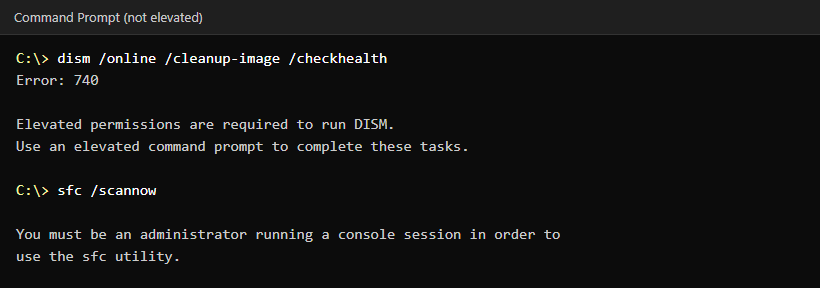
Run it as administrator
Both tools refuse to start without elevation, and it is easy to forget. The screenshot below comes from a normal, non-elevated window: DISM reports error 740 and SFC says you must be an administrator.
The PowerShell versions
The DISM PowerShell module has equivalent cmdlets. They need an elevated PowerShell as well:
Repair-WindowsImage -Online -CheckHealth
Repair-WindowsImage -Online -ScanHealth
Repair-WindowsImage -Online -RestoreHealth
They return an object, which is handy in scripts: its ImageHealthState property says whether the image is healthy.
When Windows Update cannot supply the files
If /RestoreHealth fails with errors such as 0x800f081f (“the source files could not be found”) or cannot reach Windows Update, give it a local source: a Windows ISO that matches the installed release, architecture and edition. Mount the ISO (double-click it in File Explorer), note the drive letter, and find the right image index inside install.wim:
DISM /Get-WimInfo /WimFile:D:\sources\install.wim
DISM /Online /Cleanup-Image /RestoreHealth /Source:WIM:D:\sources\install.wim:1 /LimitAccess
Replace D: with the mounted drive and 1 with the index that matches your edition (Home, Pro and so on). Some ISOs contain install.esd instead, and then both the file name and the prefix change:
DISM /Get-WimInfo /WimFile:D:\sources\install.esd
DISM /Online /Cleanup-Image /RestoreHealth /Source:ESD:D:\sources\install.esd:1 /LimitAccess
/LimitAccess stops DISM from falling back to Windows Update. These options are described on Microsoft’s “Repair a Windows Image” page, linked below. The source has to contain the component versions the PC needs, so an ISO that is older than the installed update level can be rejected even when the release and edition match.
Reading the results
- SFC: “did not find any integrity violations”: no damaged protected files were detected. That does not mean your original problem is solved.
- SFC: “found corrupt files and successfully repaired them”: the damage SFC found was repaired. Restart and retest the original problem.
- SFC: “found corrupt files but was unable to fix some of them”: run DISM
/RestoreHealthand then SFC again. Details are in%windir%\Logs\CBS\CBS.log. - DISM writes its own log to
%windir%\Logs\DISM\dism.log.
What these tools do not fix
They repair Windows system files and the component store. They do not fix a failing drive, bad RAM, bugs in a driver, malware that is still running, or a problem in a third-party application. If DISM and SFC both finish cleanly and the symptom is still there, look elsewhere: the Event Viewer, a disk check, the most recent driver or update, or a repair install with a matching ISO that keeps your files and apps.
Common questions
Is it safe to run these on a working PC?
They are supported Microsoft tools. /CheckHealth and /ScanHealth do not repair anything. /RestoreHealth repairs component-store corruption and SFC repairs protected system files. As with any maintenance, have a backup of anything important.
Do I need to restart afterwards?
Not always, but restart after a repair that changed files, then retest the original problem.
Keep reading
- Fix “wmic is not recognized” on Windows 11 — Another command that changed on current Windows 11 builds.
- Can’t Connect via RDP on Windows: Admin Checklist — A layered checklist for a common Windows admin problem.
- How to Enable BitLocker in Windows 10 and 11 (Step by Step) — Protect the drive before you start repairing a system.