Git and GitHub for Beginners: Your First Repository, Branch and Push
Every admin ends up with files they cannot afford to lose or to break silently: shell scripts, nginx and systemd configs, Ansible playbooks, documentation. Git is the standard tool for tracking those files. It records every change with a message, lets you see exactly what changed and who changed it, lets you go back when an edit goes wrong, and lets several people work on the same files without overwriting each other. GitHub is a website that hosts Git repositories so you can back them up and share them. This guide takes you from zero to a first repository with real commits, a branch, a merge and a push, and shows the output of each command from an actual session on my machine, so you know what “working” looks like.
Git and GitHub are not the same thing
| Git | GitHub | |
|---|---|---|
| What it is | Free, open-source version control software that runs on your computer | A hosted service (owned by Microsoft) that stores Git repositories and adds collaboration features |
| Needs internet? | No. Commits, branches and history are all local | Yes |
| Features | Commits, branches, merges, history, diffs | Pull requests, issues, code review, Actions (automation), access control, forks |
| Alternatives | Mercurial and Subversion are other version control systems | GitLab, Bitbucket, Gitea and Codeberg host Git repositories too |
Git was created by Linus Torvalds in 2005 to manage Linux kernel development after the kernel project lost access to its previous tool; the story is in the history of Linux. Because Git is distributed, a normal clone contains the full commit history, so you can commit, inspect history and branch on a plane with no network, and a clone is a useful backup of the code and its history. (It does not include GitHub extras such as issues, pull requests and settings, and shallow or partial clones leave out some history.)
Words you will see constantly
| Term | Meaning |
|---|---|
| Repository (repo) | A project folder that Git tracks, including its hidden .git directory holding the history |
| Working tree | The actual files you see and edit |
| Staging area (index) | A waiting room where you choose which changes go into the next commit |
| Commit | A saved snapshot plus a message and author, identified by a hash such as 5d2edcc |
| Branch | A movable label pointing at a line of commits, used to work on something without touching the main line |
| Merge | Combining one branch’s commits into another |
| Remote | A copy of the repository somewhere else, usually named origin |
| Clone / fork | Clone copies a repo to your machine. A fork is a copy of someone else’s GitHub repo under your own account |
| Pull request (PR) | A request on GitHub to review and merge one branch into another |
Step 1: Install Git and tell it who you are
- Windows: install Git for Windows from git-scm.com (it includes Git Bash and a credential helper), or run
winget install --id Git.Git -e. - macOS: run
git --versionand accept the prompt to install the developer tools, or use Homebrew. - Linux:
sudo apt install giton Debian or Ubuntu,sudo dnf install giton Fedora and RHEL.
Then set your identity once. Git stamps it on every commit:
git config --global user.name "Your Name"
git config --global user.email "[email protected]"
git config --global init.defaultBranch main
git --version
The third line makes new repositories start on a branch called main, which is also GitHub’s default. Use the email address you use on GitHub, or GitHub’s private “noreply” address, which you can find in its email settings, if you do not want your real address in public commits.
Step 2: Create a repository and make your first commit
Make a folder for a small project and turn it into a repository:
mkdir server-notes
cd server-notes
git init -b main
Create a file, then ask Git what it sees:
echo "# Server notes" > README.md
git status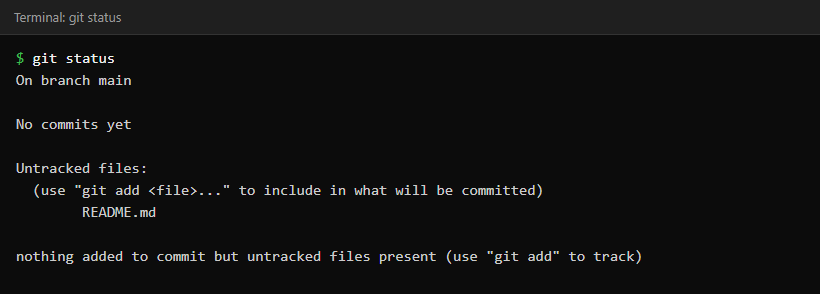
git status is the command to run whenever you are unsure what state you are in. Now stage the file and commit it:
git add README.md
git status --short
git commit -m "Add README"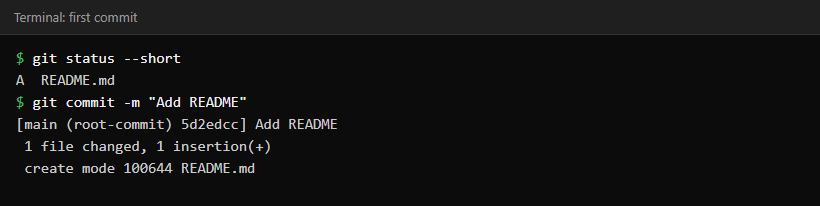
Two steps, add then commit, look like extra work, but they are what makes Git precise: you can edit ten files and commit only the three that belong together. Write commit messages in the imperative (“Add backup script”, “Fix log path”) and make each commit one logical change. Later, git log becomes a readable changelog.
Step 3: Branch, change, look at the difference, merge
Add a script and commit it on main, then create a branch to change it without touching main:
git add backup.sh
git commit -m "Add backup script"
git switch -c fix-backup-path
# edit backup.sh, then:
git commit -am "Write backups to /var/backups"
git branch
git log --oneline --graph --all --decorate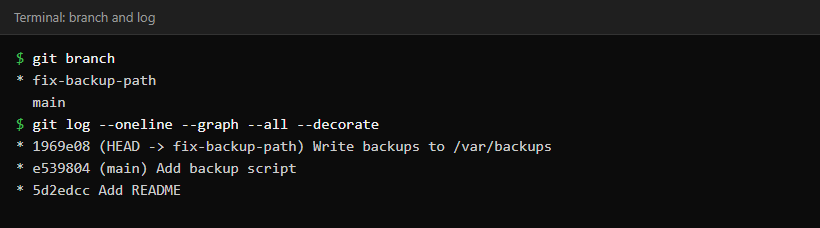
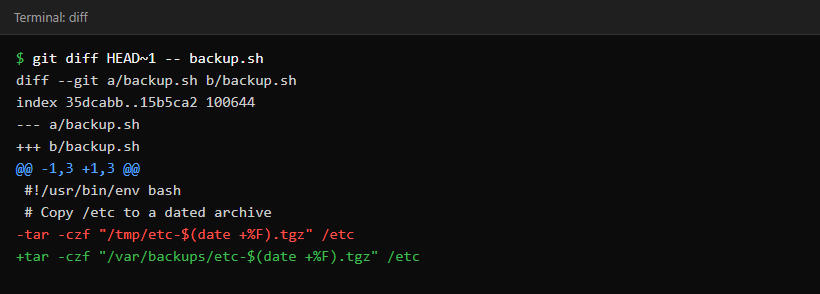
Before merging, review exactly what changed. git diff HEAD~1 HEAD compares the last commit with the one before it (red lines removed, green lines added). Without the final HEAD it compares the older commit with your working files, so it also shows uncommitted edits; my tree was clean, so the output below is the same either way:
Switch back to main and merge the branch in:
git switch main
git merge fix-backup-path
git log --oneline --graph --decorate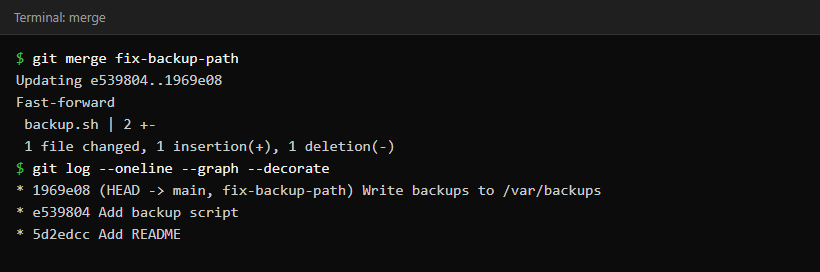
If both branches had made different changes to the same lines, Git would stop with a merge conflict and mark the clashing lines in the file with <<<<<<<, ======= and >>>>>>>. You edit the file to the version you want, run git add on it, then git commit to finish. Conflicts look scary the first time but are ordinary. git merge --abort tries to take you back to before the merge if you want to start again (commit or stash your own edits before merging so there is nothing to lose). Delete the finished branch with git branch -d fix-backup-path.
Step 4: Keep secrets and junk out with .gitignore
This step matters most for admins. A repository remembers everything that was ever committed, so a password committed once stays in the history even after you delete the file. Tell Git to ignore files that must never be tracked, and commit the .gitignore itself so everyone gets the same rules:
printf '.env\n*.key\n' > .gitignore
git status --short
git add .gitignore
git commit -m "Add .gitignore"
Know its limits: .gitignore only affects files Git is not tracking yet. If .env was already committed, ignoring it does nothing; stop tracking it with git rm --cached .env (and remember it is still in the old history). A forced git add -f also overrides it.

Rules to live by:
- Never commit passwords, API tokens, private keys,
.envfiles or cloud credentials, even in a private repo. - If a secret is committed, treat it as leaked: revoke and replace it first. Removing it from history is a second step and is not enough on its own, because someone may already have cloned it.
- Also ignore generated files, logs and editor folders. GitHub publishes ready-made
.gitignoretemplates per language.
Step 5: Put the repository on GitHub
- Get an account. Sign up at github.com with your email and verify it. Turn on two-factor authentication in the account’s security settings straight away: set up an authenticator app first, save the recovery codes somewhere safe, and then you can add a passkey or security key as well.
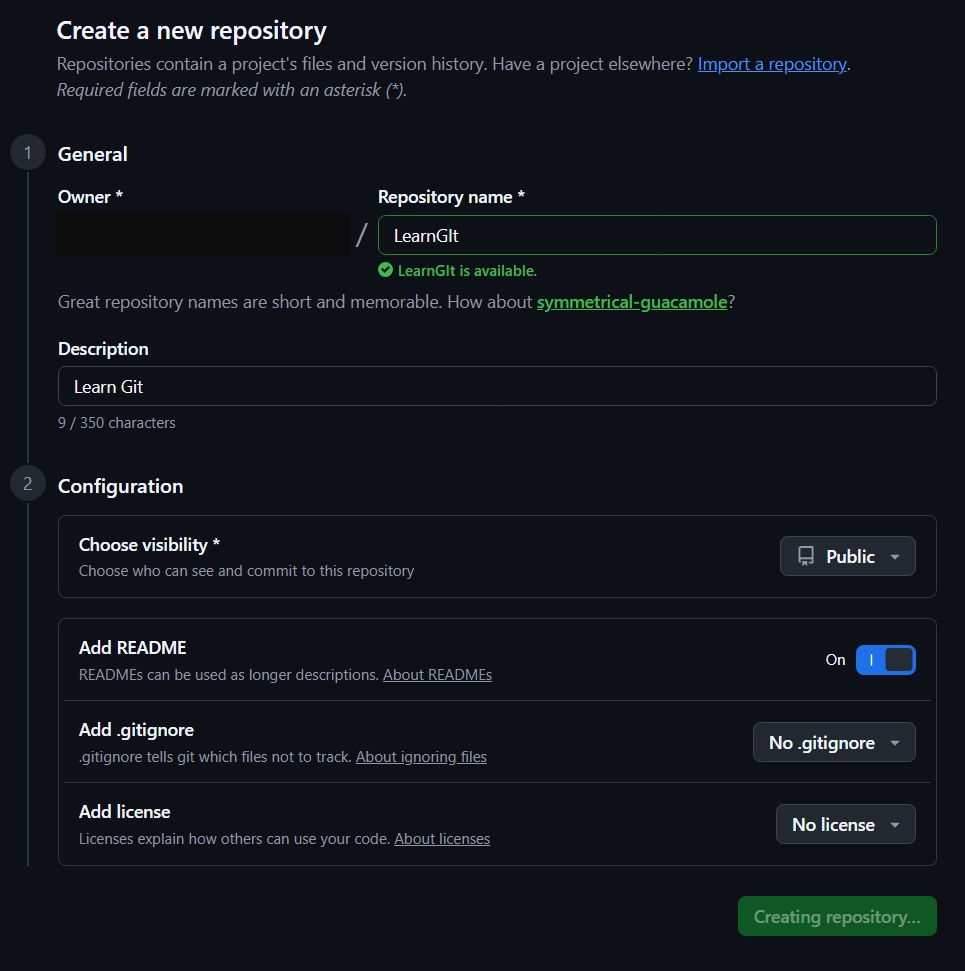
- Create an empty repository. Click + > New repository, choose a name, choose Private unless you want the world to see it, and leave the options to add a README,
.gitignoreor licence unticked because your local repository already has content. Then click Create repository.
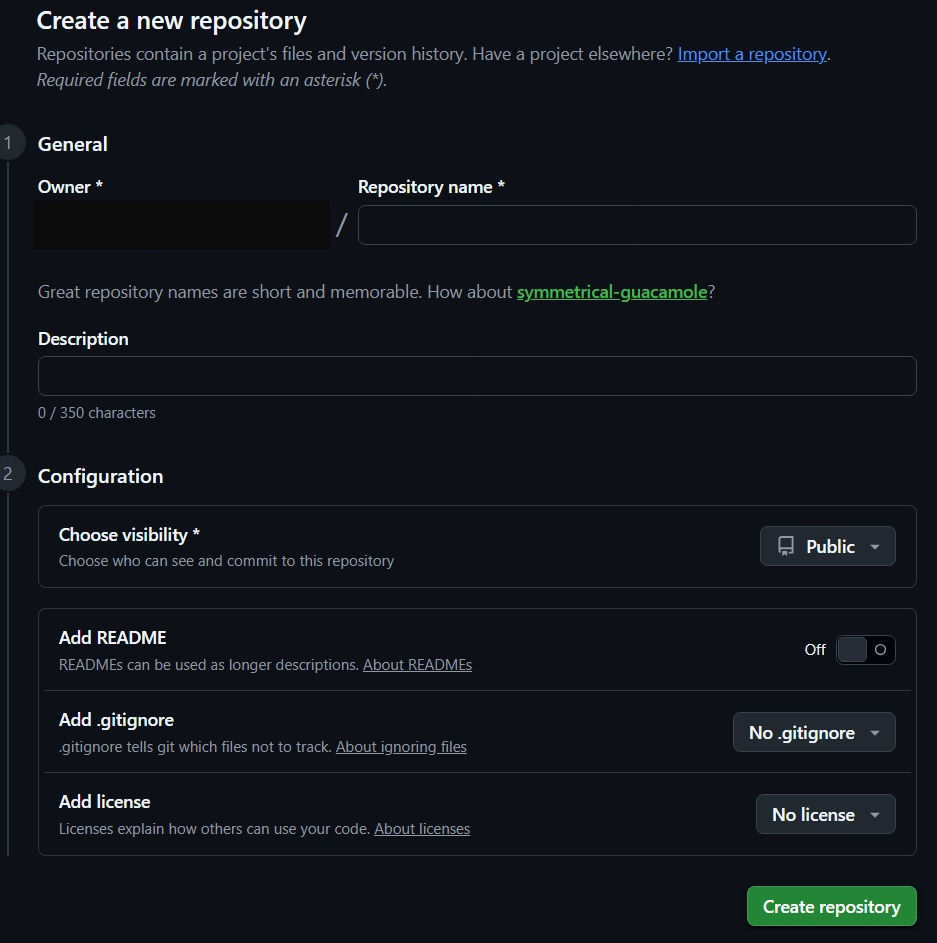
The New repository form. For an existing local project keep Add README, .gitignore and license off, and pick Private visibility if the code is not meant to be public. - Connect and push. GitHub shows the exact commands. They look like this (replace the URL with yours):
git remote add origin [email protected]:YOUR-USERNAME/server-notes.git
git push -u origin main
The first line names the remote
origin. The second uploads yourmainbranch and remembers the link (-u), so latergit pushandgit pullneed no arguments.
Prefer the browser? Start on GitHub instead
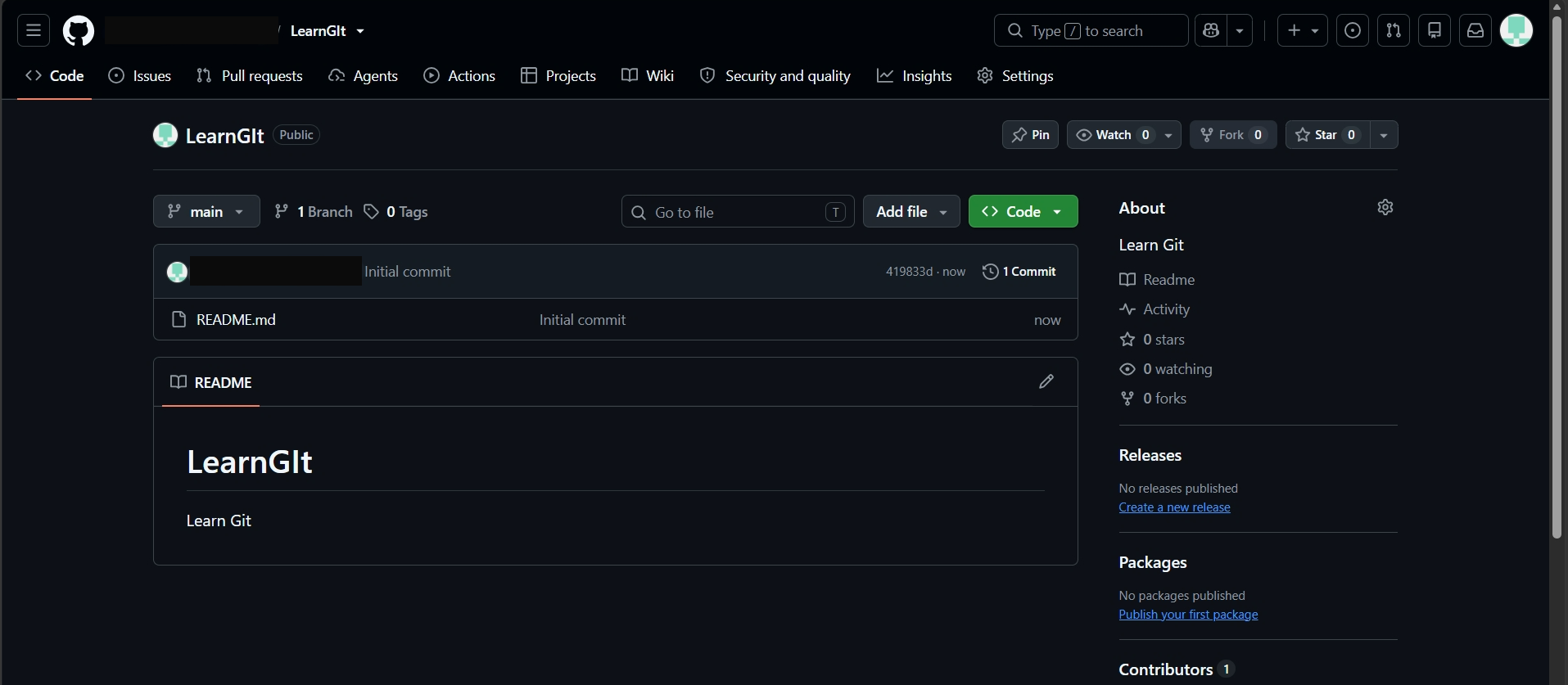
You can also begin on the website: create the repository with Add README switched on, and GitHub makes a first commit for you. I did this with a practice repository called “LearnGit” (a public one, since it only holds a test file):
The repository opens on its Code tab: the branch selector (main), the file list, the rendered README and an About panel. The tabs across the top (Issues, Pull requests, Actions, Settings) are the collaboration features Git alone does not have.
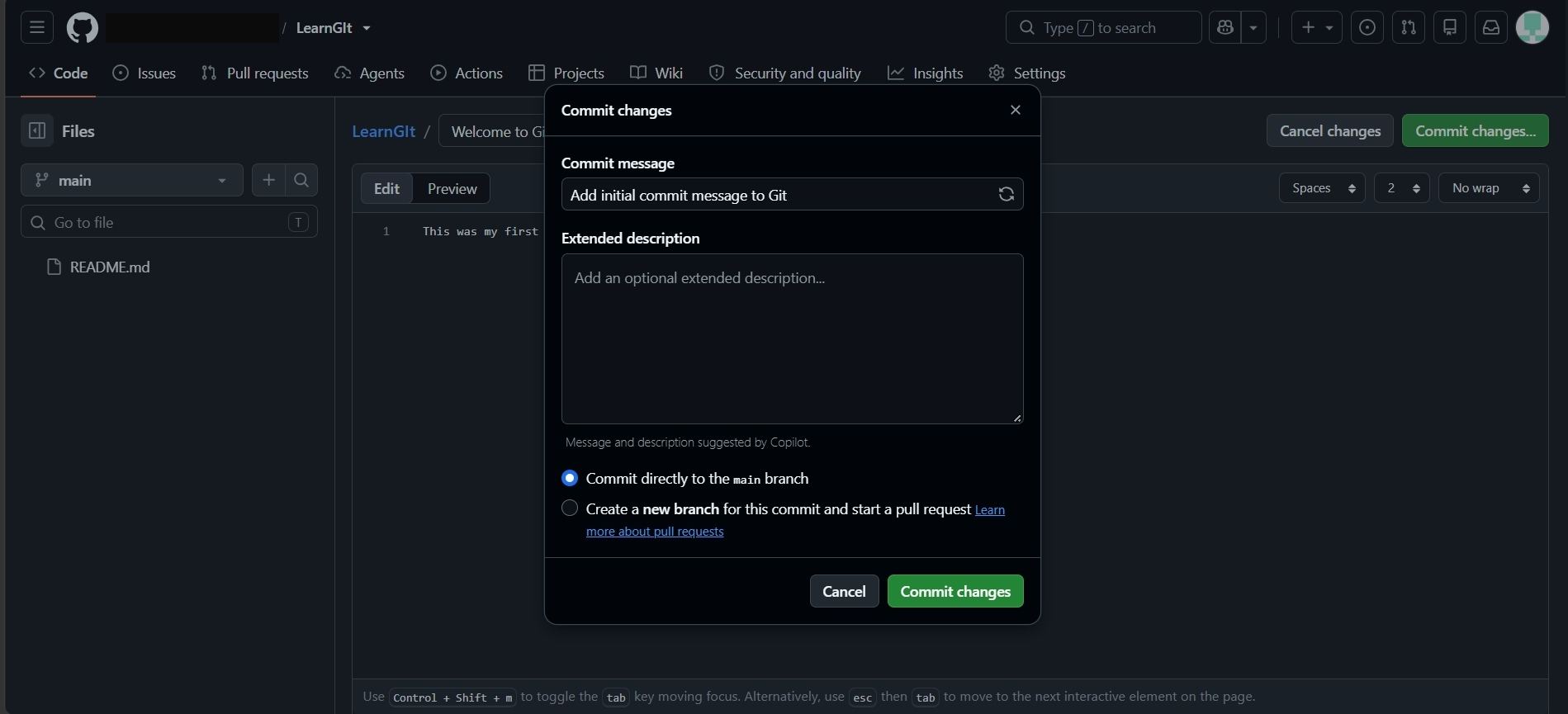
To edit a file in the browser, open it and click the pencil icon, change the text, then click Commit changes. GitHub asks for a commit message and whether to commit straight to main or to a new branch with a pull request. Every save on the website is a real Git commit, exactly like the ones you made in the terminal. For anything that matters, choose the new-branch option and review it as a pull request.
How Git proves who you are
GitHub no longer accepts your account password for Git operations over HTTPS (it ended that in August 2021). You have two good options:
- SSH keys (recommended for servers and daily use). Create a key with
ssh-keygen -t ed25519 -C "[email protected]", give it a passphrase, add the public file (~/.ssh/id_ed25519.pub) under GitHub Settings > SSH and GPG keys, and test withssh -T [email protected]. The page is at github.com/settings/keys, and a new account shows no keys yet:
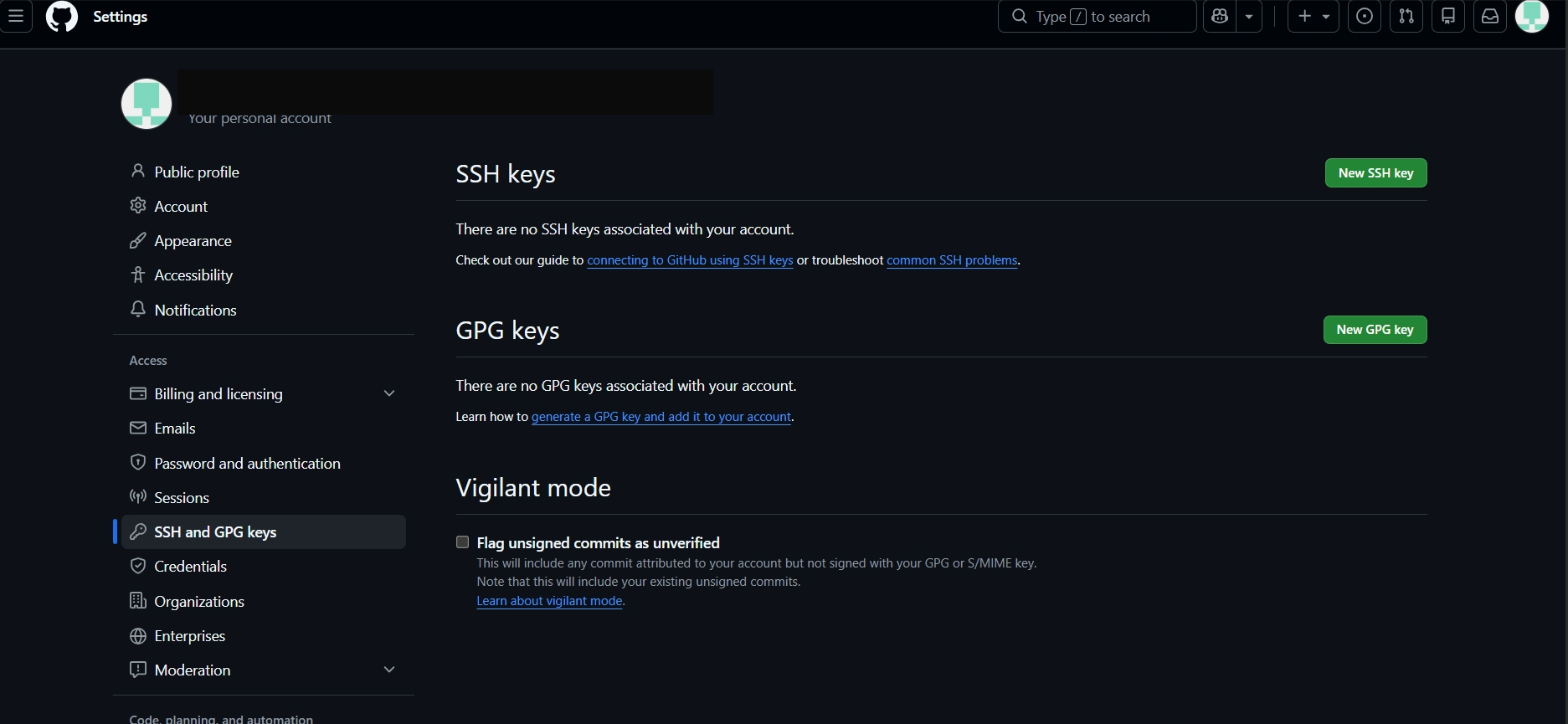
Settings > SSH and GPG keys on an account with no keys. Click New SSH key. Paste the whole public key line into the form, give it a title that says which computer it belongs to, and save:
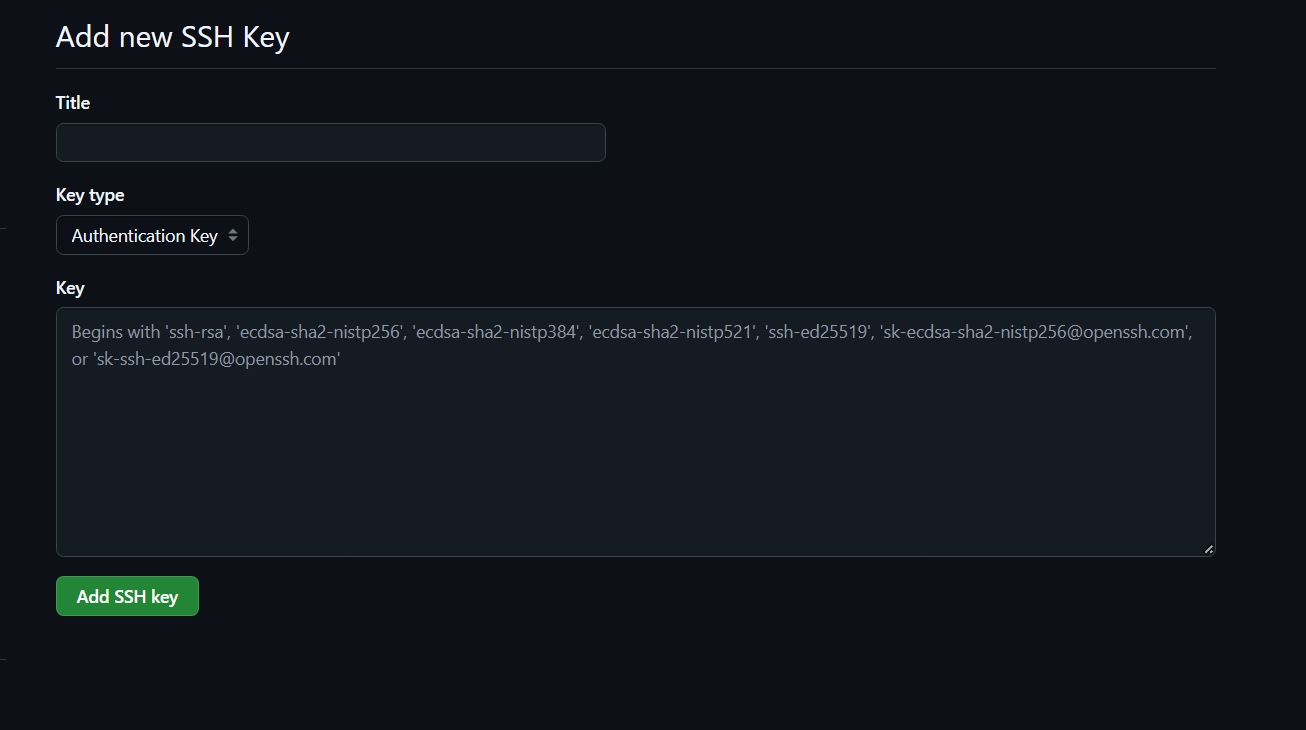
The Add new SSH key form. Only ever paste the public key (the .pub file), never the private key. Never share the private key. The hardening notes in the SSH checklist apply to your own machines too.
- HTTPS with a credential helper. Git for Windows includes one (Git Credential Manager) that opens a browser sign-in once and remembers a token; on macOS install it with
brew install --cask git-credential-manager, and on Linux follow GitHub’s caching-credentials guide. If you paste a personal access token by hand, give it the smallest scope and shortest expiry that works.
Everyday commands
| Task | Command |
|---|---|
| See what changed | git status, git diff |
| Save work | git add file then git commit -m "message" |
| History | git log --oneline --graph |
| Get a copy of a repo | git clone URL |
| Fetch and update from the remote | git pull (or git fetch first to look before merging) |
| Upload your commits | git push |
| New branch and switch to it | git switch -c name |
| Discard uncommitted edits to a file | git restore file (this cannot be undone) |
| Unstage a file | git restore --staged file |
| Undo a commit that is already shared | git revert COMMIT (adds a new commit that reverses it, so history stays honest) |
Avoid git push --force and git reset --hard until you understand them. They can permanently discard work, and forcing a push can wipe out other people’s commits on a shared branch.
Working with others: forks and pull requests
To contribute to a project you do not own, fork it on GitHub, clone your fork, create a branch, commit, push the branch to your fork and open a pull request against the original. The maintainers review it, comment, and merge it or ask for changes. Inside a team the flow is the same but usually without a fork: everyone pushes branches to the shared repository and opens pull requests into main, often protected so that changes need a review. This flow is also why open source works; read free software, open source and copyleft for the licensing side.
Where sysadmins use Git
- Scripts and cron jobs, so every change is reviewed and reversible.
- Config files: keeping
/etcunder version control (with a tool such asetckeeper) answers “what changed on this server last week?”. - Infrastructure as code (Terraform, Ansible, Kubernetes manifests) and CI/CD pipelines, where a merge to
maintriggers automation. - Runbooks and documentation in Markdown.
Common questions
What is the difference between git fetch and git pull?
git fetch downloads new commits but changes nothing in your files. git pull is a fetch followed by integrating those commits into your current branch, by default with a merge (it can be configured to rebase or to allow only fast-forwards).
Do I need GitHub to use Git?
No. Git works entirely offline. You only need a host such as GitHub, GitLab or a self-hosted server when you want a shared or off-site copy.
I committed something by mistake. Can I fix it?
If it is only on your machine, git commit --amend edits the last commit and git reset can move back, carefully. If you already pushed it and others may have it, prefer git revert. If it was a secret, rotate the secret regardless.
What should I read next?
The free Pro Git book on git-scm.com is the best complete reference, and GitHub’s own docs cover accounts, SSH and pull requests in detail.