Git Feature Branches, Pull Requests and Real Merge Conflicts
Knowing the individual Git commands is one thing. Using them as a team, without stepping on each other’s work, is a different skill. This guide walks through the workflow that most teams actually use, feature branches reviewed as pull requests, with real commits and a real merge conflict that I created and resolved on purpose so you can see exactly what it looks like. It follows on from Git and GitHub for beginners, which covers the basics of init, commit and your first push.
The workflow in one paragraph
Nobody commits straight to the shared main branch. Instead, you branch off it, make your change, push the branch, and open a pull request. Someone reviews the diff, comments if something needs fixing, and merges it once it looks right. main only ever moves forward with reviewed, working changes, which is what keeps a shared repository usable as more people commit to it.
Setting the scene
To show real output rather than made-up examples, I built a small local “team”: a bare repository standing in for the project on GitHub, and two working clones, Alice’s and Bob’s. Everything below is copied straight from that session.
git init --bare -b main team-notes.git
git clone team-notes.git alice
git clone team-notes.git bob
A bare repository (--bare) has no working files, only the Git history. It exists purely to be pushed to and pulled from, exactly like the copy GitHub hosts for you. Alice commits a README and pushes it; Bob then clones, so his copy already has that first commit.
Step 1: branch, commit, push
Alice needs to add a health-check script. She branches off main so the work stays isolated until it is reviewed:
git switch -c add-healthcheck
# write healthcheck.sh
git add healthcheck.sh
git commit -m "Add healthcheck script"
git push -u origin add-healthcheck
-u (short for --set-upstream) links this local branch to the one on the remote, so future git push and git pull on this branch need no arguments. At this point, on GitHub, Alice would open a pull request from add-healthcheck into main. A teammate reviews the diff in the PR’s Files changed tab, leaves comments if needed, and clicks Merge pull request once it is approved.
Step 2: bring the reviewed branch into main
Locally, merging an approved branch looks like this:
git fetch origin
git switch main
git merge origin/add-healthcheck
git push origin main
The fetch matters: origin/add-healthcheck only exists locally once you have downloaded it, which is why Bob, who never pushed that branch himself, fetches before he can merge it. (GitHub’s own Merge pull request button does the equivalent job on the server, though by default it creates a merge commit rather than a fast-forward, even when one would have been possible.)
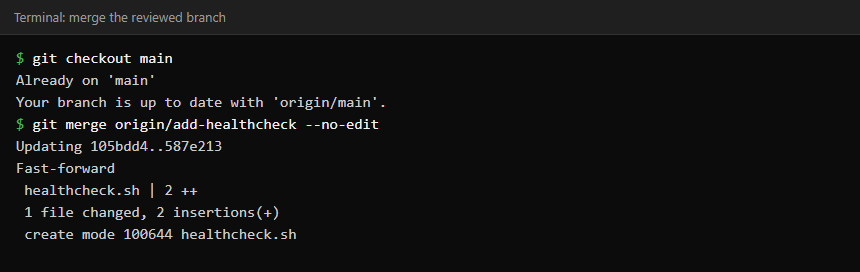
Because nobody else had committed to main in the meantime, Git could simply move the main pointer forward. This is called a fast-forward merge, and it is the cleanest possible outcome. It is not always what happens.
Step 3: a real merge conflict
Conflicts happen when two branches change the same lines and Git cannot decide which version you want. I made this happen on purpose: Alice and Bob both had the phrase “Team runbook” in the README, and each renamed it differently without knowing about the other’s change.
# Alice, from main
sed -i 's/Team runbook/Team runbook (ops)/' README.md
git commit -am "Rename runbook heading to ops"
git push origin main

# Bob, from main, before pulling Alice's change
sed -i 's/Team runbook/Team runbook (SRE)/' README.md
git commit -am "Rename runbook heading to SRE"
git pull origin main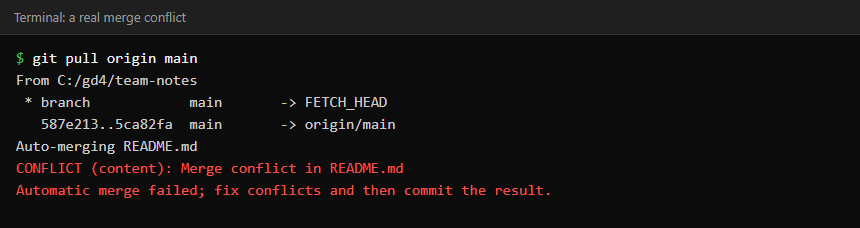
Git stops and leaves the file with both versions marked inside it:
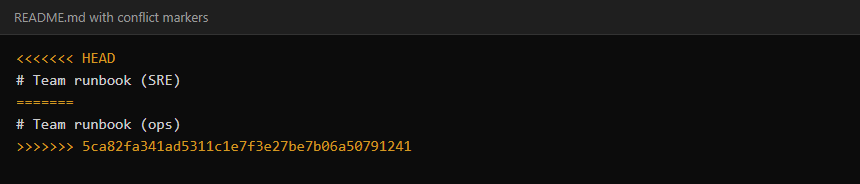
<<<<<<< HEAD starts your own version, ======= separates the two, and >>>>>>> <commit> ends the incoming version. git status confirms exactly what state you are in and what to do next:
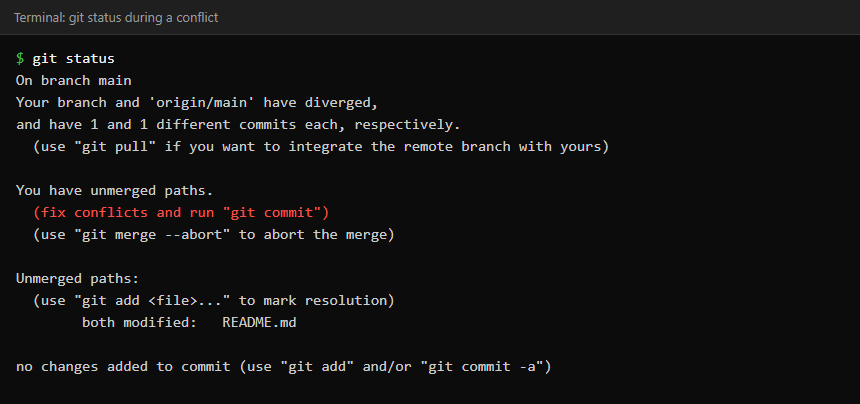
To resolve it, open the file, decide what the text should actually say, and remove the markers entirely:
# edit README.md by hand, then:
git add README.md
git commit
I chose “Team runbook (ops and SRE)” as the honest merge of both intentions. Since this happened during a pull (fetch plus, by default, a merge), committing finishes the merge and creates a merge commit with two parents:
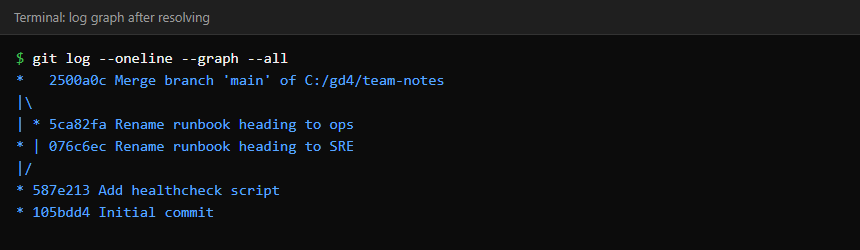
Nothing here is dangerous. Conflicts are Git asking a question it cannot answer by itself: which change did you actually want? If you get partway through and want to start over, git merge --abort puts you back to before the pull attempted anything.
Avoiding conflicts in the first place
- Pull often. The longer a branch lives without picking up
main‘s latest changes, the more likely two people have touched the same lines. - Keep pull requests small. A 20-line change is easy to review and rarely collides with someone else’s work. A 2,000-line change is neither.
- Communicate about shared files. Config files and READMEs collect conflicts because everyone edits them. A quick message avoids the collision entirely.
- Rebase your own branch onto main before opening the PR if your team prefers a linear history:
git fetch originthengit rebase origin/main. It rewrites your branch’s commits on top of the latest main, so review its output before force-pushing (git push --force-with-lease), since it changes commit hashes.
Conflicts are not limited to two people editing the same line, either: deleting a file that someone else edited, renaming it on one side, or two people adding a file with the same name all produce conflicts too, and Git reports each kind slightly differently.
What a repository administrator and reviewer add to this
Beyond the developer’s day-to-day commands, two other jobs keep a shared repository healthy:
- A reviewer (sometimes called an integrator) reads incoming pull requests, tests them, asks for changes, and merges or rejects them, most often through GitHub’s web review tools, though they can also check the branch out locally to test it or merge from the command line with the GitHub CLI’s
gh pr merge. - A repository administrator configures who can push directly to
main, whether reviews are required before merging (branch protection rules), and automation such as GitHub Actions that runs tests on every pull request.
Protected branches are worth setting up even on a two-person project: Settings > Branches > Branch protection rules on GitHub lets you require a pull request and a passing status check before a change can normally be merged into main (repository admins can still be allowed to bypass this, depending on how the rule is configured, and a passing check only means the tests you defined passed, not that the code is bug-free).
Common questions
What is the difference between merge and rebase?
merge keeps both branches’ history and, when needed, adds a merge commit joining them, exactly as shown above. rebase replays your branch’s commits on top of another branch, producing a straight line with no merge commit. Both are valid; many teams merge pull requests but rebase their own short-lived branches before opening one.
Do I need to resolve a conflict on every pull?
No. When your branch has not diverged, a pull is a fast-forward with no conflict at all, exactly like Bob and Alice’s Step 2 merge above. Conflicts happen when the same lines, or the same file in incompatible ways, were changed on both sides.
Can I see a conflict before it happens?
With a clean working tree, git fetch origin followed by git merge --no-commit --no-ff origin/main performs the merge in your working files without creating a commit, so you can look at the result before deciding whether to keep it; git merge --abort then tries to put things back the way they were.
Keep reading
- Git and GitHub for Beginners: Your First Repository, Branch and Push — Start here if Git is new.
- Cloning vs Forking on GitHub: What Actually Happens — When to clone and when to fork.
- Git Command Reference for Sysadmins: Log, Diff, Reset, Revert and More — Look up commands like log, diff and revert.


![[Fix] Gigabyte GA-H170M-D3H Boot Loop and Power Issues – No Display - featured illustration](https://sysadmin.co.in/wp-content/uploads/2026/09/fix-gigabyte-ga-h170m-d3h-boot-loop-and--768x432.png)