Windows 11 Home vs Pro: What You Actually Get and When Pro Is Worth It
Windows 11 Home and Windows 11 Pro look the same on screen, run the same apps and games, and get the same monthly updates. The differences are underneath: a handful of features aimed at people who manage computers, such as remote access, virtual machines, disk encryption controls and policy editing. Whether those are worth paying for depends on which of them you will actually use, and many home users need none of them. This guide lists what Pro adds, what Home already includes, how to check which edition you have, and how to decide.
The facts here come from Microsoft’s own documentation, which is linked at the end, and the edition check was run on a Windows 11 Pro PC. Prices change and differ by country, so this post does not quote any.
The quick comparison
| Feature | Home | Pro |
|---|---|---|
| Everyday use: apps, games, Microsoft Defender, Snap layouts, Windows Hello | Yes | Yes |
| Disk encryption | Device Encryption on supported hardware | BitLocker with manual control and management options, plus BitLocker To Go for removable drives |
| Accept incoming Remote Desktop connections (host) | No (it can still connect to other PCs) | Yes |
| Client Hyper-V virtual machines | No | Yes |
| Windows Sandbox | No | Yes |
Local Group Policy Editor (gpedit.msc) |
No | Yes |
| Join an Active Directory domain or fully join Microsoft Entra ID | No (a Home PC can still add a work account) | Yes |
| Maximum RAM | 128 GB | 2 TB |
| Internet and a Microsoft account during first setup | Required | Required for personal use |
Microsoft’s Windows 11 specifications list BitLocker To Go and client Hyper-V as Pro-and-above features and state the internet and Microsoft account requirement for Home and for Pro used personally. The memory-limits reference gives 128 GB for Home and 2 TB for Pro. Links are at the end.
What Pro adds, one by one
BitLocker and disk encryption
Home does support encryption, but check that Device Encryption is available and switched on for your PC. On hardware that meets Microsoft’s requirements it protects the operating-system drive and fixed data drives, and backs up the recovery key to your Microsoft account. Pro adds BitLocker proper: you decide when and how drives are encrypted, you can manage it with Group Policy or a device-management service, and you can protect USB drives with BitLocker To Go. If you only want a laptop’s drive encrypted in case it is stolen, Home’s Device Encryption may be enough. Our guide to turning on BitLocker walks through the full version, and how to regenerate a lost BitLocker recovery key applies to either edition.
Remote Desktop host
Both editions can use the Remote Desktop client to reach another PC. Only Pro (and higher) can be the PC you connect to. To sign in to your home or office PC from elsewhere with Remote Desktop, you need Pro. On Home you would use a different remote-access program, and Microsoft’s Quick Assist covers attended help sessions. If a Pro PC will not accept connections, see our RDP troubleshooting checklist.
Hyper-V and Windows Sandbox
Hyper-V is Microsoft’s built-in hypervisor for running full virtual machines, with checkpoints, virtual switches and virtual disks. Windows Sandbox opens a disposable, isolated copy of Windows that is wiped when you close it, which is handy for trying software you are unsure about (it has network access by default, and isolation is not a guarantee of safety). Both are Pro features, and both also need compatible hardware with virtualisation turned on in the firmware. Home users are not locked out of virtualisation completely: third-party tools such as VirtualBox or VMware Workstation Pro and the Windows Subsystem for Linux are available, but the built-in Hyper-V management tools and Windows Sandbox are not.
Group Policy and domain join
The Local Group Policy Editor lets you change hundreds of Windows settings through a console, and Pro can also join an Active Directory domain or be fully joined to a Microsoft Entra ID tenant so that an organisation can manage it (Home can add a work account but cannot do a full join). For one PC at home, you may never touch either. Some of the same settings are available on Home through Settings or the registry, but edition-restricted policies and features may stay unavailable.
RAM and processors
Home supports up to 128 GB of RAM and Pro up to 2 TB, according to Microsoft. Very few desktops come near either limit. Pro also supports more CPU sockets than Home, which matters only on workstation-class hardware.
What Home already includes
Home includes Microsoft Defender, Windows Update, Windows Hello sign-in, Snap layouts, virtual desktops, the Microsoft Store and the same gaming features as Pro. It also runs the Windows Subsystem for Linux, so you can use Linux tools on Home. Pro has no inherent performance advantage on identical hardware, and both editions receive the same monthly security updates for the same Windows release.
How to check which edition you have
The easy way is Settings, System, About, where Edition says Windows 11 Home or Windows 11 Pro. From PowerShell:
Get-CimInstance Win32_OperatingSystem | Select-Object Caption, Version, BuildNumber | Format-List
Get-ComputerInfo -Property WindowsEditionId, WindowsProductName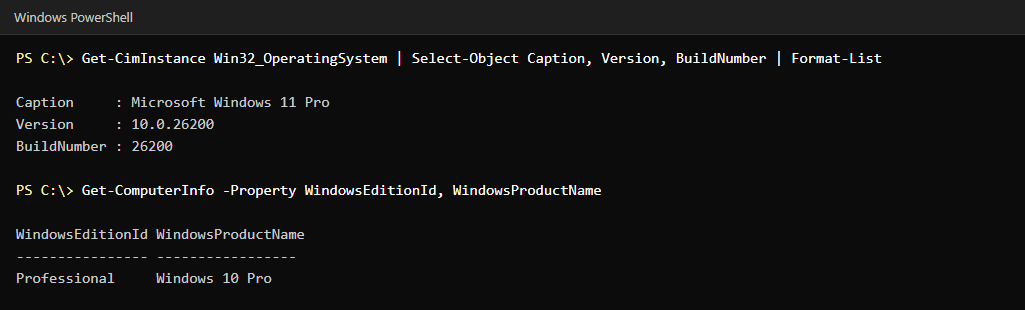
The edition ID is the reliable field: standard Pro reports Professional and standard Home reports Core (variants such as CoreSingleLanguage have their own IDs). Note the odd detail in the second command: WindowsProductName reports “Windows 10 Pro” on this Windows 11 PC, so do not use that field alone to identify the Windows release. The build number does: Windows 11 builds start at 22000, and this PC is on 26200.
Upgrading from Home to Pro
You do not need to reinstall. In Settings, System, Activation, choose to upgrade your edition, either by entering a Pro product key or by buying the upgrade from the Microsoft Store. Restart when prompted; your files, apps and settings stay in place. Only buy a key from a source you trust: very cheap keys sold on marketplaces are a common route to a key that stops working later. If the PC is already licensed through an organisation, ask the administrator instead.
Which one should you choose?
- Stay on Home if you browse, work in office apps, game, and want your laptop’s drive protected with Device Encryption.
- Get Pro if you need to connect to the PC remotely with Remote Desktop, run Hyper-V virtual machines, use Windows Sandbox, apply Group Policy, join a domain, or control BitLocker and protect USB drives with BitLocker To Go.
- Buying PCs for a small business: choose Pro if you need, or expect to need, domain join, policy management or BitLocker administration. Starting with Pro is easier than upgrading each PC later.
Common questions
Can Windows 11 Home use Remote Desktop?
It can connect to other PCs, but it cannot accept an incoming Remote Desktop connection. You need Pro for that.
Does Windows 11 Home have BitLocker?
Not the full feature. Home may offer Device Encryption if the hardware supports it, which is a simpler form of the same technology.
Is Windows 11 Pro faster than Home?
Not inherently. Pro adds management and security features, not speed.
Does Home need an internet connection and a Microsoft account to set up?
According to Microsoft’s specifications page, yes: Windows 11 Home, and Pro for personal use, require internet connectivity and a Microsoft account during initial device setup.
Can I run Linux on Windows 11 Home?
Yes. The Windows Subsystem for Linux is available on Home, and you can also run another operating system in a third-party virtual machine program.
Keep reading
- How to Enable BitLocker in Windows 10 and 11 (Step by Step) — Turn on BitLocker on a Pro PC.
- Can’t Connect via RDP on Windows: Admin Checklist — Troubleshoot Remote Desktop on a Pro host.
- Top 5 Windows Security Tips to Protect Your PC From Malware — Basic protection that works on either edition.