Docker Bypasses UFW: Why Your Closed Port Is Still Open (and the Fix)
I wanted to close one port on a VPS. The dashboard of the self-hosting tool Coolify was reachable on port 8000 straight from the internet, even though it also has its own domain behind a reverse proxy. I removed the allow rule from UFW, the firewall front end, and checked again. The port still answered. This post shows how to see that for yourself, why Docker bypasses UFW for published ports, and how I actually closed it.
The symptom: the rule is gone, the port still answers
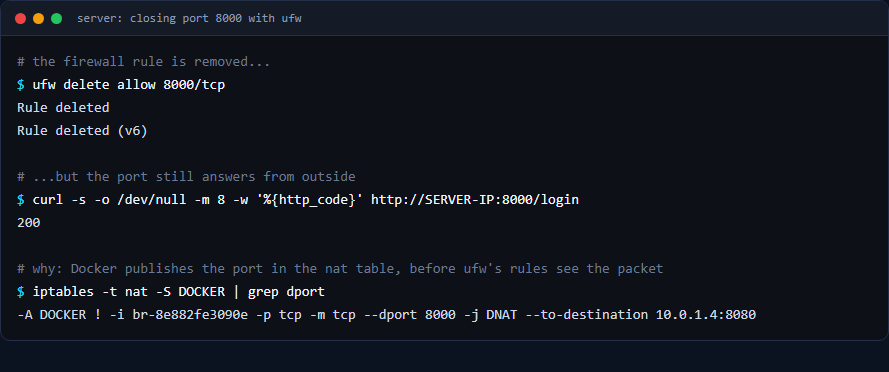
These are the real commands and results. The server address is masked:
ufw delete allow 8000/tcp
Rule deleted
Rule deleted (v6)

curl -s -o /dev/null -m 8 -w '%{http_code}' http://SERVER-IP:8000/login
200
After the rule was deleted, a request from outside still returned HTTP 200. Always test a firewall change from outside the server, with a different machine or network. ufw status alone will tell you what UFW believes, not what is reachable.
Why UFW does not stop it
Docker publishes container ports by adding its own rules to the kernel’s packet filter. Docker’s documentation on packet filtering and firewalls explains that for UFW, published container ports bypass its rules, because Docker routes the traffic in the nat table and the packets are diverted before they reach the chains UFW manages (“Packets are routed before the firewall rules can be applied”). The same page warns that you should not modify the rules Docker creates.
The rule that Docker added for this port is visible in the nat table:
iptables -t nat -S DOCKER | grep dport
-A DOCKER ! -i br-8e882fe3090e -p tcp -m tcp --dport 8000 -j DNAT --to-destination 10.0.1.4:8080
That line says: traffic to port 8000 on the host is rewritten to the container at 10.0.1.4 on port 8080. It happens before UFW gets a say. The Docker port-publishing documentation adds that publishing container ports is insecure by default: without a host address, a published port is reachable from other machines, not only from the host.
Find which ports Docker publishes on your server
docker ps --format '{{.Names}}  {{.Ports}}'
ss -ltnp | grep docker-proxy
iptables -t nat -S DOCKER | grep dport
An entry that starts with 0.0.0.0: (or [::]:) is published on all of the server’s network interfaces, so it can be reachable from outside whatever UFW says (a firewall in front of the server, such as your provider’s, can still block it). An entry that starts with 127.0.0.1: is meant to be reachable only from the server itself; Docker’s documentation notes that releases before 28.0.0 could expose such ports to machines on the same local network segment, so keep Docker up to date.
Your options for really closing it
- Bind the port to localhost. Publish it as
127.0.0.1:8000:8080instead of8000:8080. The Docker documentation describes this form: only the Docker host can access the published container port. This is the cleanest fix when something on the same machine, such as a reverse proxy or an SSH tunnel, is the only client. - Do not publish the port at all. If a reverse proxy runs on the same Docker network, it can reach the container directly by name, with no host port needed.
- Filter in Docker’s own chain. With Docker’s iptables backend, Docker provides a
DOCKER-USERchain for your own rules. It is an advanced option that I did not use here and have not tested, so I will not give commands for it.
How I did it for Coolify
Before closing a published port, check that nothing depends on it. Here, port 8000 was published only by the coolify container (0.0.0.0:8000->8080), and the dashboard also had its own domain served by Coolify’s reverse proxy, Traefik, over Docker’s internal network. So the host port was only a convenience shortcut. Check your own setup the same way, and keep a way in (the domain, or an SSH tunnel to localhost) before you close anything.
Coolify’s own upgrade script refers to a file called docker-compose.custom.yml when it exists, which makes it the natural place for an override. I have not yet watched a Coolify update pick it up, so check your version’s script before you rely on it. I created the file next to the other compose files:
# /data/coolify/source/docker-compose.custom.yml
services:
  coolify:
    ports: !override
      - "127.0.0.1:8000:8080"
      - "6001:6001"
      - "6002:6002"
The !override tag replaces the original list of ports instead of adding to it. It worked on Docker Compose v5.6.0; check that your Compose version supports it. Before recreating anything, print the merged configuration from the stack’s folder (/data/coolify/source):
docker compose --project-name source --env-file .env \
  -f docker-compose.yml -f docker-compose.prod.yml -f docker-compose.custom.yml config
In the merged output, port 8000 should show host_ip: 127.0.0.1 and the other two ports should be unchanged. Then recreate only that one service:
docker compose --project-name source --env-file .env \
  -f docker-compose.yml -f docker-compose.prod.yml -f docker-compose.custom.yml \
  up -d --no-deps --pull never --force-recreate coolify
Use the project name your stack was created with. Mine was source, the name of the folder, which you can read from the container’s com.docker.compose.project label. The dashboard is briefly unavailable while the container restarts.
Check the result from outside
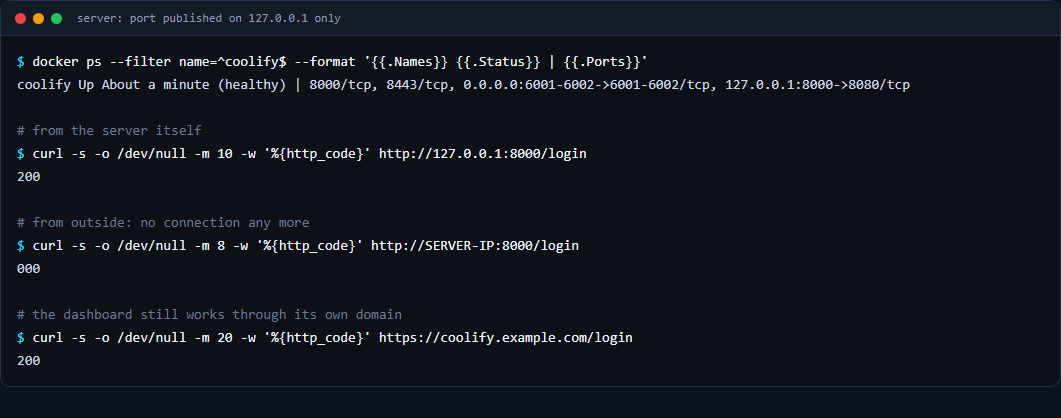
curl -s -o /dev/null -m 10 -w '%{http_code}' http://127.0.0.1:8000/login      # on the server
200
curl -s -o /dev/null -m 8  -w '%{http_code}' http://SERVER-IP:8000/login      # from outside
000
curl -s -o /dev/null -m 20 -w '%{http_code}' https://coolify.example.com/login
200
A result of 000 from curl means it got no HTTP response at all. A closed port is one cause and a timeout is another, so run curl -v if you need to tell them apart. The container was healthy, the dashboard still worked through its domain, and both websites kept returning 200.
What I left alone
Ports 6001 and 6002 are still published to all addresses. They may not need to be public either, but I have not tested what depends on them, so I left them as they were.
Checklist
- Test every firewall change from outside the server.
- List what Docker publishes:
docker ps,ss -ltnp | grep docker-proxy,iptables -t nat -S DOCKER. - Treat any
0.0.0.0:published port as potentially public, whatever UFW shows, and test it from outside. - Prefer binding to
127.0.0.1or not publishing the port at all. - Validate a compose change with
docker compose configbefore you recreate the container. - Keep the override in a file your tool preserves (for Coolify,
docker-compose.custom.yml), and note how to undo it: remove the override (or restore the original port list), then recreate the container with the same compose file list minus the custom file. That brings the public port back.