Cloning vs Forking on GitHub: What Actually Happens
“Should I clone it or fork it?” comes up the moment you want to work on someone else’s GitHub project. The two look similar, both give you the code, but they solve different problems, and using the wrong one is a common source of confusion for people new to Git. This article explains the difference with a real, working example: a contributor cloning their own fork, tracking the original project as a second remote, and staying in sync with it, all with genuine command output.
Clone: a local copy of a repository
git clone downloads a repository, including its whole history, to your machine and sets up a remote (named origin by default) pointing back to where it came from. Cloning itself only needs read access, and works on any public repository or one you have been given access to. Whether you can also push back to that same repository is a separate permission, granted by its owner.
git clone https://github.com/your-team/project.gitIf you do not have write access and try to push, GitHub will refuse it. That is exactly when a fork comes in: it gives you a copy you do have write access to.
Fork: your own copy on GitHub, to propose changes back
A fork is a copy of someone else’s repository under your own GitHub account, created with the Fork button on the repository’s page. It carries the history of the branches it copies (by default just the main branch, unless you choose to copy all branches), though not everything about the original, such as its issues or wiki. You have complete write access to your copy even though you have none on the original. This is how open-source contribution works: fork the project, make your change on your fork, and open a pull request asking the original project (called upstream) to pull your commits in. This is the usual way to contribute; a maintainer could in principle add your fork as a remote and fetch or cherry-pick commits directly, but a pull request is what gives them a clean place to review and comment first.
| Clone | Fork | |
|---|---|---|
| What it creates | A local copy on your machine | A new repository under your GitHub account |
| Where you did it | Your terminal (git clone) |
GitHub’s website (the Fork button), then you clone that |
| Can you push straight back? | Yes, if you have write access | Yes, to your fork; changes reach the original only via a pull request |
| Typical use | Your own or your team’s repository | A project you do not have write access to |
Setting up a fork-based workflow, for real
To show genuine output rather than a made-up transcript, I built a small local stand-in for GitHub: an upstream-toolbox.git bare repository (the original project) and a copy of it, my-fork-toolbox.git (standing in for clicking Fork). A contributor then clones their fork:
git clone my-fork-toolbox.git contributor
cd contributor
git remote -v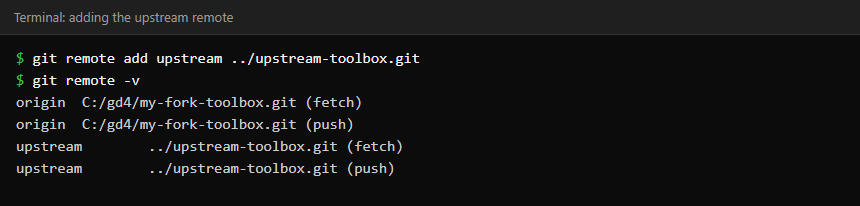
Right after cloning, git remote -v shows only origin, pointing at your fork. To follow the original project’s progress, add it as a second remote, conventionally named upstream:
git remote add upstream https://github.com/original-owner/project.gitNow you have two remotes doing two different jobs: origin is where you push your work, upstream is where you pull the project’s latest changes from. Neither name is special to Git, they are just the convention everyone uses, which is why sticking to it makes your setup instantly readable to other contributors.
Working on a change while upstream keeps moving
The contributor branches and works exactly as on any repository:
git switch -c add-lint-script
# write lint.sh
git add lint.sh
git commit -m "Add a shellcheck wrapper"
git push -u origin add-lint-script
Meanwhile, the original project’s maintainer merged an unrelated change. The contributor’s fork does not know about it yet. This is the situation upstream exists to solve:
git switch main
git fetch upstream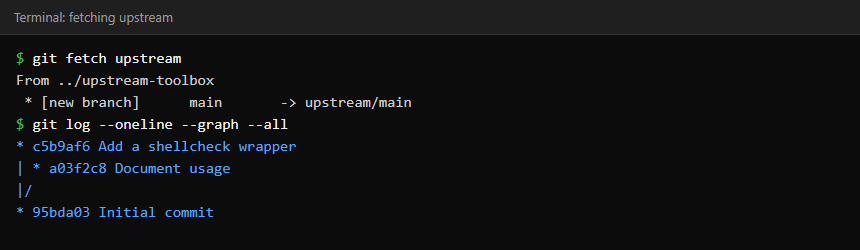
git fetch only downloads; it never touches your working files or your main branch. That is the safe way to see what changed before deciding what to do about it. To actually bring those commits into your fork’s main:
git merge upstream/main
git push origin main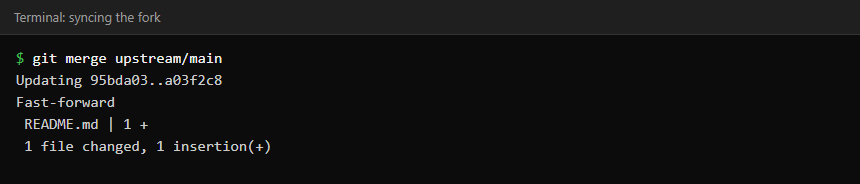
Your fork’s main is now level with the real project again, and your feature branch can be rebased onto it if needed before you open the pull request. From your local main branch, git pull upstream main does the fetch and merge in one step, which is convenient but gives you less chance to look before merging; many people prefer fetch then merge for exactly that reason.
Opening the pull request
Push your branch to your fork (origin), not upstream, you have no write access there. Then on GitHub, open the branch and click Compare & pull request, or go to your fork’s page and use Contribute > Open pull request, which sets the base to the upstream repository and the head to your branch. The maintainer reviews it like any other pull request and merges it into their own main if it is accepted; your fork stays a separate copy until you sync it again.
The GitHub CLI does the same steps without leaving the terminal, if you have it installed and signed in (gh auth login): gh repo fork original-owner/project --clone forks and clones in one command, and gh pr create opens the pull request from your current branch.
Common questions
Can I fork my own repository?
You do not need to. Just clone it. Forking is most useful when you cannot push to the original directly, though some people also fork their own or a team repository to experiment independently.
What happens to my fork if the original project deletes a branch?
Nothing, your fork keeps its own copy of everything until you delete it yourself. Forks are independent repositories, not live mirrors.
Why does GitHub sometimes offer a “Sync fork” button?
It updates a branch of your fork on GitHub’s servers to match the upstream branch, the same result as the fetch-and-merge shown above, but done on GitHub’s side rather than in your local clone. If GitHub cannot merge it cleanly, it offers to open a pull request instead. Either way, you still need to git pull afterwards to bring the update into your own local clone.
Is a fork the same as a branch?
No. A branch is a line of development inside one repository. A fork is an entirely separate repository, with its own branches, owned by a different account.
Keep reading
- Git and GitHub for Beginners: Your First Repository, Branch and Push — Create your first repository from scratch.
- Git Feature Branches, Pull Requests and Real Merge Conflicts — Branching and resolving conflicts.
- Git Command Reference for Sysadmins: Log, Diff, Reset, Revert and More — A quick reference for everyday Git commands.