Git Command Reference for Sysadmins: Log, Diff, Reset, Revert and More
Between the two other Git posts on this site, the beginner’s guide and the feature-branch and conflict walkthrough, most of what you need day to day is covered. This post is the reference for everything else: the commands you look up occasionally, grouped by what they actually do, each one run for real so the output is genuine rather than typed from memory. It ends with the three roles (developer, reviewer, administrator) that a project’s Git commands map onto, and a short note on a couple of commands that show up in older tutorials but that you are unlikely to ever need.
Commands you already use daily
These are covered in depth in the beginner’s guide, so here is just the shape of them for reference: git init starts a repository, git clone <url> copies one, git add stages changes, git commit -m "message" records them, git status shows what state you are in, git branch <name> creates a branch, git switch <name> moves to an existing one and git switch -c <name> does both at once, and git push / git pull sync with a remote.
Looking at history and changes
git log lists commits, newest first. -4 limits how many, and --oneline compresses each to one line:
git log --oneline -4git diff shows changes that are not yet staged, comparing your working files against the staging area (which, for a file you have not staged anything for, is the same as the last commit). Add a commit, such as git diff HEAD, to compare directly against the last commit regardless of what is staged:
git diff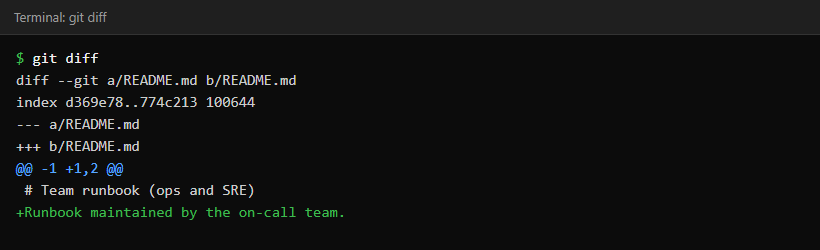
Add --staged (or --cached) to see changes that are staged but not yet committed, and give it two commits or branches (git diff main feature-branch) to compare them directly instead of against your working files.
Undoing things safely
git reset with no arguments unstages files without touching their content, which is the safe everyday use of it. Here a file was staged, then unstaged again:
git reset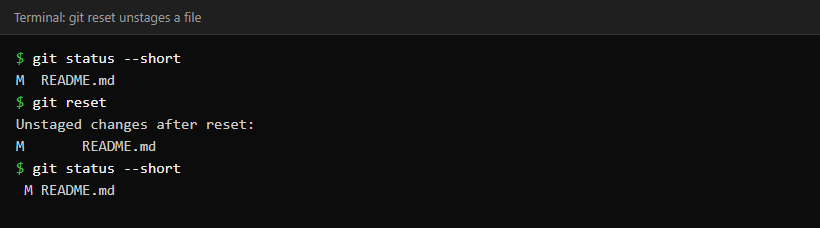
git reset --hard, by contrast, resets both the staging area and your tracked files to match HEAD (or a commit you name), discarding uncommitted changes to those files permanently; it does not delete untracked files, and it only moves the branch tip if you point it at a different commit. Treat it as destructive and make sure you mean it before running it.
git revert undoes a commit’s changes by creating a new commit, which is the safe option once something has already been pushed and shared, because it does not rewrite history that other people may have based work on:
git revert HEAD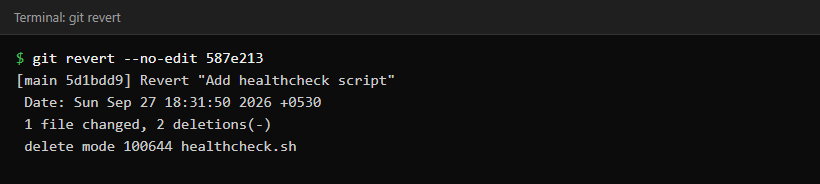
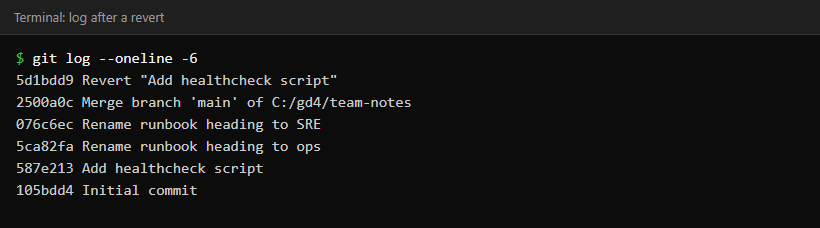
One thing revert cannot do without help: if the commit you are reverting was itself a merge, Git needs to be told which parent to treat as the “mainline” to revert against, with -m 1 for the first parent (usually the branch you merged into), otherwise it refuses with fatal: Commit <sha> is a merge but no -m option was given. That is a genuine safety check, not a bug: reverting a merge is ambiguous unless you say which side is the baseline, and it is worth knowing that a later merge of the same branch will not automatically bring back the changes this revert removed.
Working with remotes
git remote -v lists the remotes your repository knows about and their URLs. git remote add <name> <url> adds one, and git remote rename <old> <new> renames one. One common use: if you cloned the original project directly rather than your fork, rename its origin to upstream and then add your own fork as the new origin, so a plain git push goes to your fork:
git remote rename origin upstream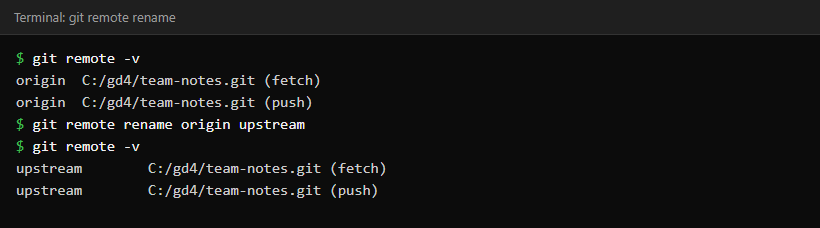
(If you cloned your own fork instead, as in the earlier article, you do the opposite: keep origin pointing at your fork and just git remote add upstream <original-url>, with no renaming needed.) git remote rm <name> removes the local record of that remote and its remote-tracking branches; it has no effect on the actual repository the remote pointed to. The clone vs fork article covers origin and upstream in more detail, including why the naming convention matters even though Git does not enforce it.
Sharing changes without GitHub: format-patch and am
Before pull requests were how most people collaborated, and still today on projects such as the Linux kernel that review contributions over a mailing list, changes travel as patch files rather than through a shared server. git format-patch turns one or more ordinary (non-merge) commits into .patch files that look like an email:
git format-patch -1 HEAD -o ../outbox
Whoever receives it, by email, a shared folder, anywhere, applies it with git am, which reads the patch’s embedded author and message and creates a matching commit:
git am ../outbox/0001-Add-deploy-script.patch
git send-email automates the “email it” step, sending patch files through a configured mail transport, and git request-pull generates a plain-text summary of what is available to pull, useful for exactly this kind of workflow:
git request-pull 105bdd4 ../team-notes.git add-healthcheck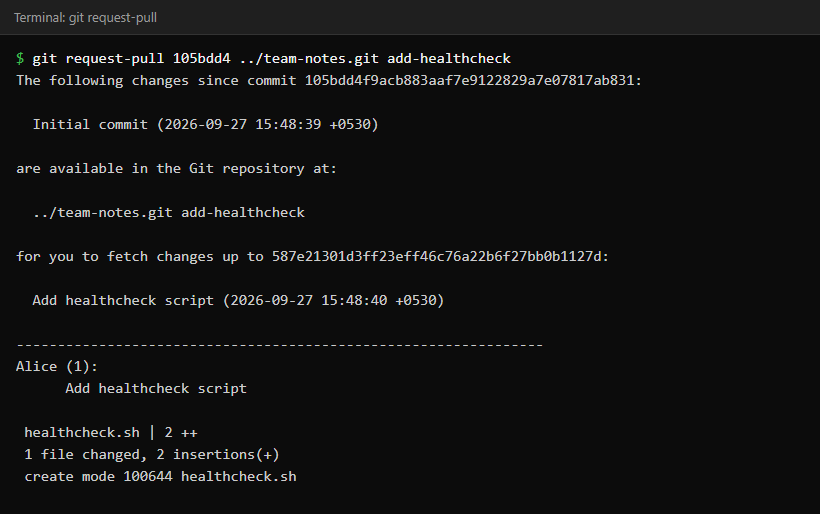
This was run against a repository path on the same machine to keep the example self-contained; for a real request-pull, the URL needs to be one the recipient can actually fetch from, such as a pushed branch on GitHub or a repository they already have access to.
These three, format-patch, am and request-pull, are the actual mechanics behind email-based contribution workflows. You will rarely need them if your team works entirely on GitHub or GitLab with pull requests, but they explain why some open-source projects ask for “a patch” rather than a link.
Identity and setup commands
git config --global user.name "Your Name"
git config --global user.email "[email protected]"
git --version
These are one-time setup, covered in the beginner’s guide. If a commit ever shows the wrong name or email, git config --list --show-origin run inside the repository shows every setting that applies there and which file it came from, since a repository-level git config user.email overrides the global one. Changing the configuration only affects future commits, not ones already made.
Server-side and rarely-needed commands
A few commands are correct but exist for situations you are unlikely to meet unless you are running your own Git server or working on a very old-style project. They are real, documented commands, listed here for completeness rather than demonstrated, since setting up a live Git server safely is outside the scope of a blog post:
git daemonserves repositories over the plain, unauthenticatedgit://protocol, mainly for fast read-only access on a trusted network. It is rarely run today; SSH or HTTPS with a real hosting service handle authentication properly, which the Git protocol does not.git instawebstarts a temporary local web server (backed by gitweb, and lighttpd or another web server you have installed) so you can browse a repository’s history in a browser; add--localto bind it to localhost only, andgit instaweb --stopto shut it down again afterwards. Handy for a quick look at a repo on your own machine, not something you would run in production.git rerere(“reuse recorded resolution”) remembers how you resolved a merge conflict and applies the same resolution automatically if the identical conflict happens again, which helps when you repeatedly rebase a long-lived branch onto a shared one. It needs turning on first:git config --global rerere.enabled true.
One command from some course material is worth a correction: there is no built-in git pull downstream concept. “Downstream” is not a Git keyword the way origin and upstream are conventions; if a remote is named that, it is just a name someone chose, and git pull <remote> <branch> works with whatever name a remote actually has.
The three roles a project’s commands map onto
Looking at the commands above as a set, they naturally split by who typically runs them:
| Role | Typical commands | Job |
|---|---|---|
| Developer | clone, branch, add, commit, push, pull, fetch, diff, request-pull |
Writes code, tests it, and proposes it for review, on their own branch or fork. |
| Reviewer / integrator | pull, fetch, merge, revert, push |
Reviews incoming changes, tests them, merges the ones that are ready, and reverts anything that turns out to be broken after merging. |
| Repository administrator | Mostly GitHub/GitLab settings rather than Git commands; on a self-hosted server, tools such as git daemon, git shell and git http-backend |
Decides who can push where, sets branch protection rules, configures CI, and, if the project is self-hosted rather than on GitHub or GitLab, runs the actual Git server software. |
On a small team these roles blur together, the same person branches, reviews their own teammate’s work, and administers the repository’s settings. On a larger open-source project they are usually different people, which is exactly why the fork-and-pull-request model exists: it lets anyone act as a developer without needing administrator trust first.
Common questions
Which of these should I actually learn first?
log, diff and reset (the safe, no-argument form) are worth knowing well; they are how you check what is going on before you act. revert is worth knowing before you need it, since the moment you need it is usually a small emergency. The email-patch and server commands are fine to look up the one time a year you actually need them.
Is git revert the opposite of git reset?
Not exactly. reset moves your branch pointer and can discard history; revert adds a new commit that cancels out an old one and keeps every commit in place. On a shared branch, revert is almost always the right choice.
Do I need to know format-patch and am to use GitHub?
No. Pull requests replace this workflow for the vast majority of projects. They matter mainly if you contribute to a project that specifically asks for patches by email, such as parts of the Linux kernel community.