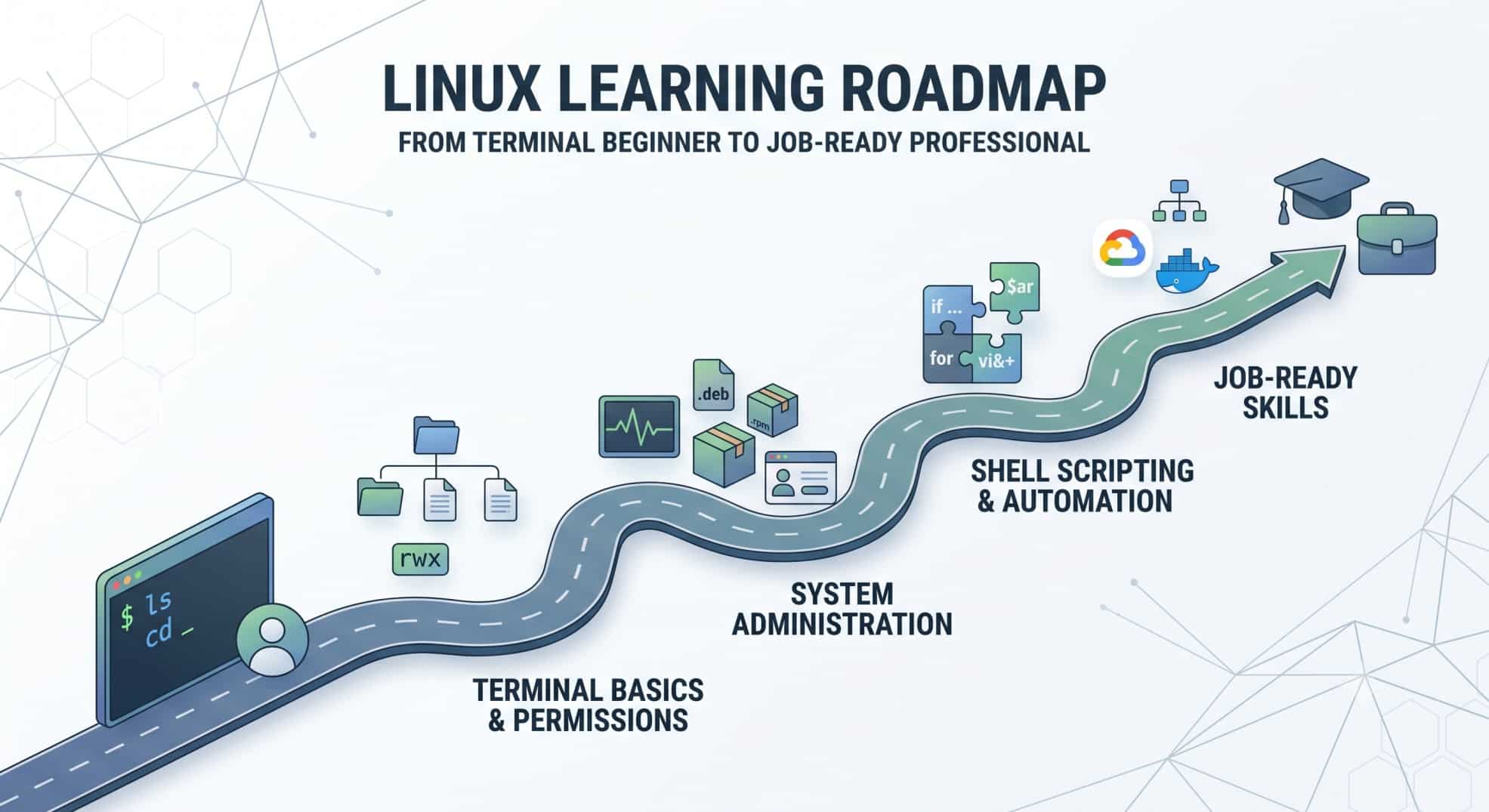
Linux Roadmap for Beginners: What to Learn First
Linux roadmap for beginners: what to learn, in what order
I’ve already written about whether Linux is worth learning in 2026 (short version: yes, unambiguously). This post answers the question that immediately follows: okay, but what exactly do I learn, and in what order?
Because that’s where most beginners actually fail. Not from lack of motivation — from lack of sequence. They watch a Docker video on Monday, a “top 50 Linux commands” video on Tuesday, half an RHCSA lecture on Wednesday, and by Friday they’ve retained nothing because nothing connected to anything else.
Linux skills stack. Permissions make no sense until you understand users. Shell scripting makes no sense until commands are muscle memory. LVM makes no sense until you understand the file system. Learn things in the right order and each stage feels like a small step; learn them randomly and everything feels impossible.
So here’s the sequence I send people — same bones as most solid Linux curricula, whether that’s the RHCSA syllabus or popular structured courses like Imran Afzal’s Linux training on Coursera. I’ve organised it into six stages with concrete milestones, so you always know whether you’re actually ready to move on. Budget roughly 12 weeks at 1–2 hours a day.
Stage 0: Understand What You’re Getting Into (2–3 days)
Don’t skip this, but don’t camp here either. Before installing anything, get three concepts straight:
Kernel vs distribution. Linux itself is just the kernel — the core that talks to hardware. A distribution (Ubuntu, Debian, Fedora, RHEL, Arch) is the kernel plus package management, tooling, and defaults. When people argue “which Linux is best,” they’re arguing about distributions, not Linux.
The two families that matter for jobs. Debian-family (Ubuntu, Debian — uses apt) and Red Hat-family (RHEL, Rocky Linux, AlmaLinux, Fedora — uses dnf). Indian enterprise environments run overwhelmingly on Red Hat derivatives, which is why the roadmap below uses a RHEL-family distro for the server work.
Linux vs Unix vs Windows. Enough to answer the inevitable interview question: Unix came first (1970s, proprietary), Linux is a free Unix-like system (1991), and the design difference from Windows that matters daily is that in Linux everything is a file — devices, processes, sockets, all of it. That one idea explains half of Linux’s behaviour.
Milestone: you can explain to a friend, in plain words, why Ubuntu and Rocky Linux are both “Linux” but use different commands to install software.
Stage 1: Build Your Lab (Week 1)
You cannot learn Linux by reading about Linux. You need a machine you’re allowed to destroy.
The zero-cost setup: install Oracle VirtualBox on your existing laptop, then create a VM with Rocky Linux or AlmaLinux (the free, community rebuilds of RHEL — note that CentOS, which older tutorials recommend, is discontinued as a stable server distro). Give it 2 CPU cores, 4 GB RAM, 20 GB disk. During installation choose “Server” without a GUI — this feels brutal on day one and is precisely the point.
Two additions worth making:
- Take a VM snapshot right after installation. Now every mistake is recoverable in one click, which changes your psychology completely — you’ll experiment fearlessly.
- If you’re on Windows, also enable WSL2 with Ubuntu. It’s great for quick daily practice, but keep the VM as your primary lab because WSL2 hides the boot process, systemd quirks, and disk management you’ll need later.
Milestone: you have a running Linux server VM, a snapshot, and you can log in at the text console.
Stage 2: Live in the Terminal (Weeks 2–3)
Goal for these two weeks: make the command line feel like home instead of hostile territory.
Connect properly first. Don’t use the VirtualBox console window — install an SSH client (PuTTY on Windows, or just the built-in ssh in Windows Terminal/macOS) and connect to your VM over the network, because that’s how you’ll access every real server for the rest of your career. Set up key-based authentication in week 2, not “someday”: generate a key pair with ssh-keygen, copy it with ssh-copy-id, then disable password login. That’s a genuine security skill already.
Learn the geography before the commands. The Linux file system hierarchy is not random: configuration lives in /etc, logs in /var/log, user files in /home, binaries in /usr/bin, temporary files in /tmp, and hardware appears under /dev. Once this map is in your head, any unfamiliar server becomes navigable.
Then the daily-driver commands, in roughly this order:
- Navigation:
pwd,cd,ls(with-l,-a,-hflags) - Creating and manipulating:
touch,mkdir,cp,mv,rm - Reading files:
cat,less,head,tail(andtail -ffor watching logs live) - Finding things:
find, plus wildcards (*.log,file?.txt) - Links: soft links vs hard links (
ln -svsln) — a classic interview question, so understand why a hard link survives deleting the original and a soft link doesn’t - Self-rescue:
man,--help, and tab completion — the three tools that make every other command learnable
Milestone: without touching a GUI or Google, you can SSH into your VM, create a directory tree, copy files into it, find every .conf file under /etc modified in the last day, and watch a log file update in real time.
Stage 3: Users, Permissions, and Processes (Weeks 4–6)
This is the heart of system administration, and it’s the territory interviewers probe hardest because it separates people who’ve used Linux from people who’ve administered it.
Users and groups. Create users (useradd), set passwords (passwd), create groups (groupadd), and understand /etc/passwd, /etc/shadow, and /etc/group well enough to read them. Learn sudo and why logging in as root directly is bad practice.
Permissions — go deep here. Read rwxr-xr-- instantly. Use chmod in both symbolic (u+x) and numeric (755) forms, and chown/chgrp for ownership. Understand why chmod 777 is almost always the wrong answer (you’re giving everyone write access — on a server, “everyone” includes any compromised account). Then go one level beyond the basics into ACLs (setfacl, getfacl) for per-user permissions on a single file — mentioning ACLs in an interview signals real depth.
Text processing — the sysadmin superpower. Pipes (|), redirection (>, >>, 2>), and the filter trio: grep, sort, uniq, then cut, awk, and sed. Here’s why this matters with a real example: “find every failed SSH login attempt in a 2 GB log and count attempts per IP” is one pipeline —
grep "Failed password" /var/log/secure | awk '{print $(NF-3)}' | sort | uniq -c | sort -rn | head
— and about ten seconds of runtime. There is no GUI equivalent. This is the skill that makes you fast.
Processes and services. ps aux, top, kill, and the systemd basics: systemctl start/stop/enable/status, plus reading logs with journalctl -u servicename. When something breaks in production, this is where you’ll live.
Milestone: you can create a user who belongs to a developers group, give that group write access to /srv/app (and one outside contractor read-only access via an ACL), then diagnose and restart a failed service using only systemctl and journalctl.
Stage 4: Networking, Storage, and System Maintenance (Weeks 7–9)
Half of real-world troubleshooting lives in this stage.
Networking essentials: check your IP (ip a), test connectivity (ping, curl), resolve names (dig, nslookup), see what’s listening on which port (ss -tulpn), and manage the firewall (firewalld on RHEL-family). Add wget/curl for downloading, and understand why SSH replaced Telnet (encryption — Telnet sends passwords in plain text, and yes, this is still asked in interviews).
Scheduling: cron. Write a crontab entry, understand the five time fields, and know where cron logs land. You’ll automate real things with this in Stage 5.
Storage and disks — the big one. Partitions (fdisk, lsblk), file systems (mkfs, mount, /etc/fstab), checking space (df -h, du -sh), swap space, and then the topic that deserves its own dedicated study block: LVM. Learn to create physical volumes, volume groups, and logical volumes, and above all to extend a logical volume while the system is running — because “the disk is full and we can’t reboot” is the single most common real-world storage emergency. Practice this on your VM: add a second virtual disk in VirtualBox, bring it into LVM, and extend /home onto it.
System maintenance basics: package management (dnf install/update/search), changing hostname (hostnamectl), gathering system info (uname -a, free -h, lscpu), environment variables, and the classic rescue skill — resetting a lost root password from the boot menu. Do it once on your VM; it turns a terrifying interview question into a war story.
Milestone: you can add a new disk to your VM, extend an existing partition onto it with LVM without unmounting anything, schedule a nightly cron job, and explain what ss -tulpn output means line by line.
Stage 5: Shell Scripting + Your First Real Project (Weeks 10–12)
Everything so far has been interactive. Now you automate.
Bash scripting fundamentals: variables, reading input, if/then/else, for loops, while loops, exit codes, and putting #!/bin/bash at the top. You don’t need to be a programmer — you need to be able to glue commands together with logic.
Then build one real project and put it on GitHub. Ideas in ascending order of ambition:
- A backup script that tars a directory, timestamps the archive, keeps only the last 7 copies, and runs nightly via cron
- A disk-usage monitor that emails (or just logs) a warning when any partition crosses 80%
- A “new server setup” script that creates your standard users, installs your standard packages, and hardens SSH
One genuine, working, documented script on GitHub beats ten course-completion certificates — it’s proof you can do the job, and it gives you something concrete to talk through in interviews.
Milestone: a stranger could clone your repo, read your README, run your script, and it would work.
After the Roadmap: Where This Leads
At this point you’re at entry-level job readiness — genuinely, defensibly competent, which is what the 90 days were for. From here, three directions, all covered in the career post:
- Certification: if you want one, RHCSA is the one that carries weight in India, and you’ll find you’ve already covered most of its syllabus above — the roadmap is deliberately RHCSA-shaped.
- Cloud: AWS or GCP fundamentals now become dramatically easier, because every instance you launch is just another Linux server you already know how to drive.
- DevOps: Git → Docker → one CI/CD tool → Kubernetes, in that order, each one standing on the Linux foundation you just built.
The roadmap looks long written out like this. In practice it’s 1–2 focused hours a day for one season of your life, in exchange for a skill that stays relevant for decades. Take the VM snapshot, break things, restore, repeat.
FAQ
Can I learn Linux in 3 months?
To entry-level job readiness, yes — that’s exactly what this 12-week roadmap targets at 1–2 hours daily. Mastery takes years of production experience, but you don’t need mastery to get your first role.
Should I learn Ubuntu or Red Hat first?
Practice daily on whichever is convenient (Ubuntu/WSL2 is fine), but do the server-side stages on a RHEL-family distro like Rocky Linux or AlmaLinux, since most Indian enterprise environments and the RHCSA exam are Red Hat-based.
Do I need to buy a course to follow this roadmap?
No — the official documentation plus free resources cover everything here. A structured course helps if you want sequencing and accountability done for you, but the sequence in this post is the same one good courses follow.
Is shell scripting necessary for beginners?
Yes, by the end. You can postpone it until the fundamentals are solid (that’s why it’s Stage 5), but automation is what separates a Linux user from someone employable as an administrator.
What laptop specs do I need to practice Linux?
Any machine with 8 GB RAM comfortably runs a 4 GB Linux VM in VirtualBox. If you’re stuck with 4 GB total, use WSL2 or a free-tier cloud VM (AWS/GCP/Oracle Cloud) instead.
Keep reading
- What Is Linux Operating System? A Plain 2026 Answer — Start with what Linux actually is.
- Linux SysAdmin Bootcamp — A structured set of modules to follow.
- Build a Cheap Linux Lab That Looks Like Work (Job Seekers) — Set up a lab to practise in.