Remote Desktop Closes After Entering Password? Sept 2026 Update Fix (Windows Server 2019, 2022, 2025)
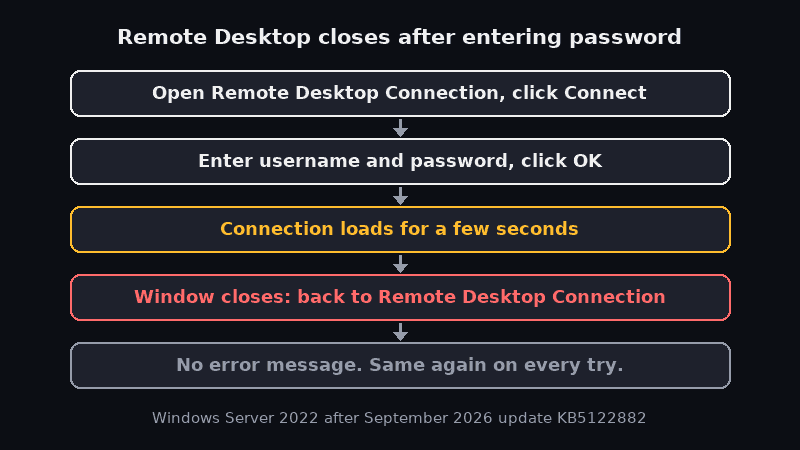
You open Remote Desktop Connection, enter the server address, type your username and password, click OK, and it starts loading. Then the window closes and you’re right back at the Remote Desktop Connection box with the Computer field, as if you’d never clicked Connect. No error message. Try again, same thing.
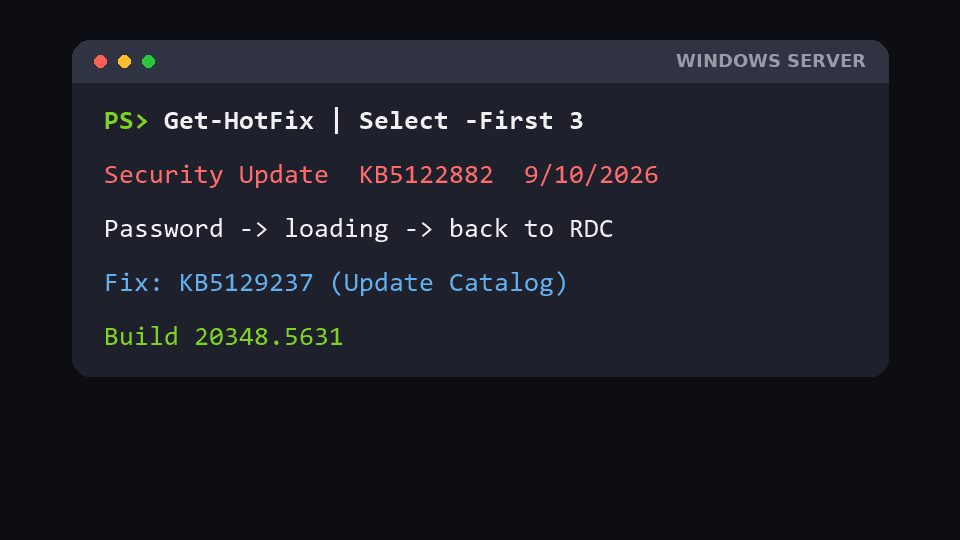
That’s what our Windows Server 2022 VM on Google Cloud did after the September 2026 update KB5122882. People search for it in a lot of ways: Remote Desktop closes after entering the password, RDP closes immediately after login, Remote Desktop goes back to the connect screen, an RDP login loop. If it started after the September 2026 Windows updates, it’s probably the same problem: a known issue in the September 2026 security update, fixed by an out-of-band update you have to install yourself.
Which fix do you need? Windows Server 2019, 2022, 2025 and others
Our server ran Windows Server 2022, but this isn’t a 2022-only bug. The September 2026 security update broke Remote Desktop on every supported Windows Server version, and each version has its own update number and its own fix. So first, find out what you’re running.
On the server (or through your cloud provider’s serial console or run-command tool if you can’t RDP in):
Get-ComputerInfo | Select-Object WindowsProductName, OsBuildNumberOr just run winver. The first part of the build number tells you the version: 26100 is Server 2025, 20348 is Server 2022, 17763 is Server 2019, and 14393 is Server 2016.
Then find your row:
| Windows Server version | September update that breaks RDP | Out-of-band fix (14 Sept 2026) | Build after the fix |
|---|---|---|---|
| Windows Server 2025 | KB5122871 | KB5129235 | 26100.33451 |
| Windows Server 2022 | KB5122882 | KB5129237 | 20348.5631 |
| Windows Server 2019 | KB5122876 | KB5129238 | 17763.9247 |
| Windows Server 2016 | KB5123099 | KB5129239 | 14393.9514 |
| Windows Server 2012 R2 (ESU) | KB5123066 | KB5129243 | see the KB page |
| Windows Server 2012 (ESU) | KB5123065 | KB5129244 | see the KB page |
Windows 10 and 11 PCs got the same bug from their September updates too. If you RDP into a Windows 11 24H2/25H2 machine, the fix is KB5129195. For Windows 10 22H2, it’s KB5129236.
The rest of this post uses the Server 2022 numbers, because that’s what we had. On 2019, 2025 or 2016 everything works the same way: download your fix from the Update Catalog, install it, restart, then check the build number from the table.
The server details are below, with the hostname changed.
What the server had installed
PS C:\Windows\system32> Get-HotFix | Sort-Object InstalledOn -Descending | Select-Object -First 8

Source       Description      HotFixID      InstalledBy           InstalledOn
------       -----------      --------      -----------           -----------
APPSERVER    Security Update  KB5122882     NT AUTHORITY\SYSTEM   9/10/2026 12:00:00 AM
APPSERVER    Update           KB5126050     NT AUTHORITY\SYSTEM   9/10/2026 12:00:00 AM
APPSERVER    Security Update  KB5122881     NT AUTHORITY\SYSTEM   9/9/2026 12:00:00 AM
APPSERVER    Security Update  KB5034439     NT AUTHORITY\SYSTEM   5/14/2024 12:00:00 AM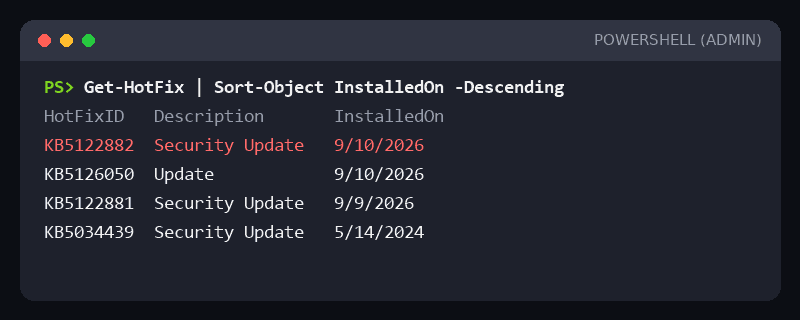
Three updates landed on 9 and 10 September:
- KB5122882: the September 2026 cumulative security update for Windows Server 2022 (OS build 20348.5622). This is the one that breaks RDS.
- KB5122881: the servicing stack update that ships with it.
- KB5126050: the September .NET Framework 3.5 and 4.8 update. Not related to this problem.
InstalledBy shows SYSTEM, and nobody on our side installed anything by hand. The updates arrived through normal patching, and RDP broke anyway.
What Microsoft says about KB5122882
Microsoft lists this as a known issue on the KB5122882 page. After installing the September 2026 security update, Remote Desktop Services can become unstable, with RDP connections failing after several minutes, sign-in issues, or servers hanging at “Please wait for the Remote Desktop Configuration”. The same note says MMC, the RDS Licensing Diagnoser and File Explorer can stop responding, and the Windows Update page can sit on a loading indicator.
Microsoft’s troubleshooting article for this issue (written for Azure VMs, but the bug is the same on any Windows Server) lists more symptoms: RDP connections that fail or stay at Connecting, sign-in that fails or stays at Welcome, and errors such as “This computer can’t connect to the remote computer.”, “The task you are trying to do can’t be completed because Remote Desktop Services is currently busy.” or “A licensing error occurred while the client was attempting to connect (licensing timed out).”
Our exact symptom, the client quietly going back to the Remote Desktop Connection window, isn’t spelled out word for word. It fits under failed sign-in, the timing matched, and KB5129237 made it stop. If your symptom is different, check the Windows Server 2022 release health page before assuming it’s this.
Is it this bug, or a normal RDP problem?
Remote Desktop closing after the password has other causes too, but those usually come with an error message:
- Wrong password: “The logon attempt failed”, and the client asks again.
- Account not allowed to use Remote Desktop: “To sign in remotely, you need the right to sign in through Remote Desktop Services…”
- Blocked port or firewall: it fails before the password stage, with “Remote Desktop can’t connect to the remote computer…”
The pattern for this bug is different. RDP worked fine before the September updates, the password is correct, nothing on the server changed, and it fails silently or hangs. A restart fixes it for a while, and then it’s back.
It isn’t only Server 2022. The equivalent September updates for Server 2019 and Server 2025 have the same problem, each with its own fix (see the version table above).
The workaround that kept us going: restart
Each time it happened, restarting the VM brought RDP back, at least for a while. On GCP you can do it without logging in. The cleanest way is Stop, then Start, in the console. If the VM won’t stop cleanly, there’s a hard reset:
gcloud compute instances reset INSTANCE_NAME --zone ZONEreset (and Reset in the console) is like pulling the power, so use it only when you can’t get in to restart Windows properly. A restart is not a fix. The bug comes back after a while. What it buys you is a window to log in and install the real fix.
The fix: KB5129237, from the Update Catalog
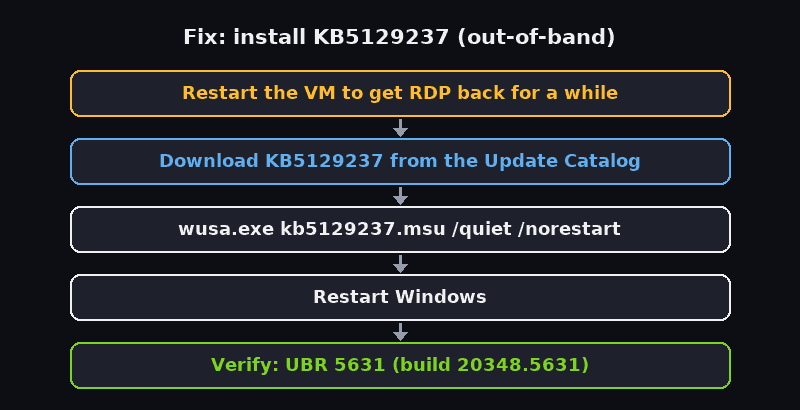
Microsoft fixed this in an out-of-band update on 14 September 2026: KB5129237, OS build 20348.5631. The catch is that Windows Update doesn’t install it automatically. Microsoft’s KB page points you to the Microsoft Update Catalog to download it. The KB page lists WSUS as not available, though Microsoft’s troubleshooting article says it syncs. If it doesn’t appear in your WSUS, import it from the Catalog. (The following monthly cumulative updates include the fix as well.) So a server that looks fully patched can still be broken. You don’t need to uninstall KB5122882 first. Install the fix on top of it.
Search for the KB number at catalog.update.microsoft.com. Two things that confused us:
- The product is listed as “Microsoft Server operating system-21H2”. That’s Windows Server 2022. The catalog doesn’t say “2022” anywhere.
- Our search result showed the title in French (“Mise à jour cumulative pour Microsoft server operating system version 21H2…”). The download dialog showed the English name, “2026-09 Cumulative Update for Microsoft server operating system version 21H2 for x64-based Systems (KB5129237)”. It’s the same package. The catalog sometimes shows a localised title, and it doesn’t matter.
The download is a single 560 MB .msu file named like windows10.0-kb5129237-x64_…msu. Yes, it says windows10.0. Server 2022 is NT 10.0 under the hood.
Once we were back in after a restart, we copied the file to the server and installed it:
wusa.exe C:\Temp\windows10.0-kb5129237-x64_....msu /quiet /norestart
Restart-Computer
Double-clicking the .msu works too. Plan for a restart either way.
After the restart, confirm it took:
Get-HotFix -Id KB5129237

(Get-ItemProperty 'HKLM:\SOFTWARE\Microsoft\Windows NT\CurrentVersion').UBR
The second command prints the build revision. You want 5631 (build 20348.5631) or higher. After installing KB5129237, Remote Desktop stopped closing after the password, and the problem never came back.
If you manage several servers, get it into WSUS (importing from the Catalog if needed) or push it with your normal tooling. Microsoft’s guidance is to install it on every affected RDP endpoint: session hosts, connection brokers, gateways, web access and licensing servers, domain controllers you RDP into, and plain servers you only RDP into for admin work. For domain-joined fleets where you can’t patch right away, Microsoft also published a Known Issue Rollback Group Policy as a temporary alternative.
What we found while we were in there: brute-force attempts
While checking the event logs for the login problem, we noticed something else. The Security log was full of failed logons from IP addresses we’d never heard of. The server’s RDP port was open to the internet, and bots were guessing passwords.
Event ID 4625 is a failed logon. This counts them by source IP for the last 24 hours:
Get-WinEvent -FilterHashtable @{LogName='Security'; Id=4625; StartTime=(Get-Date).AddDays(-1)} |
  ForEach-Object { $_.Properties[19].Value } |
  Group-Object | Sort-Object Count -Descending | Select-Object -First 10 Count, Name
If a lot of entries show - instead of an IP (common with Network Level Authentication), look at the Microsoft-Windows-RemoteDesktopServices-RdpCoreTS/Operational log, where Event 131 records the client’s address for each incoming connection.
Those attempts weren’t what made Remote Desktop close after the password, since the update fixed that on its own. But bot traffic doesn’t help an RDS service that’s already struggling. And if an account lockout policy is set, enough wrong guesses from bots can lock out your real users.
Lock RDP down to known IPs (Windows Firewall)
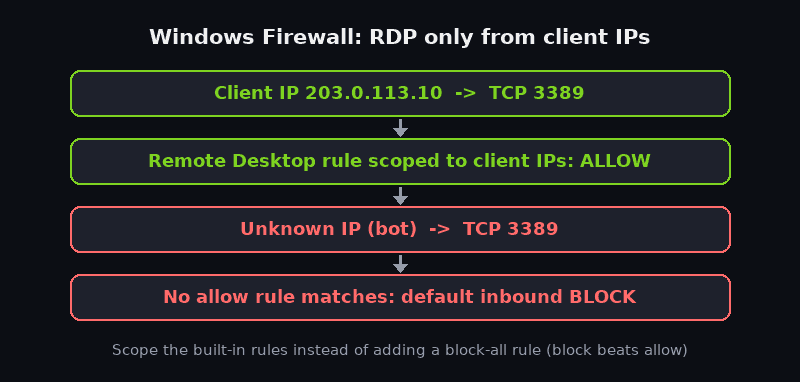
What we did: in Windows Defender Firewall on the server, we allowed RDP only from our clients’ IP addresses and blocked it for everyone else. After that, the failed logons from random IPs stopped.
The simplest way to get there is to scope the built-in Remote Desktop rules instead of adding new ones. Windows’ default for inbound traffic is to block anything no rule allows, so once the allow rules only cover your clients, everyone else is already denied.
See what’s allowing RDP right now:
Get-NetFirewallRule -DisplayGroup "Remote Desktop" |
  Format-Table DisplayName, Enabled, Direction, Action

Get-NetFirewallRule -DisplayGroup "Remote Desktop" | Get-NetFirewallAddressFilter
Out of the box, the remote address is Any. Restrict it to your client IPs:
Set-NetFirewallRule -DisplayGroup "Remote Desktop" `
  -RemoteAddress 203.0.113.10, 198.51.100.0/24
Use your own client and office addresses. This covers both the TCP and UDP 3389 rules. The same thing in the GUI: wf.msc → Inbound Rules → each Remote Desktop rule → Properties → Scope → Remote IP address → “These IP addresses”.
Two things to watch:
- Include the IP you’re connected from right now. If it’s not on the list, the change cuts off your own session, and you’re back to the cloud console to get in.
- In Windows Firewall, a block rule always wins over an allow rule. If you “deny all others” by adding a block rule for port 3389 from
Any, it blocks your allowed clients too. Either rely on the default inbound block (as above), or make sure any block rule’s remote addresses don’t include your clients.
Check what a client IP actually gets with Test-NetConnection SERVER -Port 3389 from an allowed machine, and from one that shouldn’t be allowed.
Optional: block it before it reaches the VM
Windows Firewall only filters traffic once it has reached the server. On Google Cloud you can also stop it at the network edge. The default network’s built-in default-allow-rdp rule allows port 3389 from 0.0.0.0/0, and you can narrow it the same way:
gcloud compute firewall-rules update default-allow-rdp \
  --source-ranges=203.0.113.10/32,198.51.100.0/24
Or take RDP off the internet entirely with IAP TCP forwarding: allow 3389 only from Google’s IAP range (35.235.240.0/20), give users the roles/iap.tunnelResourceAccessor role, and connect through gcloud compute start-iap-tunnel INSTANCE_NAME 3389 --local-host-port=localhost:13389 --zone ZONE. Two layers are better than one, but the Windows Firewall scoping alone was what stopped the brute-force attempts for us.
Quick reference
| Server version | September update that breaks RDS | Out-of-band fix (Update Catalog) |
|---|---|---|
| Windows Server 2019 | KB5122876 | KB5129238 |
| Windows Server 2022 | KB5122882 | KB5129237 (build 20348.5631) |
| Windows Server 2025 | KB5122871 | KB5129235 |
- Remote Desktop closes after entering the password, goes back to the connect screen, or hangs at sign-in? Check
Get-HotFixfor the September update. - Restart to get back in (from the cloud console if you have to).
- Download the out-of-band fix from the Update Catalog and install it. Windows Update won’t install it automatically.
- Check the build number after the restart.
- While you’re there: look at Event 4625, and stop exposing 3389 to the internet.
Related: can’t connect via RDP: admin checklist, fail2ban vs cloud security groups for the same brute-force problem on Linux, and misconfigurations that get servers popped.