Automatic WordPress Backups to Google Drive on a Docker VPS (Free, With rclone)
A WordPress backup plugin is better than nothing, but it lives inside the thing it is protecting: if the site breaks, the plugin may break with it, and a plugin that stores its backups on the same server shares that server’s failure risk. If you run WordPress on your own VPS, a more dependable approach is a small script at the server level that dumps the database, archives the files, keeps a few generations, and copies them to somewhere else. This guide builds exactly that for WordPress running in Docker containers (the layout Coolify uses), with Google Drive’s free 15 GB as the off-server copy and rclone as the uploader. It adds no storage subscription cost while the backups fit in your free quota, and once set up it runs every night; you still need to read the log now and then.
The commands and outputs here come from a real setup of two WordPress sites on one Ubuntu 24.04 VPS. Container names, site names and paths are generic, and no secrets appear in any command.
The plan
- Every night,
mariadb-dumpwrites a compressed dump of each site’s database. tararchives each site’swp-content(without cache and plugins),wp-config.phpand.htaccess.- Old copies are deleted: locally, seven days of daily copies plus the Sunday copies for five weeks; on Drive, every daily copy for 36 days.
rcloneuploads the new files to Google Drive and prunes Drive to the same age limit.- You test a restore, because a backup nobody has restored is only a hope.
Plugins are left out of the archive on purpose. Free plugins can be reinstalled from the WordPress directory and plugin folders are often large, so the script saves a short text file with each plugin’s name and version instead. Premium or custom plugins cannot be reinstalled from the directory, so keep a copy of those zip files somewhere safe.
What you need
- Root access to a Linux VPS where WordPress and MariaDB (or MySQL) run in Docker containers
- Free disk space for the copies you keep. The two sites in this setup produce about 130 MB combined per run; measure your own
- A Google account (the free 15 GB is shared with Gmail and Photos)
rcloneon the server (sudo apt install rcloneon Ubuntu 24.04 installs version 1.60.1)
Step 1: dump the database without exposing the password
The database password should not appear in a process’s arguments, because other users on the machine can read those. The MariaDB container already holds the password in an environment variable, so run the dump inside the container and pass the password through the MYSQL_PWD variable, which the client reads instead of a -p argument:
set -o pipefail
docker exec mariadb-CONTAINER sh -c \
  'MYSQL_PWD="$MYSQL_ROOT_PASSWORD" mariadb-dump -uroot --single-transaction --quick \
   --routines --triggers "$MYSQL_DATABASE"' | gzip -9 > site-db.sql.gz
The command is in single quotes, so $MYSQL_ROOT_PASSWORD and $MYSQL_DATABASE are expanded by the shell inside the container, not by yours, and the password never lands in your shell history. --single-transaction gives a consistent snapshot of InnoDB tables without locking the site, as long as nobody changes the table structure while it runs; it does not cover non-transactional tables, and it is not synchronised with the files archive that follows. set -o pipefail matters: without it, a failed dump can leave a valid but empty gzip file. Check the result with gzip -t site-db.sql.gz, which confirms the file is a valid gzip file, not that the dump is complete.
The dump has no CREATE DATABASE line, so you choose the destination database when you import it. Pick carefully: importing into your live database replaces its tables.
Step 2: archive the files
Docker keeps the WordPress files in a named volume on the host, normally under /var/lib/docker/volumes/. Run docker ps and docker inspect CONTAINER to confirm your own container names and the volume path, because the names below are from this setup. Archive the volume directly from the host:
V=/var/lib/docker/volumes/CONTAINERID_wordpress-files/_data
tar czf site-files.tgz -C "$V" \
  --exclude=wp-content/cache --exclude=wp-content/plugins \
  --exclude=wp-content/upgrade --exclude='*.log' \
  wp-content wp-config.php .htaccess
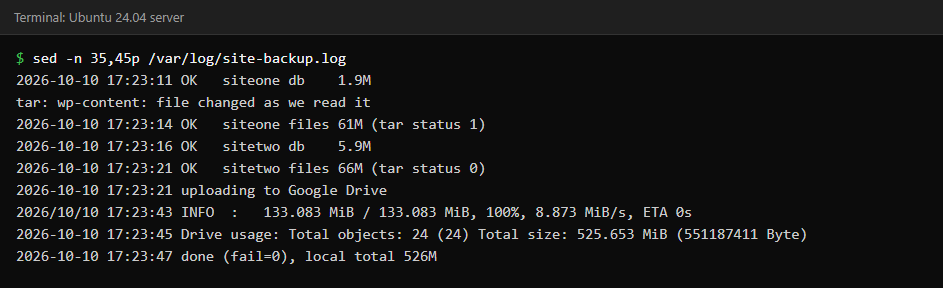
A live site changes files while tar reads them, and tar then prints file changed as we read it and exits with status 1. Status 1 means the archive was written but a file changed underneath it, so one cache or log file may be inconsistent; status 2 or higher is a real error. A script that treats every non-zero status as a failure would report a failed backup every night, so this one accepts 0 and 1 and then runs tar tzf, which proves the archive is readable but not that every file inside is complete.
Step 3: the complete script
Save this as /root/backup-sites.sh, make it executable with chmod 700, and edit the SITES line to hold your own name and container ID pairs. The database container is expected to be called mariadb-<id> and the volume <id>_wordpress-files, which is the Coolify naming; change those two patterns if yours differ.
#!/bin/bash
# Nightly backup of the WordPress sites on this VPS: database dump + site files + plugin list.
# Local retention: 7 days of daily copies plus Sunday copies for 5 weeks.
# Optionally calls /root/backup-upload.sh (Google Drive upload) at the end.
set -uo pipefail
B=/root/backups/sites
TS=$(date +%Y%m%d-%H%M)
LOG=/var/log/site-backup.log
SITES="siteone:CONTAINERID1 sitetwo:CONTAINERID2"
umask 077
log() { echo "$(date '+%F %T') $*" >> "$LOG"; }

# never run two backups at once
exec 9>/var/lock/site-backup.lock
flock -n 9 || { log "SKIP another backup is still running"; exit 1; }

mkdir -p "$B"
fail=0

for pair in $SITES; do
  name=${pair%%:*}; id=${pair##*:}
  D="$B/$name"; mkdir -p "$D"
  V=/var/lib/docker/volumes/${id}_wordpress-files/_data
  site_ok=1

  # 1. database. MYSQL_PWD keeps the password out of the process arguments.
  out="$D/$name-$TS-db.sql.gz"
  if docker exec "mariadb-$id" sh -c 'MYSQL_PWD="$MYSQL_ROOT_PASSWORD" mariadb-dump -uroot --single-transaction --quick --routines --triggers "$MYSQL_DATABASE"' 2>>"$LOG" | gzip -9 > "$out" && gzip -t "$out"; then
    log "OK   $name db    $(du -h "$out" | cut -f1)"
  else
    log "FAIL $name db"; rm -f "$out"; site_ok=0
  fi

  # 2. files. Plugins are reinstallable, so only a list of them is kept.
  out="$D/$name-$TS-files.tgz"
  if [ ! -d "$V/wp-content" ] || [ ! -f "$V/wp-config.php" ]; then
    log "FAIL $name files: wp-content or wp-config.php not found in $V"; site_ok=0
  else
    for p in "$V"/wp-content/plugins/*/; do
      n=$(basename "$p"); v=$(grep -m1 -ih '^[ */]*Version:' "$p"*.php 2>/dev/null | head -1 | sed 's/.*[Vv]ersion: *//; s/\r//')
      echo "$n $v"
    done > "$D/$name-$TS-plugins.txt" 2>/dev/null
    items="wp-content wp-config.php"
    for f in .htaccess ads.txt robots.txt; do [ -e "$V/$f" ] && items="$items $f"; done
    tar czf "$out" -C "$V" --exclude=wp-content/cache --exclude=wp-content/plugins --exclude=wp-content/upgrade --exclude=wp-content/wflogs --exclude=wp-content/uploads/rank-math --exclude='*.log' $items 2>>"$LOG"; rc=$?
    # tar exit 1 = a file changed while being read (e.g. a log or cache); 2 or more = real error
    if [ $rc -le 1 ] && tar tzf "$out" > /dev/null 2>&1; then
      log "OK   $name files $(du -h "$out" | cut -f1) (tar status $rc)"
    else
      log "FAIL $name files (tar status $rc)"; rm -f "$out"; site_ok=0
    fi
  fi

  # 3. retention, only when this site's backup succeeded (so repeated failures never delete the last good copies)
  if [ $site_ok -eq 1 ]; then
    find "$D" -type f -mtime +35 -delete
    find "$D" -type f -mtime +7 | while read f; do
      d=$(basename "$f" | grep -oE '[0-9]{8}' | head -1)
      [ -n "$d" ] && [ "$(date -d "$d" +%u 2>/dev/null)" != "7" ] && rm -f "$f"
    done
  else
    fail=1
  fi
done

if [ -x /root/backup-upload.sh ]; then
  /root/backup-upload.sh >> "$LOG" 2>&1 || { log "FAIL upload to Google Drive"; fail=1; }
fi
log "done (fail=$fail), local total $(du -sh "$B" | cut -f1)"
exit $fail
A few details are worth knowing. umask 077 makes every backup readable by root only, which matters because a database dump contains user accounts and password hashes. flock stops a slow run from overlapping the next one. Retention only runs when that site’s backup succeeded, so a string of failures cannot delete your last good copies. The Sunday rule uses date +%u, where 7 is Sunday. -mtime +7 means older than seven full days, so these are age limits rather than exact copy counts. The script exits non-zero if anything failed, which lets a monitoring tool notice.
Run it once by hand and read the log:
Step 4: schedule it
A file in /etc/cron.d/ is the simplest way, because it needs no crontab -e. It has an extra column for the user:
30 21 * * * root /root/backup-sites.shCron on most servers uses the server’s time zone, which on a VPS is usually UTC, so 21:30 here is 03:00 in India. Pick a quiet hour for your own visitors.
Step 5: connect Google Drive with rclone
A server has no browser, so rclone’s sign-in happens on your own computer and only the result is copied across. On your PC, install rclone (winget install Rclone.Rclone on Windows) and run the authorize command, naming the scope you want. The scope drive.file lets rclone see only the files it created itself, not the rest of your Drive, which is the least access that works:
rclone authorize "drive" "eyJzY29wZSI6ImRyaXZlLmZpbGUifQ"The long string is the base64 form of {"scope":"drive.file"}. Current rclone versions reject it if it carries the trailing = padding, with an error like illegal base64 data at input byte 30, so leave the padding off. Your browser opens, you sign in to Google and choose Allow, and the command prints a block of text that contains your access and refresh tokens. Treat that block like a password.
rclone’s documentation recommends creating your own Google OAuth client ID for steady, long-term use instead of its shared built-in one, which is rate limited and can be changed by Google. The shared one is fine to get started, and you can add your own client ID later without losing the backups.
On the server, either run rclone config and paste the block when it asks for a token (create a remote named gdrive, storage type drive, scope 3, and answer n to “use auto config”), or write the equivalent file directly and restrict it to root:
[gdrive]
type = drive
scope = drive.file
token = {"access_token":"...","token_type":"Bearer","refresh_token":"...","expiry":"..."}
Save that as /root/.config/rclone/rclone.conf and run chmod 600 on it. Then check that the connection works:
rclone listremotes
rclone about gdrive:
rclone about shows how much of the 15 GB is used and free. If you use drive.file, rclone lsd gdrive: will list nothing at first, because rclone cannot see folders it did not create. That is expected.
Step 6: upload and prune on Drive
Save this as /root/backup-upload.sh and make it executable. The backup script above calls it at the end when it exists, and logs a failure if it exits with an error:
#!/bin/bash
# Uploads the site backups to Google Drive (rclone remote "gdrive") and prunes old copies there.
# Called at the end of /root/backup-sites.sh. Exits non-zero on any failure so the caller can log it.
set -uo pipefail
RC=$(command -v rclone) || { echo "$(date '+%F %T') upload FAILED: rclone not installed"; exit 1; }
if ! $RC listremotes 2>/dev/null | grep -q '^gdrive:$'; then
  echo "$(date '+%F %T') upload skipped: no gdrive remote configured"; exit 0
fi
echo "$(date '+%F %T') uploading to Google Drive"
# copy skips files that are already on Drive with the same size, so a missed night is caught up automatically
$RC copy /root/backups/sites gdrive:site-backups --transfers 2 --stats-one-line -v 2>&1 | tail -3
[ "${PIPESTATUS[0]}" -eq 0 ] || { echo "$(date '+%F %T') upload FAILED"; exit 1; }
# Drive keeps every daily copy for 36 days (about 5 weeks). Deleted files skip the Trash so they free quota at once.
$RC delete gdrive:site-backups --min-age 36d --rmdirs --drive-use-trash=false 2>&1 | tail -2
echo "$(date '+%F %T') Drive usage: $($RC size gdrive:site-backups 2>/dev/null | tr '\n' ' ')"
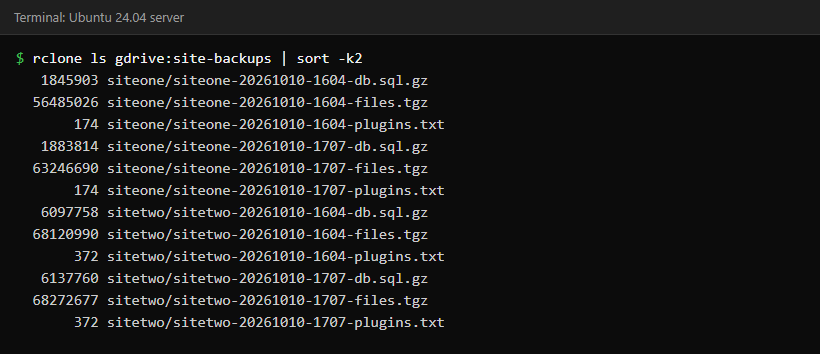
rclone copy skips files that are already on Drive with the same size, so if the server or the connection is down for a few nights, the next run uploads everything that is missing. Each nightly archive is a new full-size file; this is not an incremental backup. rclone copy never deletes from the destination, so the explicit delete keeps Drive from filling up. By default, deleted files go to Google’s Trash and still count against your quota for up to 30 days, so the command above adds --drive-use-trash=false to delete them permanently. Remember that this is irreversible. Drive keeps every daily copy for 36 days, which is more than the local seven days, so plan for roughly 36 nights of archives: at about 130 MB a night that is around 4.7 GB.
Step 7: test a restore
A backup is only useful if you have restored from it at least once. You do not have to touch the live site to test: restore the dump into a new, uniquely named database on the same MariaDB server, compare it with the live one, then drop it. The script below stops if the test database cannot be created, so it can never import into or drop a database that already exists:
set -e
T=zz_restore_$(date +%s)
docker exec mariadb-CONTAINER sh -c "MYSQL_PWD=\"\$MYSQL_ROOT_PASSWORD\" mariadb -uroot -e 'CREATE DATABASE $T'"
zcat site-db.sql.gz | docker exec -i mariadb-CONTAINER sh -c "MYSQL_PWD=\"\$MYSQL_ROOT_PASSWORD\" mariadb -uroot $T"
# compare table and row counts with the live database, then:
docker exec mariadb-CONTAINER sh -c "MYSQL_PWD=\"\$MYSQL_ROOT_PASSWORD\" mariadb -uroot -e 'DROP DATABASE $T'"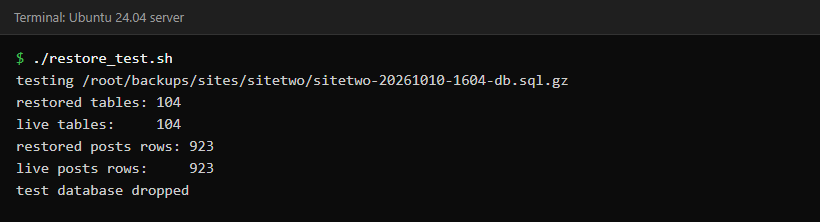
Matching table and row counts show that the dump imports cleanly; they do not prove that a whole site comes back working. For a real disaster you would extract the files archive into a fresh WordPress volume, import the dump into an empty database, reinstall the plugins from the saved list, and set the database details in wp-config.php. Practise that once on a spare server, with the real container configuration, so you are not learning it during an outage.
Keeping it safe
- Protect the Google account. Backups include a copy of your database. Turn on two-step verification, because anyone who gets into that account gets your data.
- Keep the rclone config private. It holds a refresh token. It should be mode 600 and owned by root, and should never be pasted into a ticket or a chat.
- Revoke access if needed. In your Google account’s security settings, under third-party access, you can remove rclone’s access at any time, which makes the token useless.
- Check the log. Look at
/var/log/site-backup.logafter the first few nights and now and then afterwards. The script exits non-zero on failure, so you can later connect it to an email or a monitoring ping.
Common questions
Does this also work with MySQL, or without Docker?
Yes. Replace mariadb-dump with mysqldump and run it on the host (with credentials in a protected ~/.my.cnf) when the database is not in a container. Archive the WordPress directory directly instead of the Docker volume path.
How big will it get?
Roughly the size of your database and uploads, compressed, times the copies kept. Two small sites came to about 130 MB combined per night here, so 36 nights on Drive is around 4.7 GB, which fits in a free 15 GB account as long as Gmail and Photos leave room.
Why not use a backup plugin?
You still can, and a plugin is handy for one-click restores. A server-level script runs independently of WordPress, so a broken update or a deleted plugin cannot stop it. It is not immune to a compromised server, though: an attacker with root could also reach your backups and upload credentials, which is another reason to keep a copy off the server.
Is Google Drive a good long-term backup target?
For a small site it is a free and sensible off-site copy. For anything business critical, add a second destination, such as object storage or a different provider, so one account problem cannot take out both the site and its backups.
Keep reading
- Linux File Transfer Cheat Sheet: scp, rsync, sftp, curl and netcat — rsync, scp and the other ways to move files between servers.
- Cron Job Not Running? Checklist Before Blaming cron — What to check when a scheduled job does not run.
- Schedule and Wrap Cron Jobs Safely (Bash Ops) — Wrap cron jobs with locks and logging.
Sources
- rclone documentation: Google Drive
- rclone documentation: rclone authorize
- MariaDB documentation: mariadb-dump
- GNU tar manual: exit status
- Google Drive API: choose scopes (drive.file)
Related: Before you change your PHP version, take a backup like this one, then follow the safe order of steps to update PHP in WordPress.
Related: If WordPress also runs in a container on your host, see how to replace WP-Cron with a real cron job for its scheduled tasks.