
Linux File Transfer Cheat Sheet: scp, rsync, sftp, curl and netcat
Moving a file between two machines is one of those jobs with several good answers and no obvious way to choose. scp is the one everyone types from memory, rsync is the one that saves you when the transfer is large or gets interrupted, and curl, wget, sftp and nc each win in a narrower situation. This cheat sheet keeps the commands in one place, says when to pick which, and points out the details that cause trouble, such as the trailing slash on an rsync source or the fact that Python’s built-in web server cannot resume a download.
The examples were run on an Ubuntu 24.04 server (OpenSSH 9.6, rsync 3.2.7) and from a Windows 11 PC for the SSH-based ones, so the output in the screenshots comes from real runs. The rsync demonstrations copy between two folders on the server, which keeps the output short; the flags are the same when one side is user@host:, but a local copy always sends whole files, whereas over a network rsync can send just the changed blocks of a file. Paths such as /srv/backups are examples: the destination folder must exist and be writable by the account you connect as, and example.com is a placeholder host. The server address in the screenshots is replaced with a documentation address.
Which tool for which job
| Situation | Use | Why |
|---|---|---|
| One file, once, over SSH | scp |
Shortest command, works anywhere SSH works |
| A folder you will copy again | rsync |
Sends only what changed, can resume, can preview with a dry run |
| Large file over a flaky link | rsync --partial or --append-verify |
Picks up where it stopped |
| Interactive browsing and a few files | sftp |
Lets you ls, cd and get or put |
| Pull a file from a URL | curl or wget |
Follows redirects, resumes if the server supports it |
| Copy a directory tree without rsync installed | tar piped over ssh |
Preserves permissions and needs nothing but tar and SSH |
| Quick transfer inside a trusted network | nc or python3 -m http.server |
No setup, but no encryption and no authentication |
scp, sftp and tar over SSH
All three ride on an SSH connection, so they use the same keys and the same host-key checks as a normal login. They also need a little more than a login: scp and sftp need the server’s SFTP subsystem (enabled by default on most systems), and tar over SSH needs permission to run commands on the remote side.
# local to remote
scp report.bin user@server:/tmp/

# remote to local
scp user@server:/var/log/syslog ./

# a directory (-r), a non-default port (-P, capital) and compression (-C)
scp -r -P 2222 -C project/ user@server:/srv/backups/
Two details catch people out. The port option is a capital -P for scp but a lowercase -p for ssh (and in scp a lowercase -p means preserve timestamps). And a remote path that contains spaces needs quoting. Older scp versions passed the path through the remote shell, which meant an extra layer of quotes; with the SFTP-based scp described next, ordinary quoting is usually enough. A single-quoted remote path, as in scp user@server:'/srv/my files/a.txt' ., is the form to try first.
Since OpenSSH 9.0, scp transfers files using the SFTP protocol by default instead of the old SCP/RCP protocol. The command line looks the same. If you ever need the old behaviour for a very old server, scp -O forces it. Add -p if you want to keep the file’s modification time and permission bits.
sftp can also be scripted. A batch file with -b runs commands without prompting:
sftp -b batch.txt user@serverTar over SSH is the fallback when rsync is missing on one side. It streams an archive through the connection and unpacks it on arrival. Add p to the extract options (xzpf) so permissions are restored as stored, because an ordinary user’s extraction otherwise applies the local umask:
tar czf - src | ssh user@server "tar xzpf - -C /srv/backups"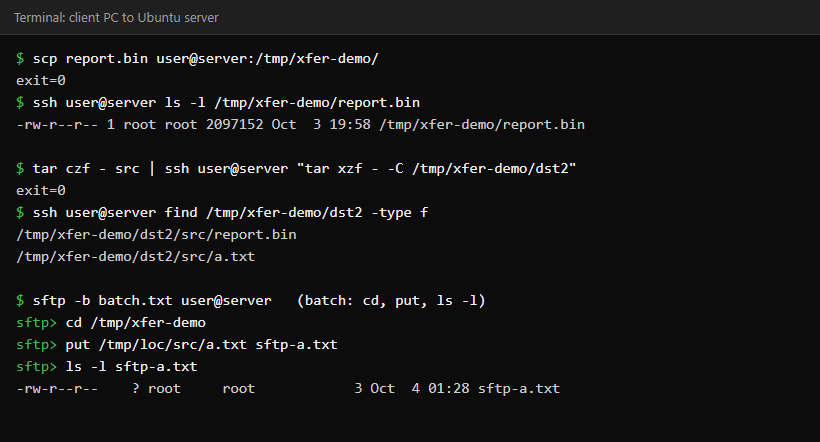
rsync: the best choice for repeated transfers
rsync compares source and destination, by default using file size and modification time, and copies only what differs. Over a network it can go further and send just the changed blocks of a large file. The first copy takes as long as any other tool; later copies are usually much quicker because unchanged files are skipped. The flag combination to memorise is -avh: -a (archive) copies recursively and keeps permissions, timestamps, symlinks and, where your privileges allow it, ownership and group; -v lists what it does; and -h prints sizes in readable units. Archive mode does not include ACLs, extended attributes or hard links (those need -A, -X and -H).
rsync -avh src/ user@server:/srv/backups/src/Always preview with a dry run first
Add -n (or --dry-run) and rsync prints what it would do without changing anything. It is cheap insurance, especially before a command with --delete in it.
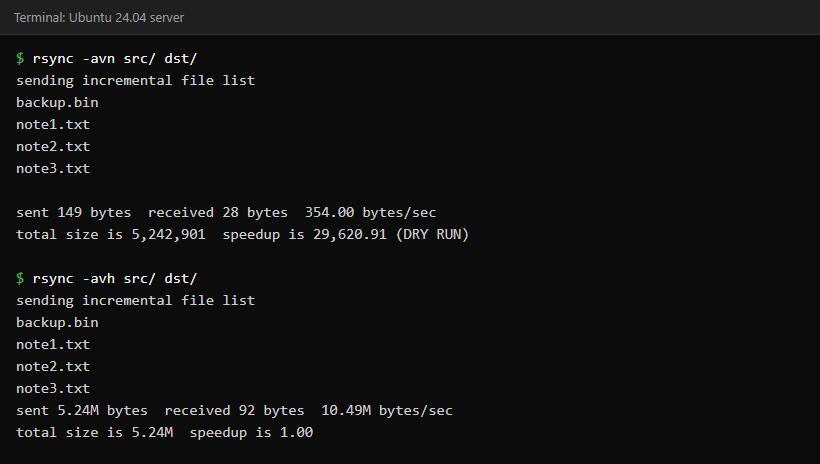
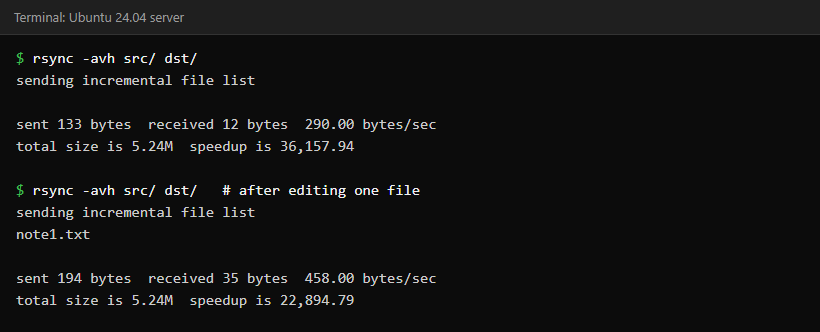
Only the changed files move on the second run
Run the same command again and rsync finds nothing to send. Edit one small file, run it once more, and only that file is transferred, even though a 5 MiB file sits in the same folder.
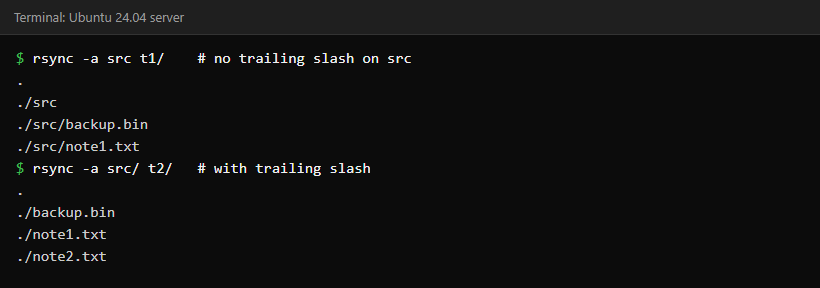
The trailing slash decides where the files land
This is the rsync detail that causes the most mistakes. A trailing slash on the source means “the contents of this folder”; without it, rsync copies the folder itself into the destination.
Resuming an interrupted copy
Two options matter. --partial keeps a half-transferred file instead of deleting it, so the next run can reuse that data rather than starting from zero. -P is shorthand for --partial --progress. For one big file that was cut off and is known to be a clean partial copy of the same file, --append-verify sends only the missing tail and then checks the whole file. It skips a destination that is already as large as the source or larger, so it is not a general-purpose repair option.
rsync -avh --append-verify --stats src/backup.bin dst/resume.bin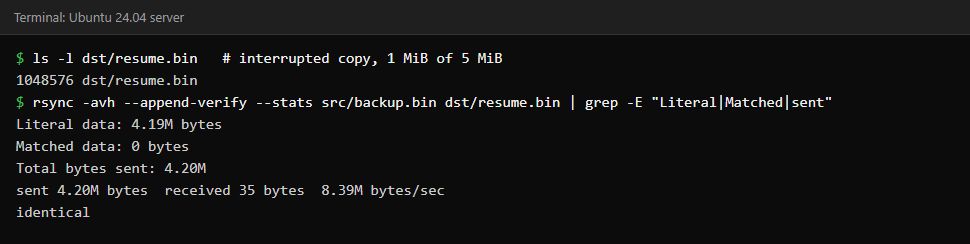
–delete makes the destination match the source
--delete removes files from the destination that are not in the source. That is what you want for a mirror and exactly what you do not want if you pointed it at the wrong folder. Preview first:
rsync -avn --delete src/ dst/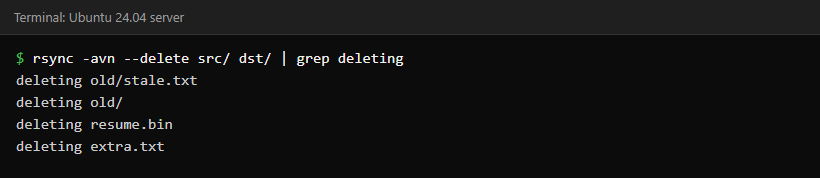
Other flags you will use regularly: -z compresses data in transit (useful on slow links, a waste on already-compressed files), --exclude 'pattern' skips matches, --bwlimit=RATE caps the speed (the number is in KiB per second unless you add a suffix), -e 'ssh -p 2222' chooses the SSH options, and --rsync-path='sudo rsync' lets the remote side write to folders only root can change.
curl and wget for downloads
These fetch from a URL. curl -fO saves the file under its remote name and exits non-zero on an HTTP error; -L follows redirects. wget does the same job with a different syntax and is happy to run in the background.
curl -fLO https://example.com/file.tar.gz
wget -c https://example.com/file.tar.gz
Both can resume a partial download (curl -C -, wget -c), but only when the server supports HTTP byte ranges. That is not a given, as the next section shows.
A temporary web server with Python
When you need to hand a file to another machine on the same network, one line starts a web server for the current folder:
python3 -m http.server 8099 --bind 127.0.0.1The demonstration binds to the loopback address, so only the server itself can reach it. To let another machine download the file, bind to the server’s own LAN address instead (or leave --bind out to listen on all interfaces). It has no password and shows a directory listing, so use it only on a trusted network, stop it as soon as the transfer finishes, and make sure a firewall is not exposing the port to the internet.
It also has a limitation worth knowing. On Python 3.12.3 it did not honour byte-range requests, so a resumed download with curl -C - failed:
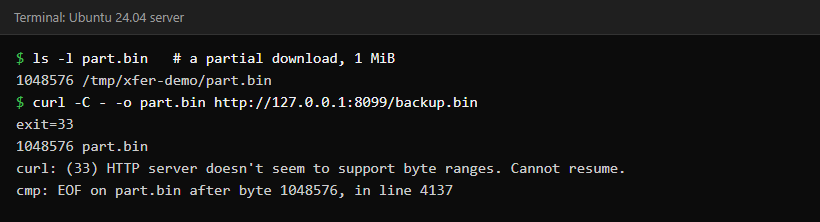
If you need resumable transfers, use rsync, or serve the file from a web server that supports byte ranges.
netcat for a raw transfer
netcat sends bytes over a TCP connection with nothing around them: no encryption, no authentication and no checksum of its own. That makes it quick on a trusted network and a poor choice anywhere else. The receiver listens and writes to a file; the sender connects and reads from one:
# receiver
nc -l 9099 > received.bin

# sender (OpenBSD netcat: -N closes the connection at end of file)
nc -N receiver-host 9099 < backup.bin
The flags differ between netcat variants. The commands above are for the OpenBSD netcat that ships with Debian and Ubuntu; other variants use different options for the listening port and for closing at end of file, so check nc -h on your system. Because nothing checks the data for you, compare checksums afterwards:
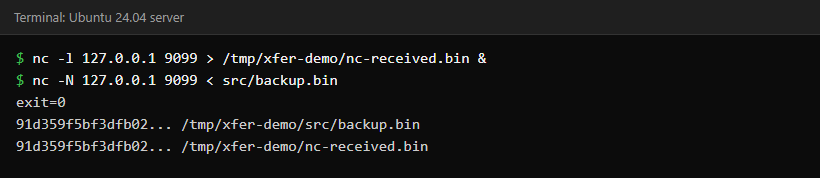
Check that the copy is intact
For anything important, compare a hash on both ends. sha256sum file prints one; if the two values match, the two files you compared are identical. rsync and scp already protect the data on the wire, so a checksum mostly matters for netcat and plain HTTP, and as a final check on a very large copy. Note that it proves the copy matches the file you hashed; it cannot tell you that you picked the right file.
Common questions
Is scp deprecated?
The old SCP protocol is considered outdated, which is why OpenSSH 9.0 switched the scp command to the SFTP protocol underneath. The command itself is still included and still works. For anything beyond a single file, rsync is usually the better tool.
Why does rsync copy my folder inside the destination folder?
The source path had no trailing slash. Add one (src/) to copy the folder’s contents instead of the folder itself.
How do I copy between two remote servers?
The simplest way is to run the command on one of them so it pushes to the other. With scp from your own machine, current OpenSSH versions (9.0 and later) send the data through your computer by default; -3 asks for that explicitly, and -R makes the servers talk directly, which only works if they can reach each other. Routing through your machine may be slower, depending on the network path.
Which is fastest?
It depends on the network, the disks, the CPU and the file layout, so there is no single winner. For one large file, the link is usually the limit. rsync tends to win on repeated copies because it skips files that have not changed.
Keep reading
- SSH Permission Denied (publickey): Fix It Without Locking Yourself Out — What to check when scp or rsync over SSH is refused.
- SSH Hardening Checklist for Production Linux Servers (2026) — Secure the SSH access that these tools rely on.
- Linux Disk Full: df, du, lsof, and Inodes — Check free space and inodes before a large copy.

![[Fix] Gigabyte GA-H170M-D3H Boot Loop and Power Issues – No Display - featured illustration](https://sysadmin.co.in/wp-content/uploads/2026/09/fix-gigabyte-ga-h170m-d3h-boot-loop-and--768x432.png)